Feature Purpose:
This feature is used within the mobile app for several purposes:
-
to display the list of the exhibitors
-
to find the most interesting profiles via filters, sorting, or search.
-
to interact with these interesting exhibitor profiles - favorite, open profiles and send messages / meeting requests
Working with this Feature:
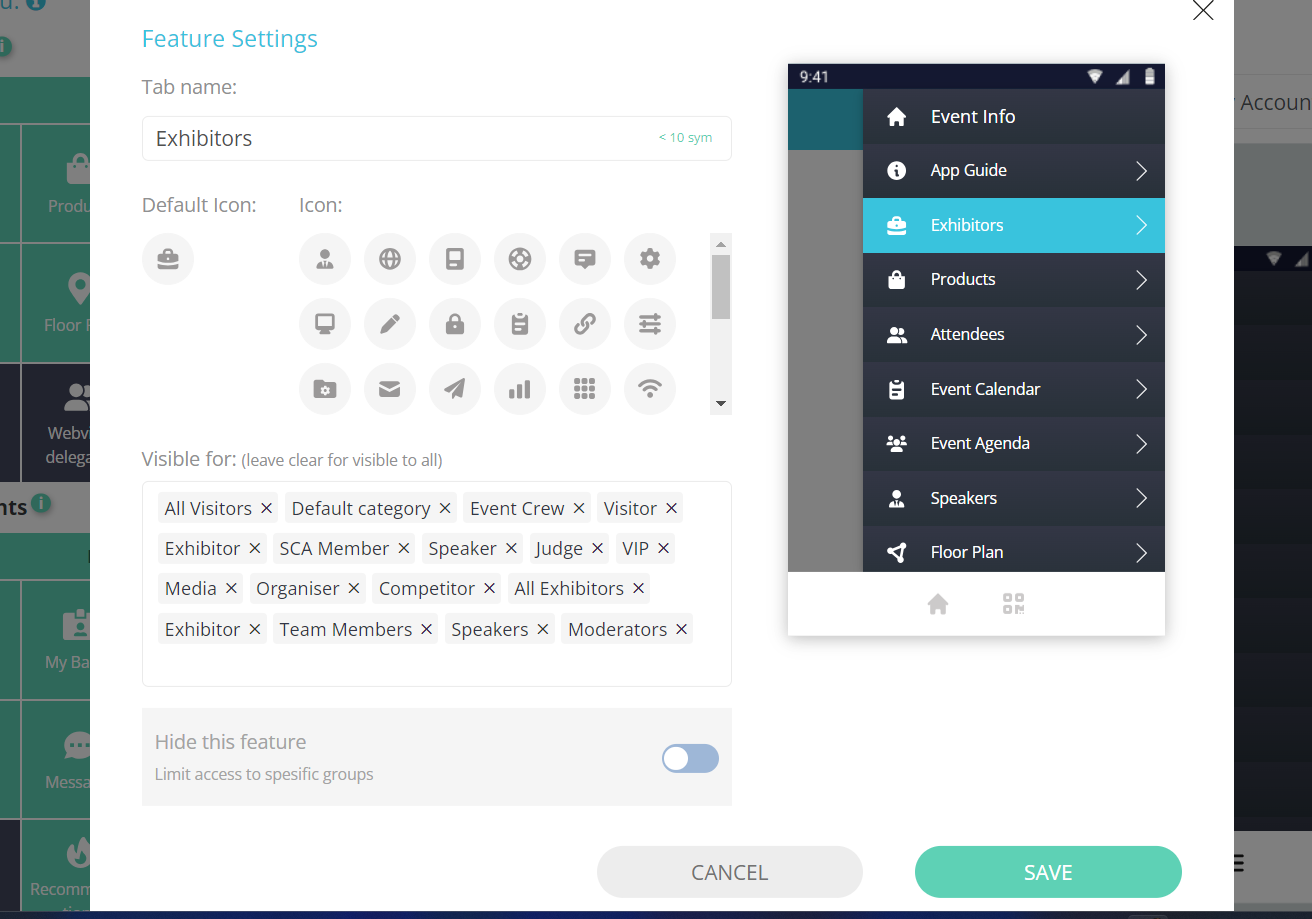
The menu item for the exhibitors list can be disabled/enabled for specific categories in the App builder.
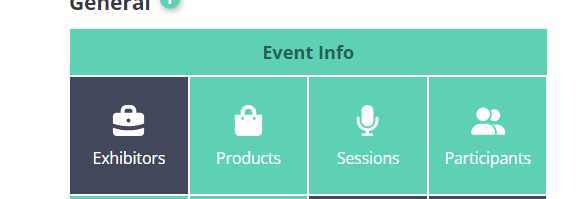
To enable/disable the Exhibitor List, navigate to App Builder >>> Features tab >>> Exhibitor List :
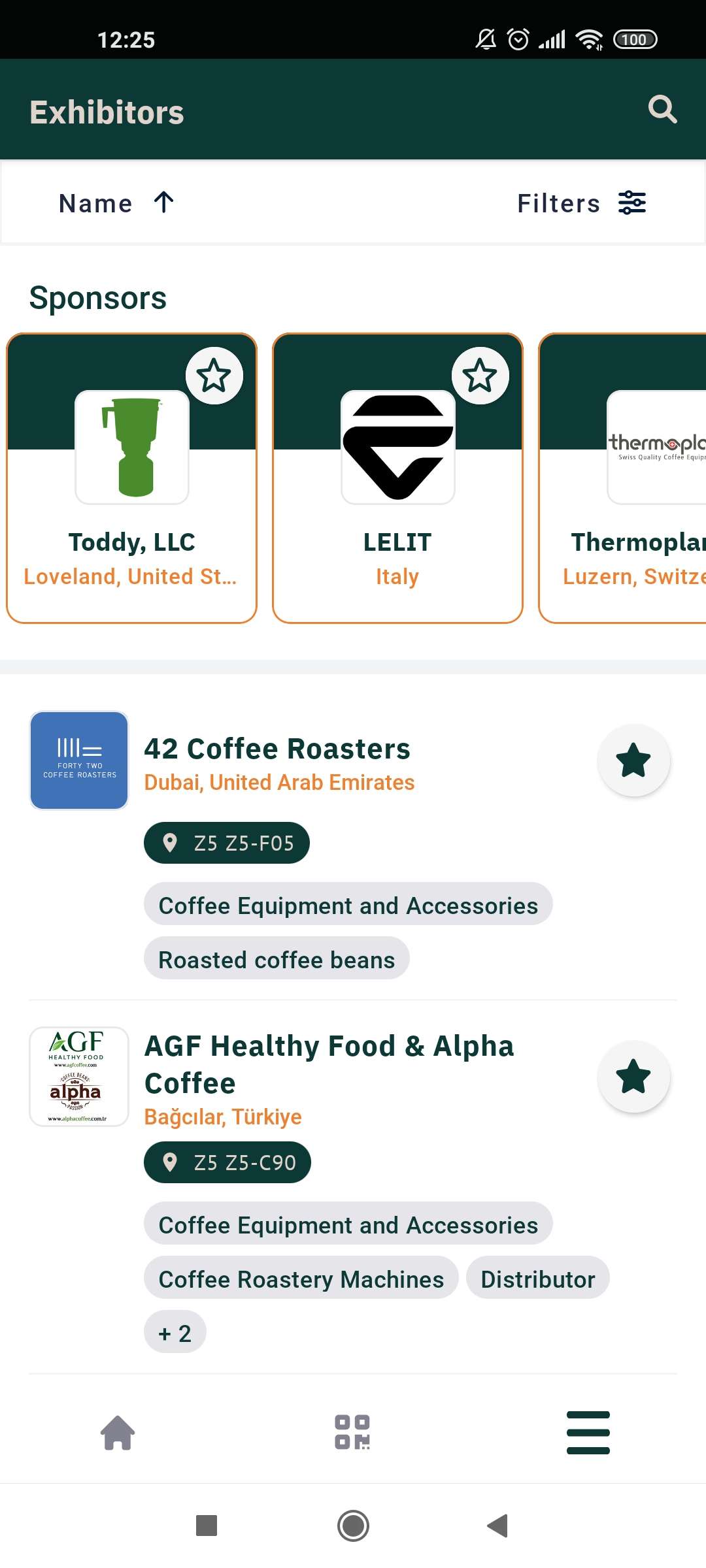
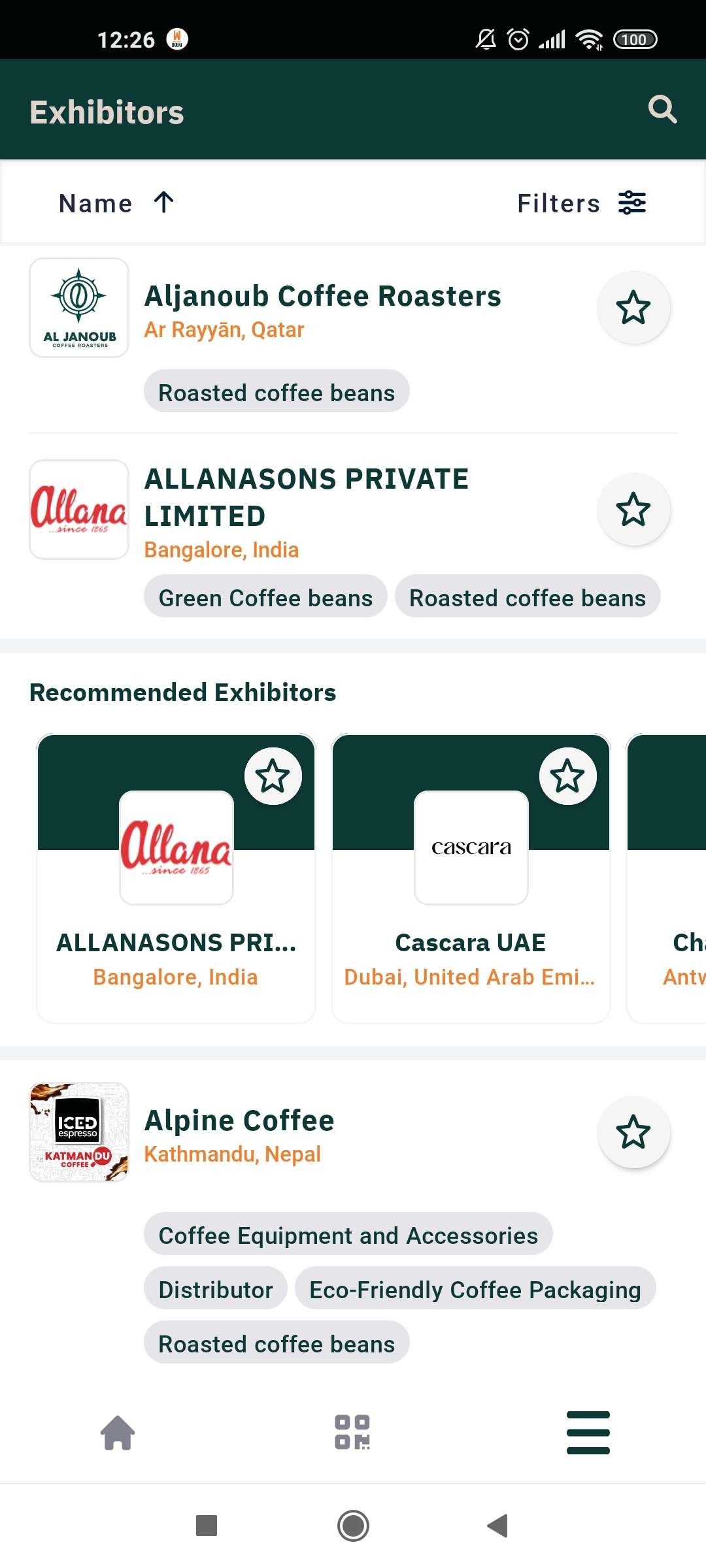
Page contains:
-
search function
-
sorting
-
filtration
-
banner block
-
sponsors block
-
recommendation block
-
all exhibitors list
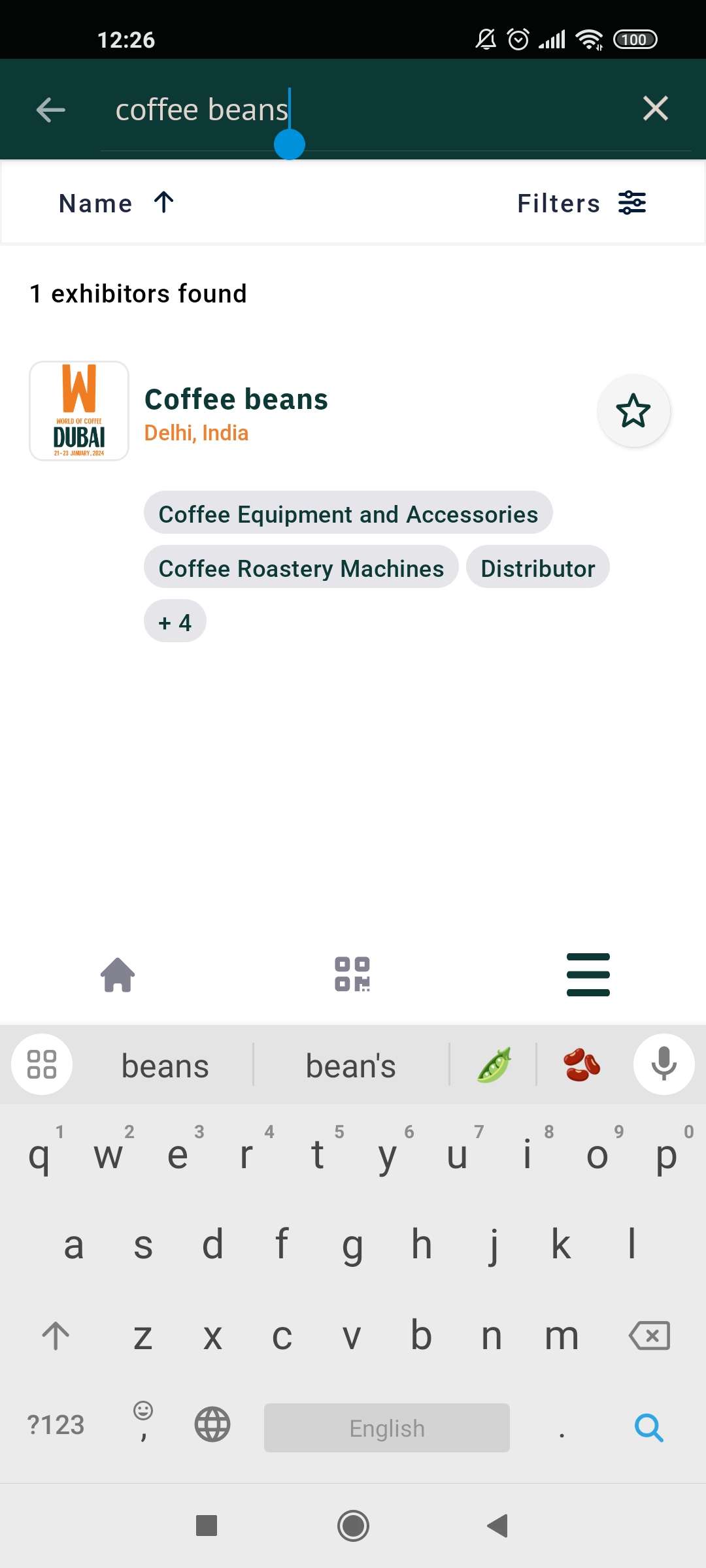
Search
Works by exhibitor name, exhibitor city and exhibitor country
Please note - Elastic search is used on the web but not on the app. The differences with elastic search are:
-
All content on the website is searched. On the app only the current list is searched.
-
Weightings can be applied to influence search results. On the app this is not possible
-
On the web, fuzzy search is used. On the app an exact keyword match is required to generate a search result. Elastic search settings are available under Networking and Matchmaking → Search and applicable for Web.
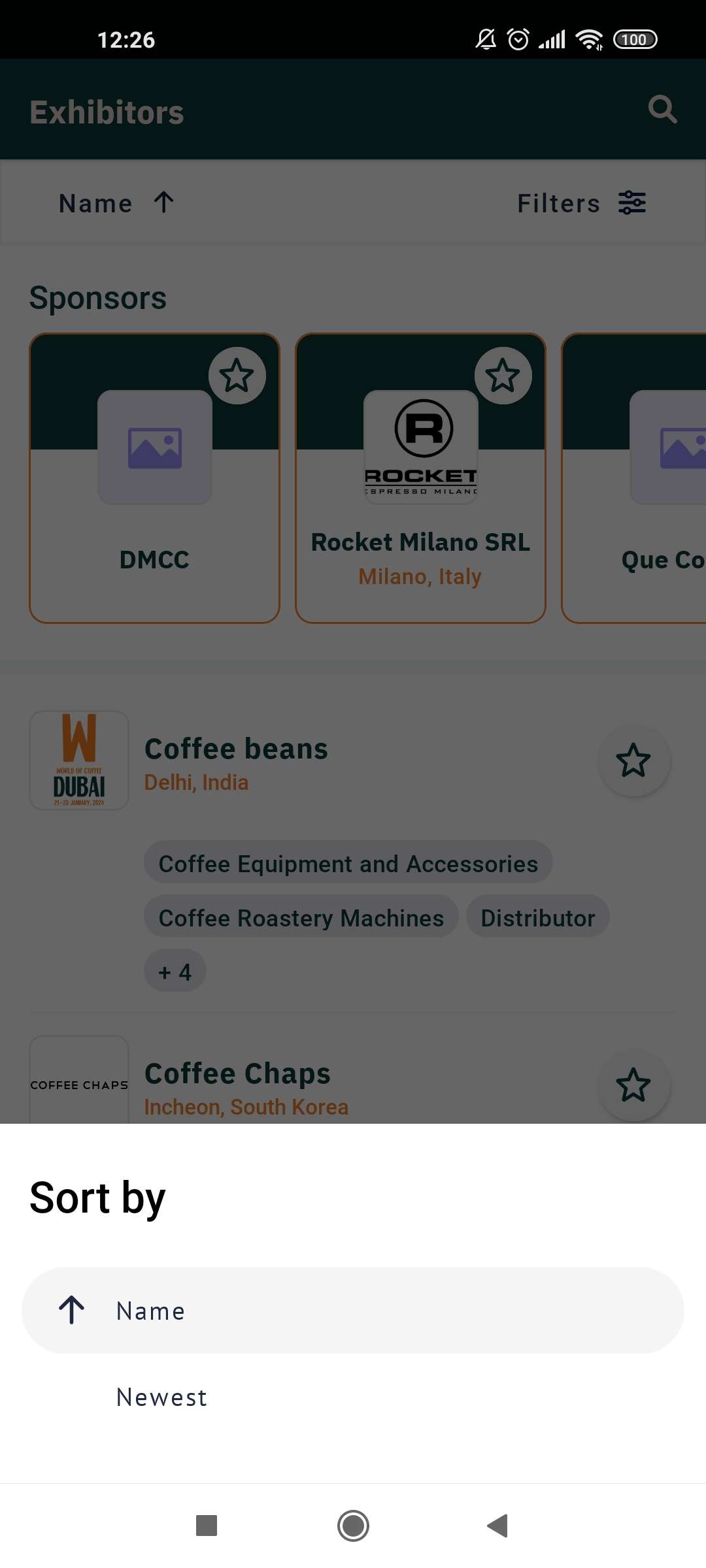
Sorting
Default sorting on this page is alphabetical by exhibitor name
Sorting can be changed from ascending to descending based on exhibitor name and by the tag “new“ (new first or new last). The tag “new” can be enabled for each exhibitor on the exhibitor edit profile page in admin panel.
Filtration
The list of filters for the exhibitor list can be set up in admin panel on “display filters” page. To set up filters, please go to Event Setup >>> Display Filters:
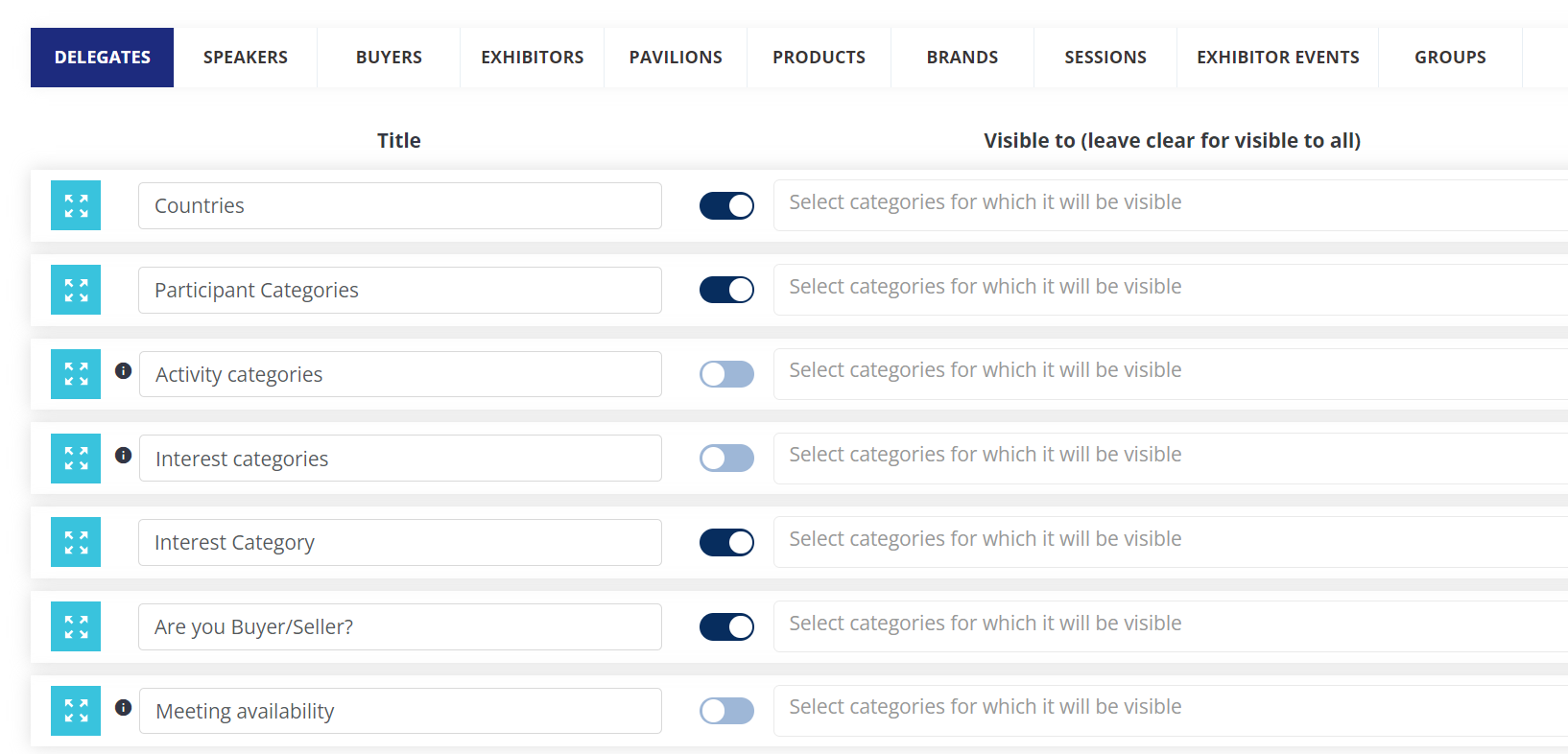
Order, filter name and filter visibility per category can be set up from the admin panel.
Note: A filter will display in the filter list only if at least one exhibitor has data/answers for this filter/question.
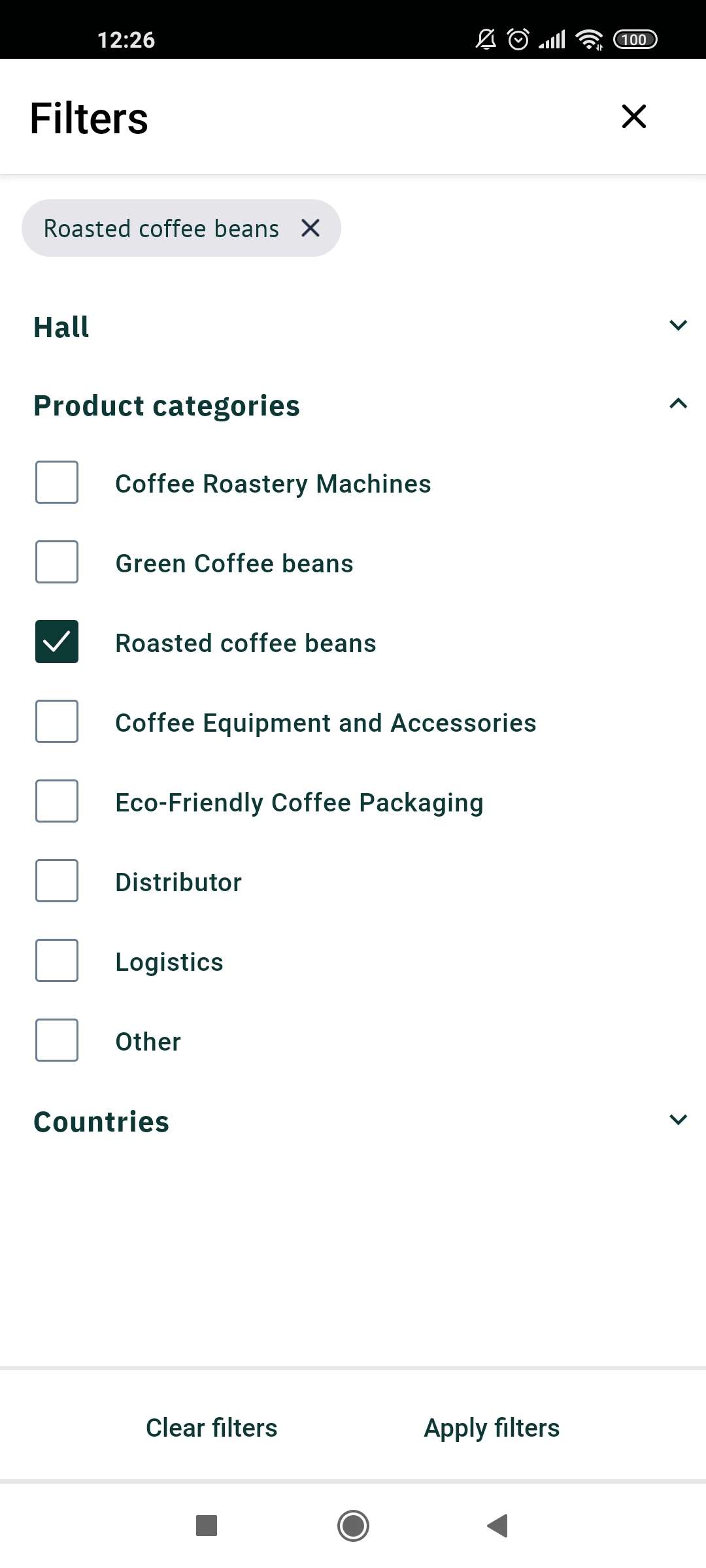
To apply Filters you need just navigate to the respective “Filters” icon in the Exhibitor List and tick the relevant filters.
Logic of appyling multiple filters at the same time:
-
Applying multiple options inside one filter will produce OR results
-
Applying options between different filters will produce AND results
-
When choosing product categories as a filter:
-
if you choose the parent category it will automatically choose all child categories
-
f you choose a child category, only the chosen child will be added as a filter.
-
Banner block
Banner will display if at least one sponsor/exhibitor-sponsor has enabled banner “app exhibitors list“ and has an image for this banner (more details can be found in this article about sponsors).
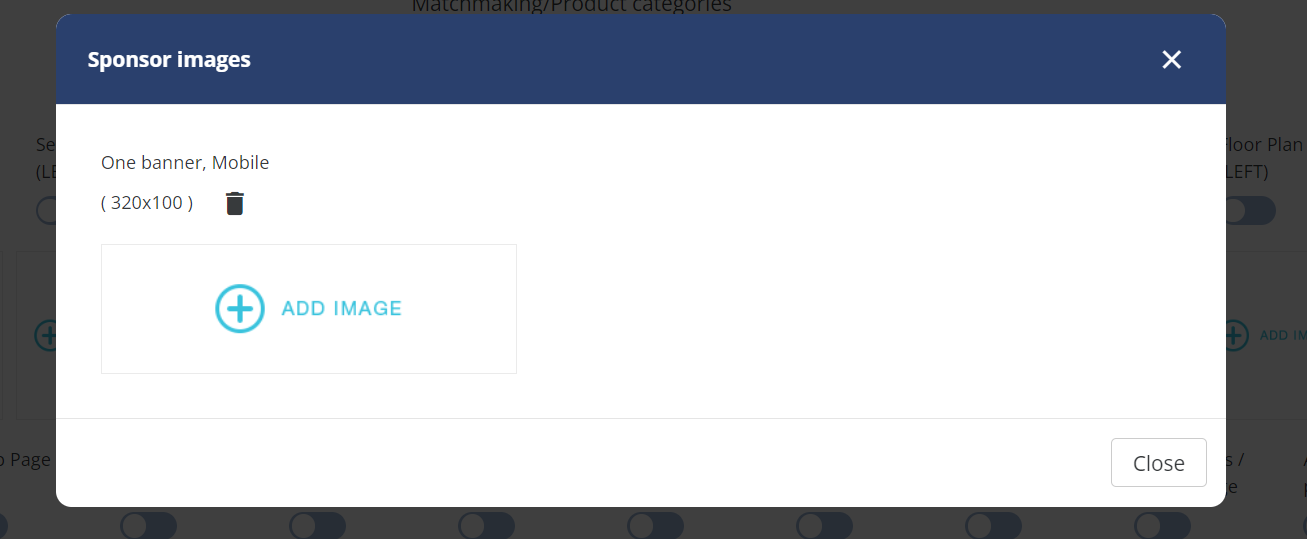
If there is more then one banner/sponsor, benners will change after each page opening.
Clicking on the banner will open the exhibitor page if the sponsor is an exhibitor or open an external url if it’s a sponsor without an exhibitor and as a link.
Banner impressions and banner clicks actions will be captured as statistic data and be displayed in the sponsor statistic section.
Sponsor block
Slider with exhibitors that are marked as sponsors and enabled as “show in search list”.
The order of the cards in the slider will be taken from the sorting order from the admin panel OR from matchmaking if the user is logged in and has results from the matchmaking algorithm.
Number of cards will be taken from the setting on the admin panel.
In the slider users can see sponsors based on the permission matrix setup.
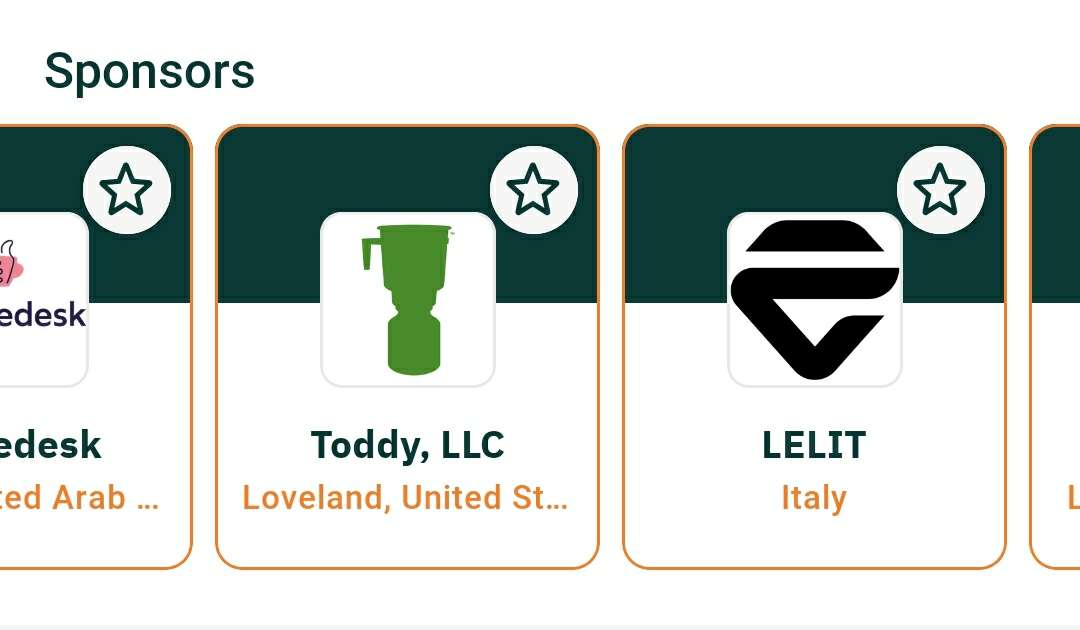
Card contains: logo, name, country, city, favorite button and color border:
Recommendation block
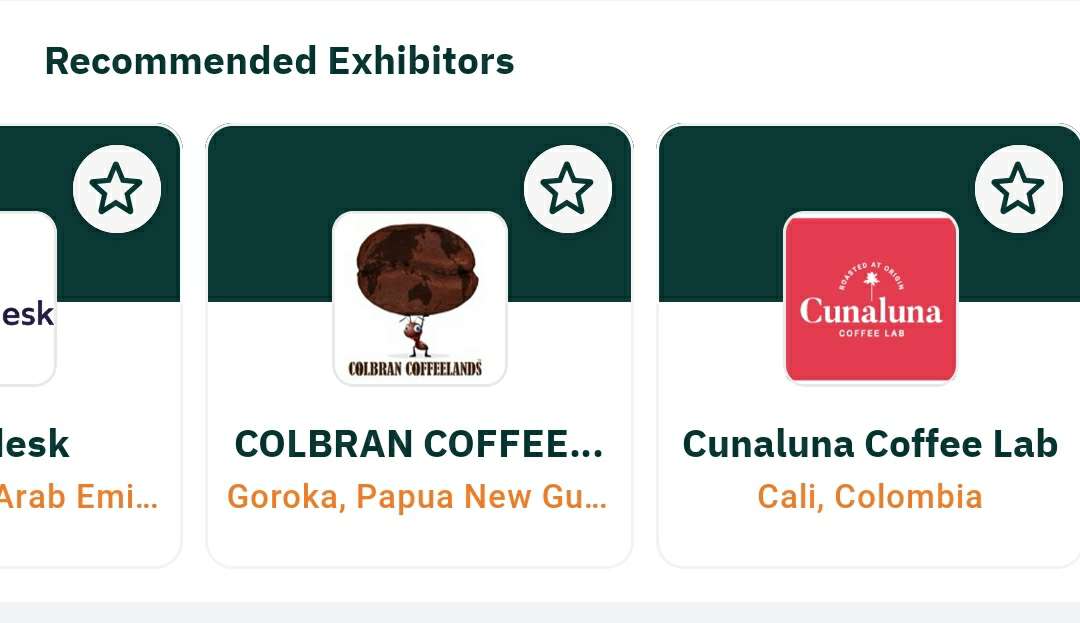
Slider can contain matchmaking results or random results if the user doesn’t have any matchmaking recommendations
Displayed for logged in users.
Displayed after 6 cards of main list.
Order is always alphabetical.
Card contains: logo, name, country, city, favorite button (only name is required, other data is optional)
All exhibitors list
List of all exhibitors in the event, displaying all of the exhibitors the user is allowed to see based on the perrmission matrix.
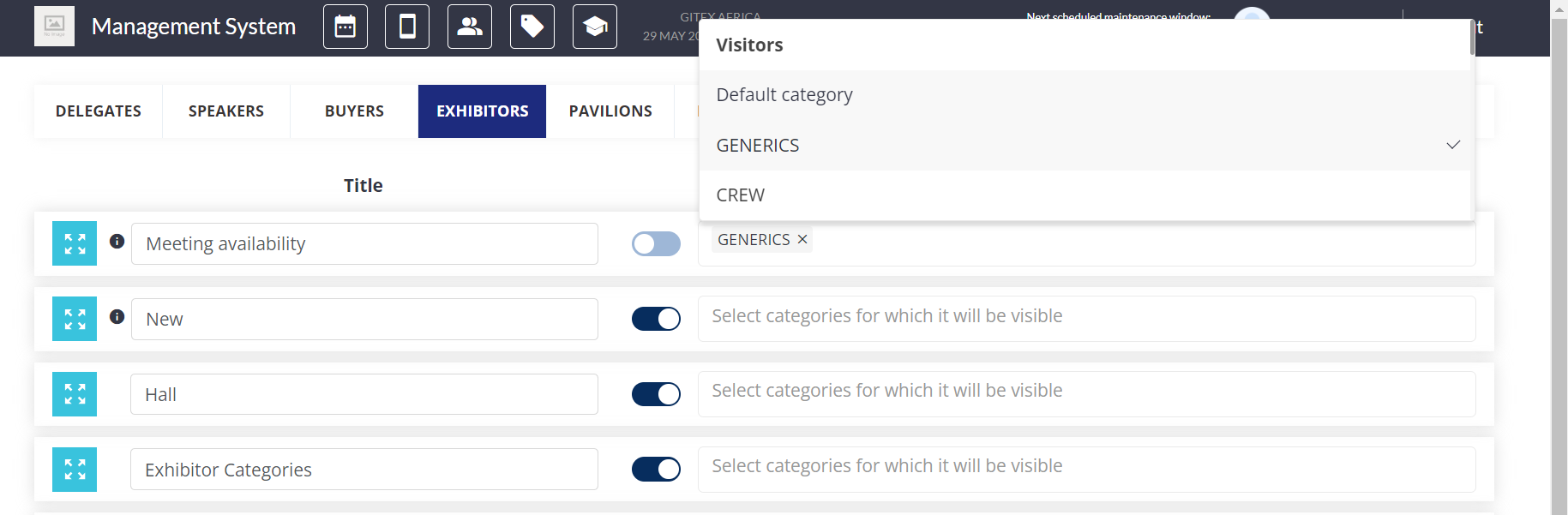
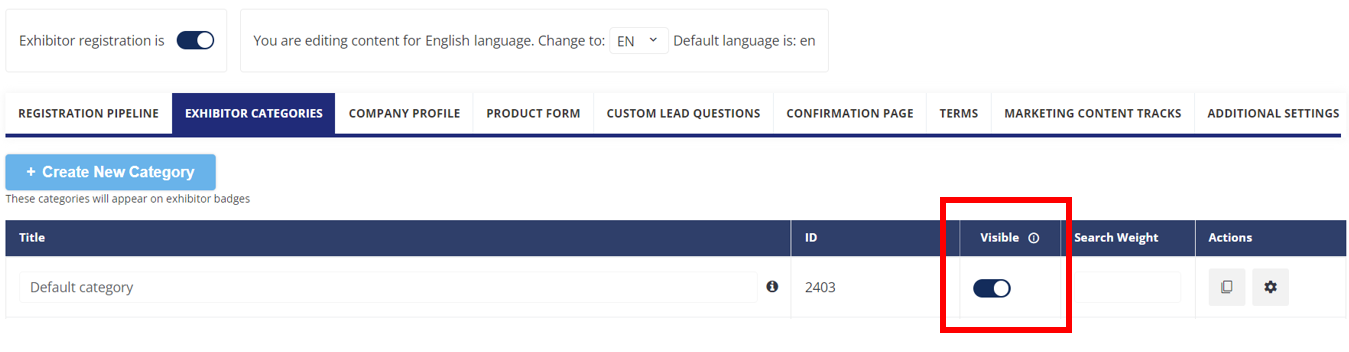
Please note: “visible” setting from exhibitor categories (Registration Settings >>> Exhibitor >>> Exhibitor Categories) wasn’t implemented in apps so the category visibility applied on the respective “visible” toggle (as shown below) won’t affect visibility on the app. This means that if we mark one of the exhibitor categories invisible on web, the category will be visible in the mobile app. That’s why the best solution to hide/unhide any category is using the permission matrix visibility settings.
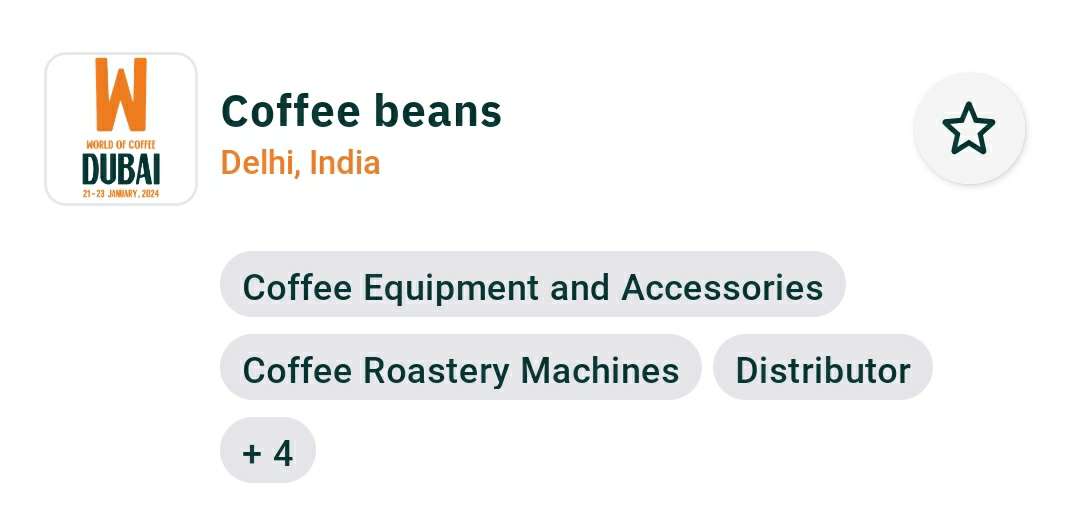
Card contains: logo, name, country, city, hall(s)+stand(s), activity product categories, favorite button (only name is required, all other data is optional):
Favourite function
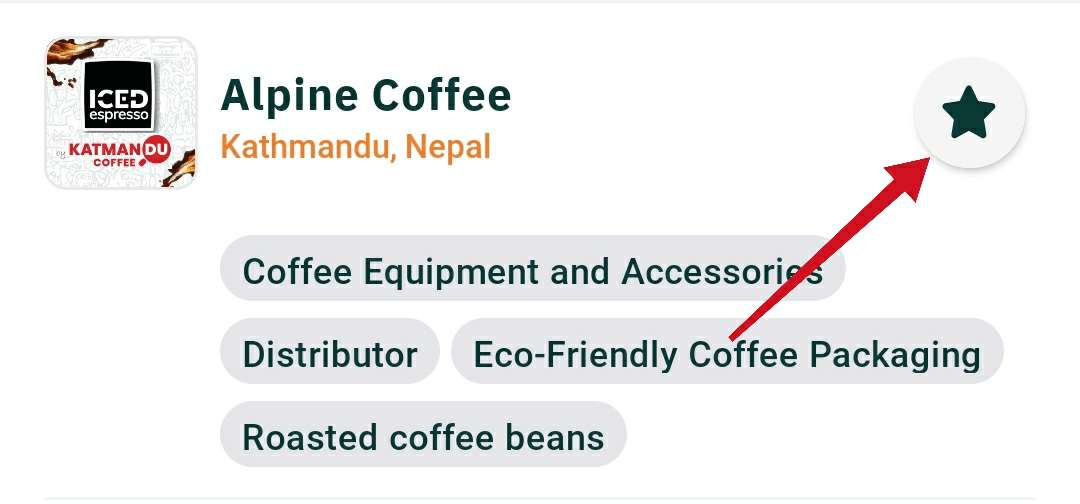
Interaction button for favourite action.
Exists on all cards on this page (sponsor slider, recommended slider, main list)
Button shows only for logged in users.
Clicking on the button will add the exhibitor to the user’s favourite list or, if remove the exhibitor if the exhibitor is already on the user’s favourite list
Troubleshooting:
Points to check:
-
Issue: The Sponsor slider does not have all exhibitors set as sponsors.
-
The most common issue is sync delay but sometimes it is just a default permission set on the set up.
-
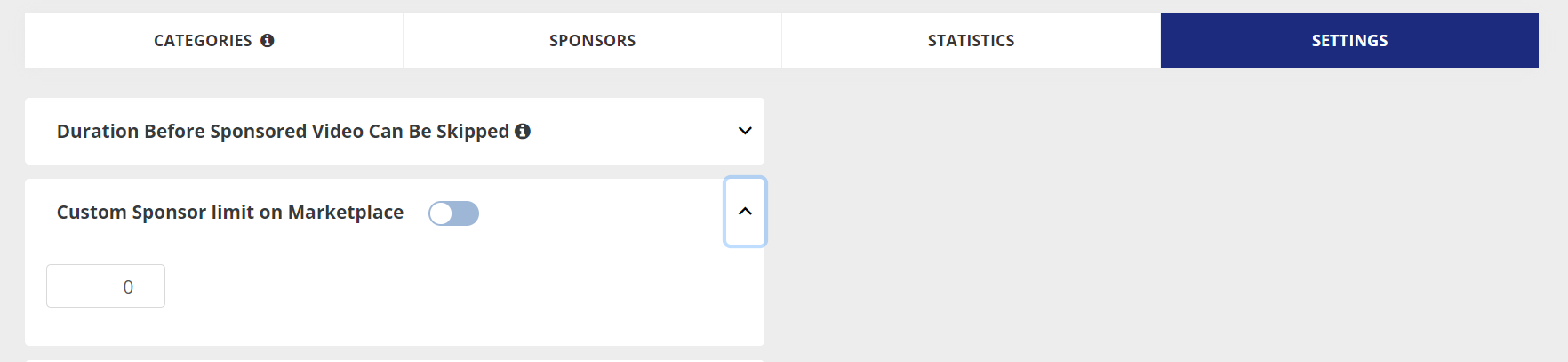
Solution: Open Sponsors under Management >>> Settings and set the relevant number of sponsors under the “Custom Sponsor Limit on Marketplace”:
-
-
-
Issue: Interaction buttons are displaying or not displaying as expected
-
The Permission Matrix settings can be the cause of visibility/invisibility for the respective interaction buttons.
-
Solution - open Networking & Matchmaking >>> Manage Permissions and enable/disable the necessary restrictions.
-
-
-
Issue: Missing Exhibitor Profiles
-
The Permission Matrix settings can be the cause of visibility/invisibility for a particular company profile
-
Solution - open Networking & Matchmaking >>> Manage Permissions and enable/disable the necessary restrictions. Please also check not only the exhibitor category restriction but also the restrictions applied for the account which is missing the exhibitors.
-
-
Sometimes a sync delay also may be the reason.
-
-
Issue: Missing Filters
-
In most cases the filter visibility is the reason
-
Solution step 1 - if it’s a custom filter (from custom reg question), please open registration pipeline for exhibitors to ensure that this custom field was added as filter:

-
Solution step 2 - navigate to Display Filters under the Event Setup >>> Display Filters and ensure that the visibility of the filter was configured in appropriate way and it’s visible for the category where it’s missing:
-
-