
Feature Purpose:
Displaying all event speakers on the website and enabling users to utilize filters to search for specific speakers.
Working with this Feature:
Within the website builder, the Speakers module is integrated into the platform module. This module automatically populates all speaker profiles added to the event on the website, ensuring that the visibility of speaker profiles is continuously updated in real-time.
This module can be added by clicking on the "Add Block" button --- Dynamic Content section --- Speakers. This module offers 3 variations of the speakers block:
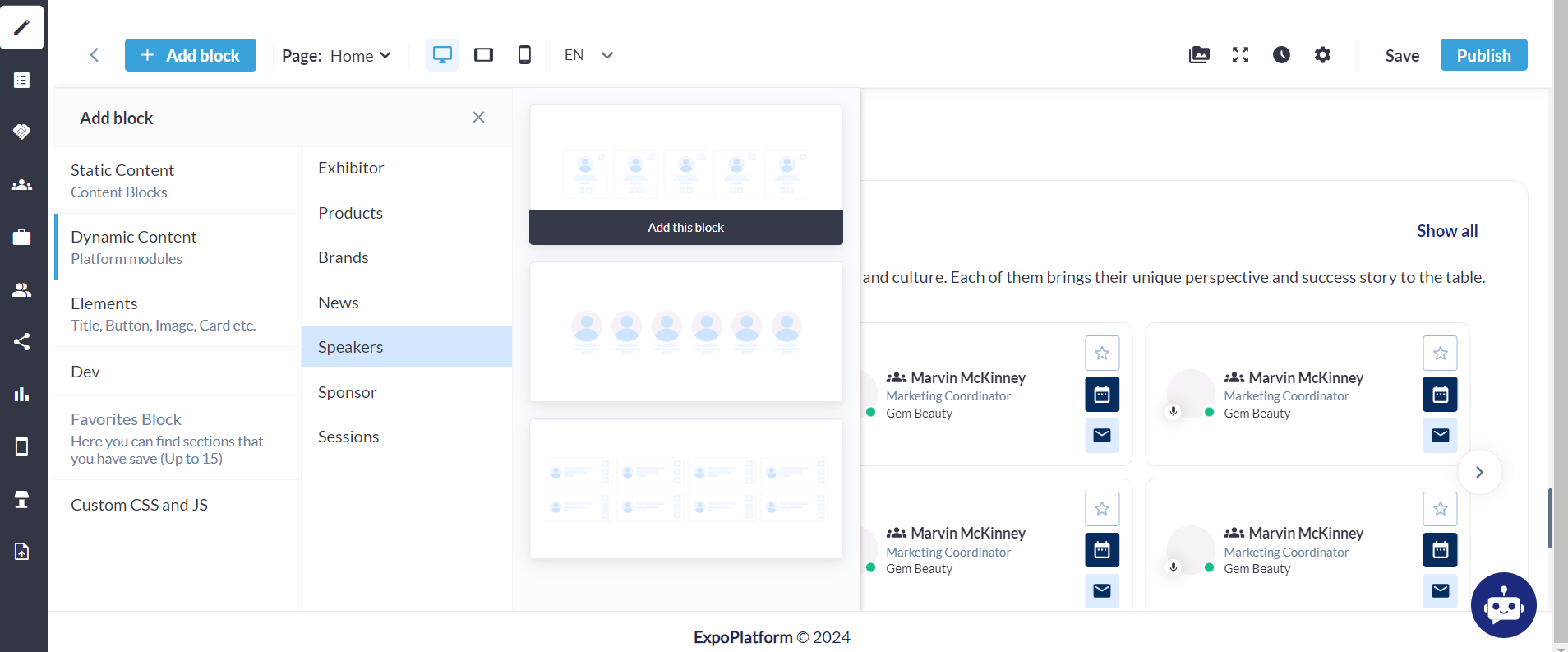
These blocks can either be dragged into the builder or added by clicking on the pop-up function "Add this block".
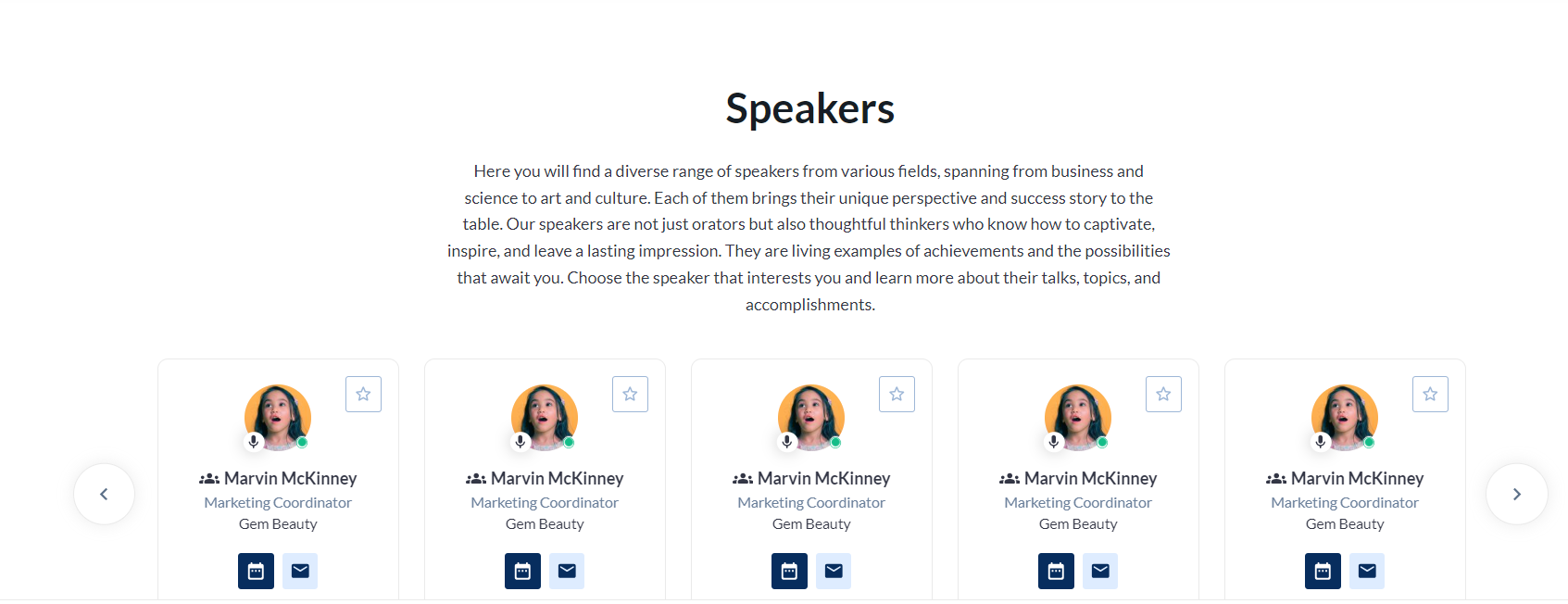
First block
This choice provides five vertical speaker cards on the page alongside action buttons.
Upon selecting the block and clicking the settings button positioned in the middle-right of the block, a settings menu for the block will emerge.
The settings available for the initial block encompass:
-
Selection between a color option and the ability to upload an image for the section background
-
Options for text title, subtitle, and text width
-
Line settings
-
Button enablement
-
Padding settings
Any modifications made within the settings promptly manifest in the block.
Within the Speaker Cards settings, the following choices are accessible:
-
Type, allowing selection of the quantity of cards
-
Total count of slides
-
Cards' display mode - slider or static
-
Alignment of the cards
-
Activation of arrows and their customization
-
Pagination alternatives - numbering or dots, along with their configurations
-
Activation and adjustment of slideshow autoplay duration
Second block
This selection provides six speaker cards on the page, lacking action buttons.
Once the block is chosen and the settings button in its middle-right is clicked, a settings menu for the block will display.
The settings offered for the second block comprise:
-
Choosing the section background, which involves selecting between a color option or uploading an image
-
Options for text title, subtitle, and text width
-
Line settings
-
Button activation
-
Padding adjustments
-
Any modifications applied in the settings promptly update the block
Within the Speaker Cards settings, the subsequent choices can be accessed:
-
Type, providing the option to determine the quantity of cards
Avatar size, offering selections between big or small -
Display mode for the cards - slider or static
Alignment of the cards -
Activation of arrows along with their customization
Pagination options - numbering or dots, along with their configurations -
Activation and adjustment of slideshow autoplay duration
Third Block
The third block choice presents 8 horizontal speaker cards on the page, each equipped with action buttons.
Once the block is selected and the settings button positioned in its middle-right is clicked, a settings menu for the block will emerge.
The settings provided for the third block encompass:
-
Choosing the section background, offering options between a color selection and uploading an image.
-
Text title, subtitle, and text width adjustments
-
Line settings
-
Button activation
-
Padding adjustments
-
Any modifications made within the settings are promptly reflected in the block
The Speaker Cards settings offer the following choices:
-
Type, allowing selection of the card quantity
-
Display mode for the cards - slider or static
-
Alignment of the cards
-
Activation of arrows and their customization
-
Activation and adjustment of slideshow autoplay timing
Commonality among the settings offered in all the 3 blocks
The settings that are identical and available in each of the three blocks are:
-
The gap between block elements
It's adjustable either by manually extending the interval or by inputting a distance, ranging from 1 to 200.
-
Typography settings for text-containing blocks
Customization options include text color and style.
Under the "Show Font Setting" tab, the following settings can be customized:
-
Font name, weight, and size
-
Alignment
-
Case
-
Decoration
-
Button settings
-
Button link
-
Speaker settings within the block
-
Developer settings within the block
Anchor serves as an ID selectable in links, enabling direct scrolling to the corresponding block upon clicking.
Data-styleid allows inputting a custom term, triggering the appearance of a block with CSS for style input.
-
Other options for all blocks
For every block, the subsequent choices are accessible:
-
Shift the block up one position
-
Shift the block down one position
-
Replicate the block
-
In the "More actions" button, you have the ability to include the block in the Favorite section, deactivate it, or remove it entirely
Troubleshooting:
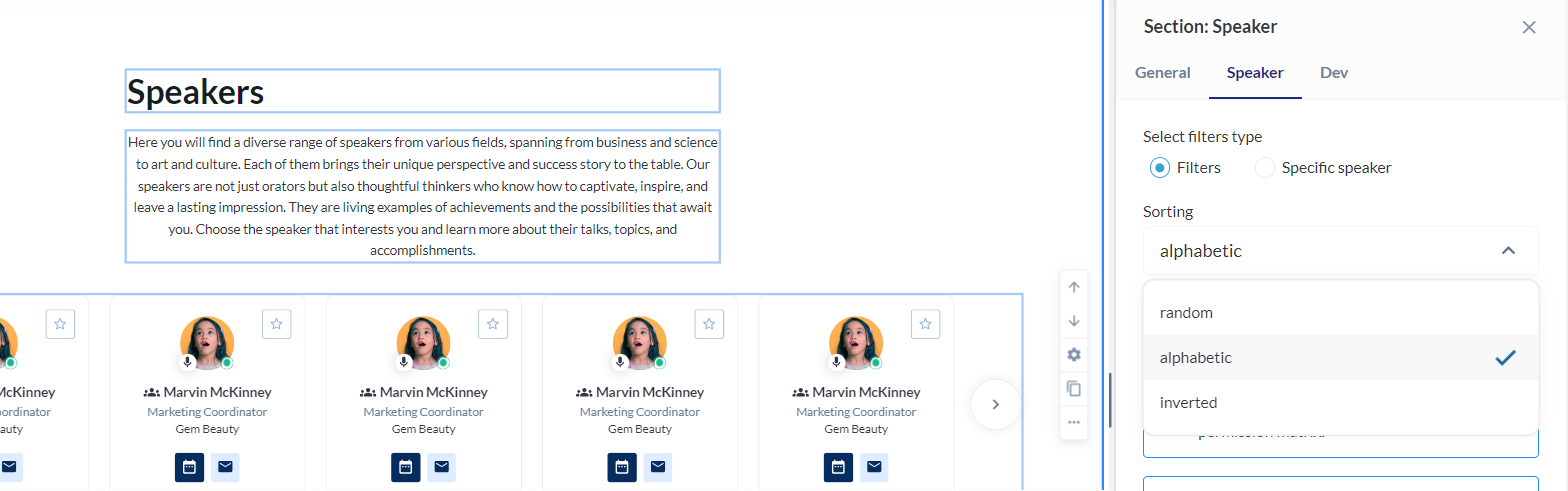
Question: Can I arrange or organize the speakers on the website utilizing the Speakers block?
Answer: Certainly, within this module, you have the option of choosing between Random, Alphabetic, or Inverted sorting methods. You can adjust these settings by accessing the speaker settings within the block.
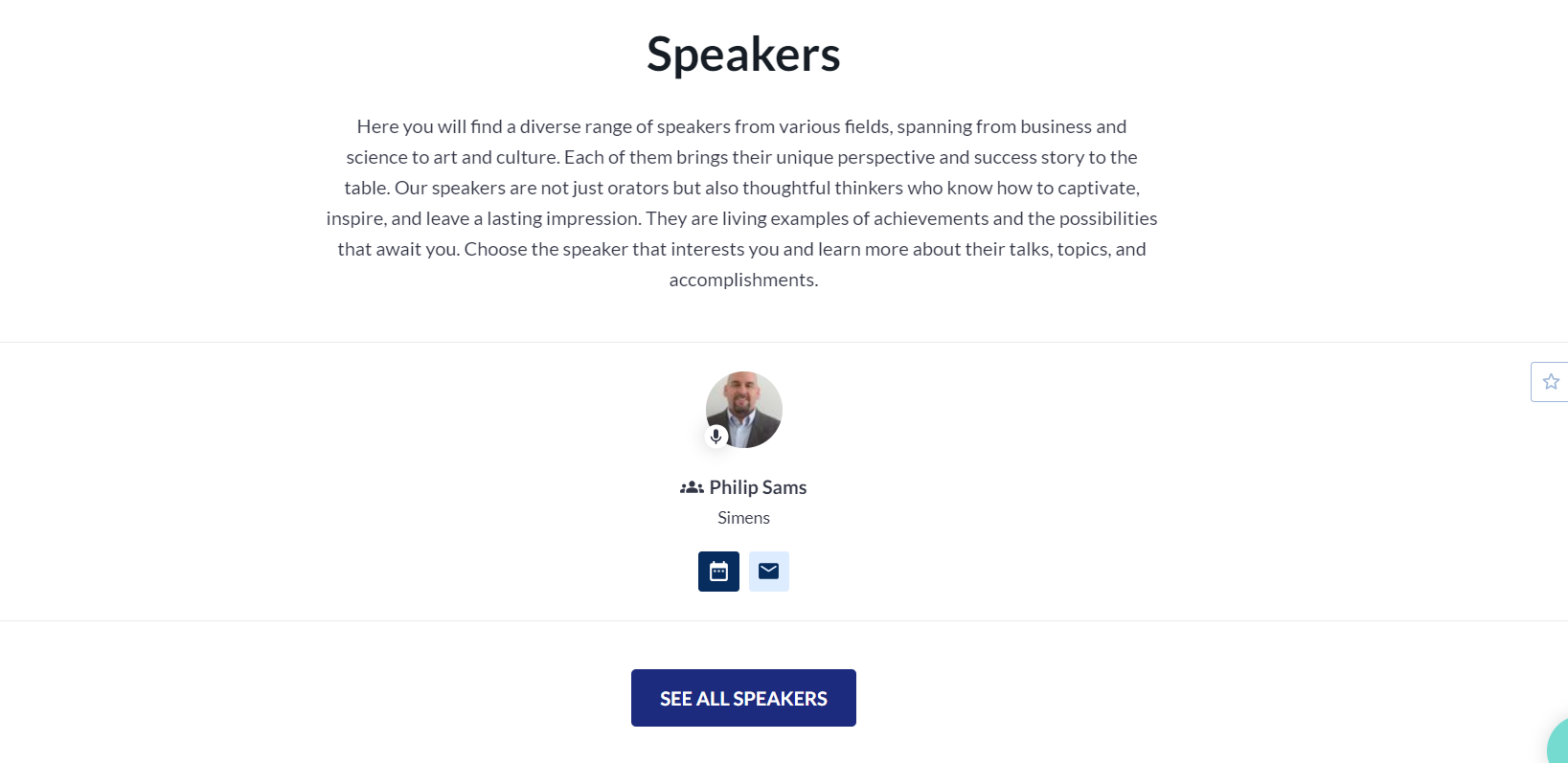
Question: Two speakers have been included in the event, yet only one of them is currently visible within the speakers block on the website.
Solution: By default, only active speaker profiles are displayed on the website. Please verify the status of the speaker profiles. In the given instance, 'Philip Sams' is an active speaker, which is why his profile appears on the website.

Question: I included the 5-speaker card block on the website, but it isn't appearing as expected.
Answer: This block may not be displayed on the site for one of two reasons:
-
Searching for these filters did not find anything.
-
The user cannot see elements due to the permission matrix.
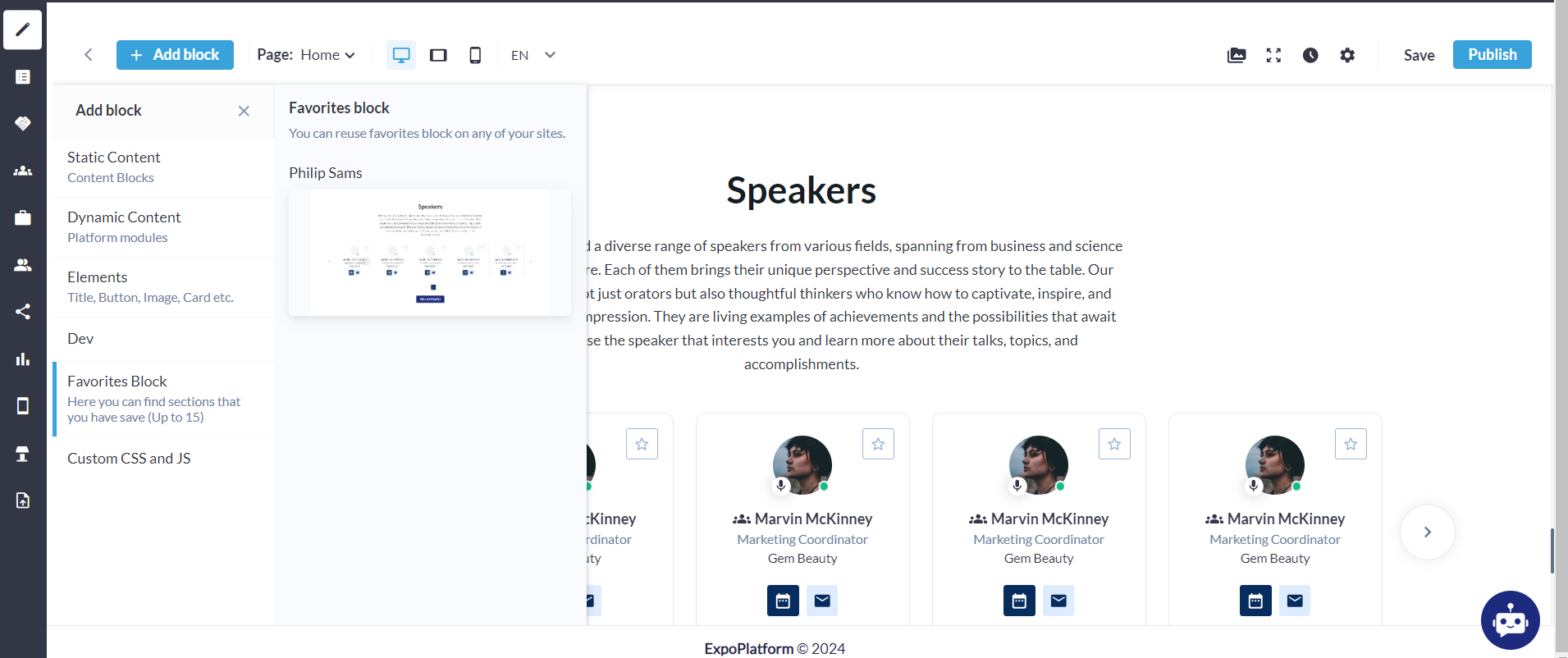
Question: Can I add the speakers block to the Favorites section on the website?
Answer: Yes, this option exists under ‘More options' for the speakers block.
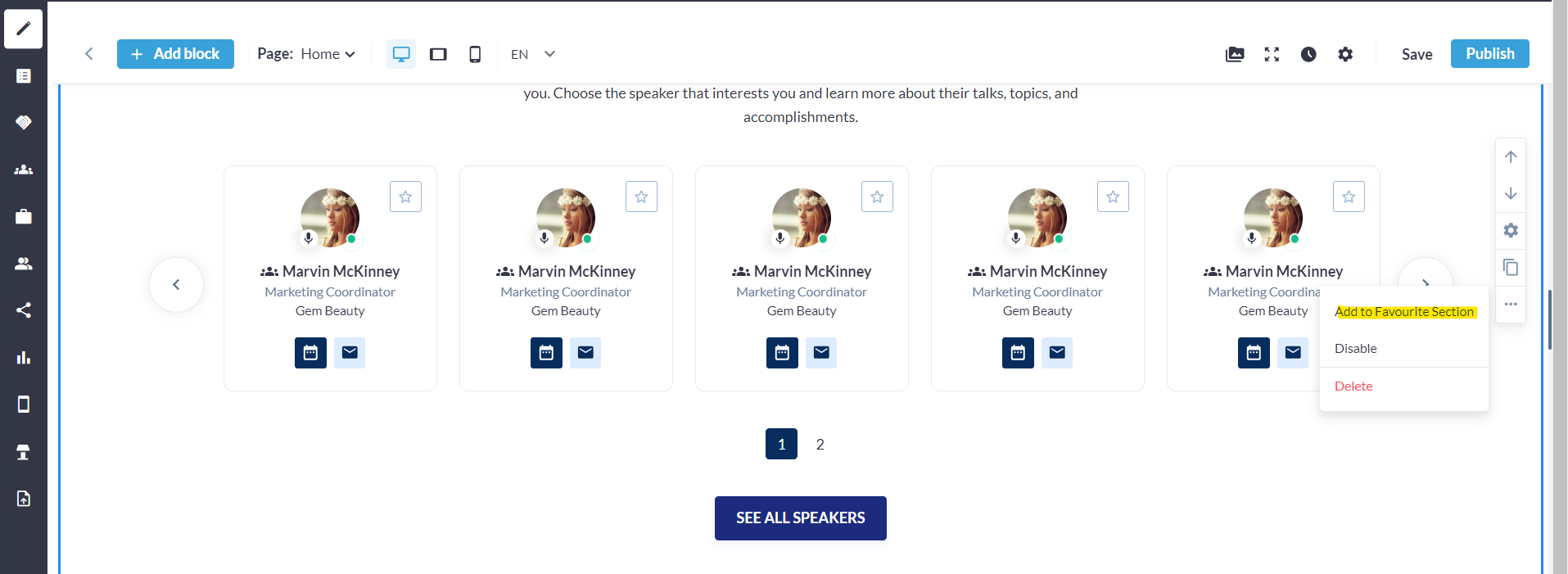
One added, the speakers block will be added to the Favorites block as shown below:
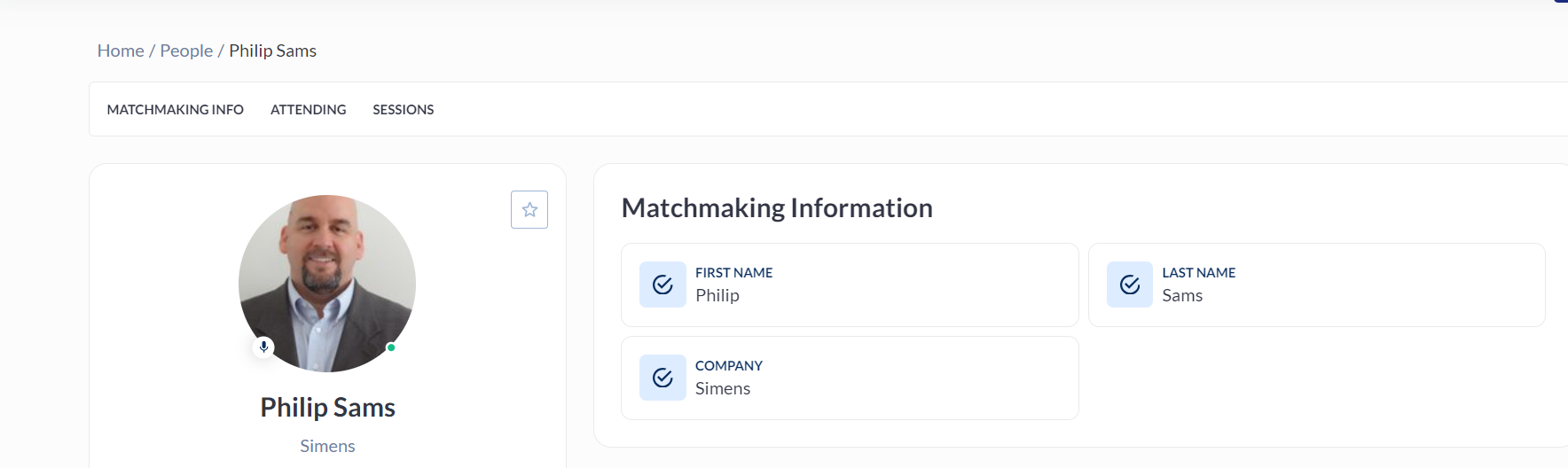
Question: How can users determine if a speaker is currently active or online on the website?
Answer: Below their profile image, a green dot will be displayed, as depicted below:
Question: I placed the speakers block on the website but forgot to save before clicking 'Publish'. Have my changes been saved?
Answer: Indeed, selecting "Publish" automatically saves all modifications made in the website builder section.