
Feature Purpose:
This section of the website builder allows to display a preview of the sessions setup in the platform. Clicking on the “see all sessions” button directs you to the session page(system page) where you can use the page features(filters, tracks, etc) to view all sessions
Working with this Feature:
In the Website builder, by clicking on the "Add Block" button in the Dynamic Content section, under the Sessions subsection, four different blocks are available.
These blocks can either be dragged into the builder or added by clicking on the pop-up function "Add this block".
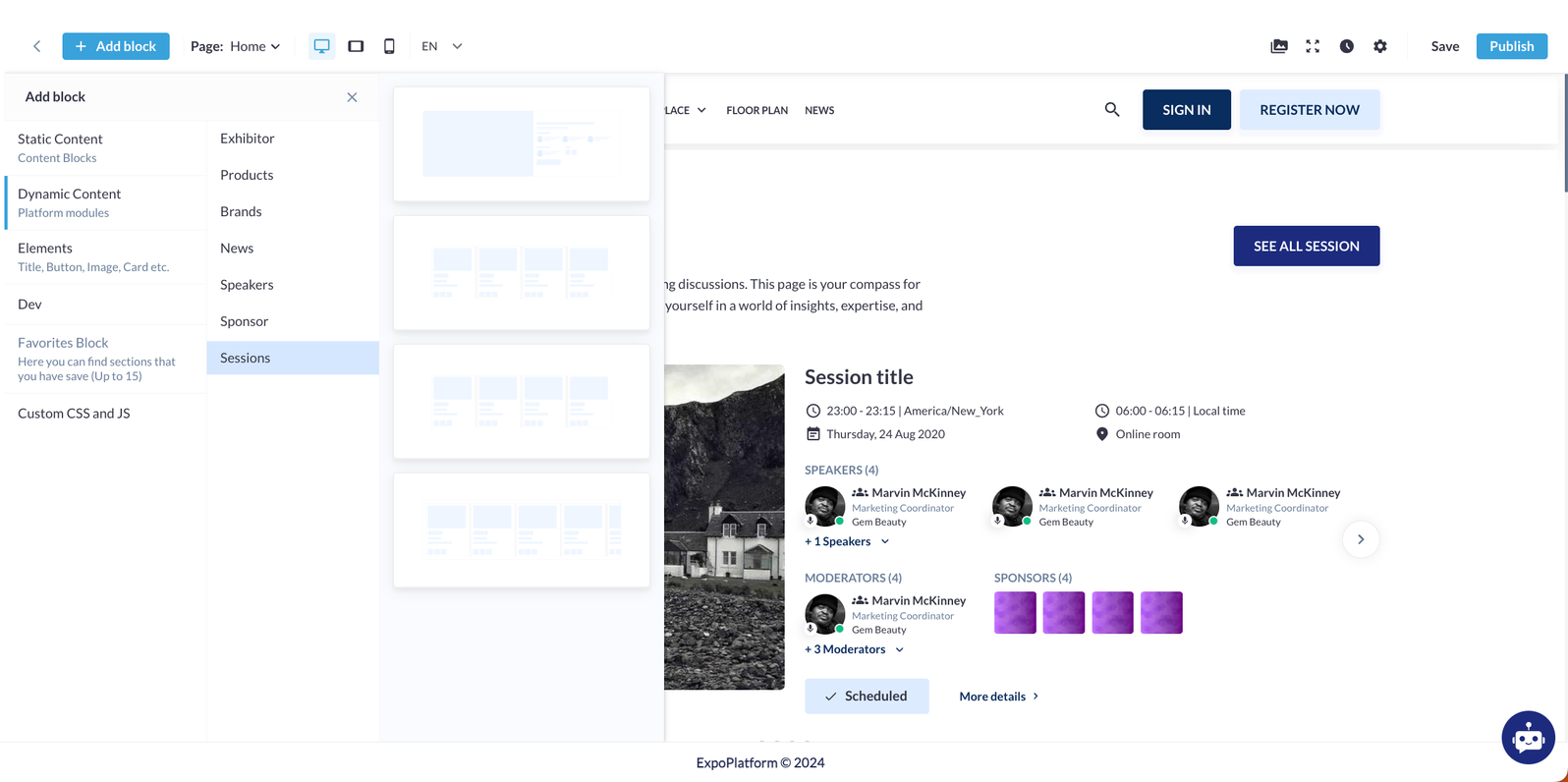
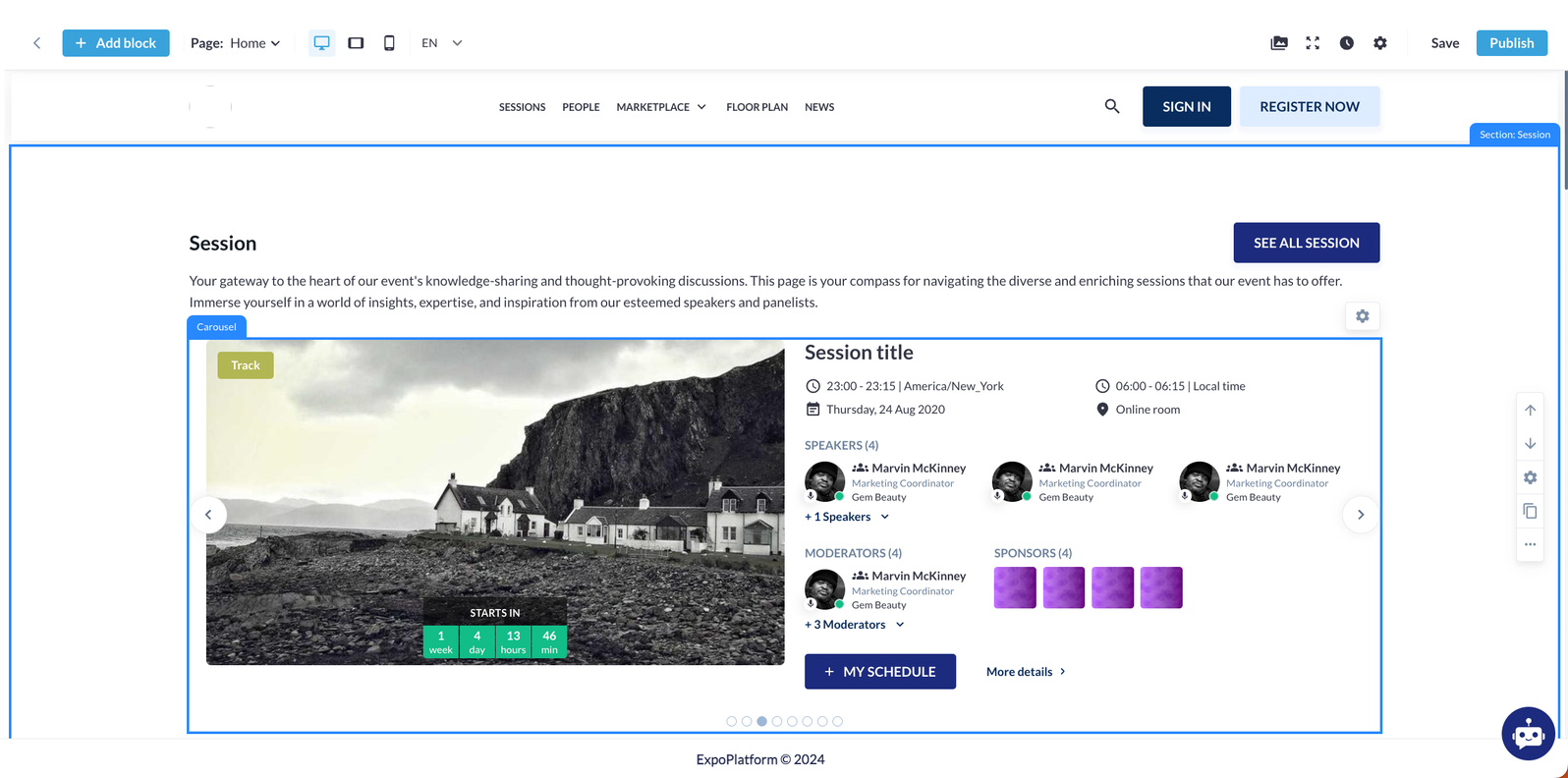
First block сonsists of one session card (four cards in slider) with action buttons, primary text and secondary text, session details and one button See All Session. There are also available list of settings for the this block.
Second block сonsists of four session cards (four cards in one slider) with action buttons, primary text and secondary text, session details and one button See All Session. There are also available list of settings for the this block.
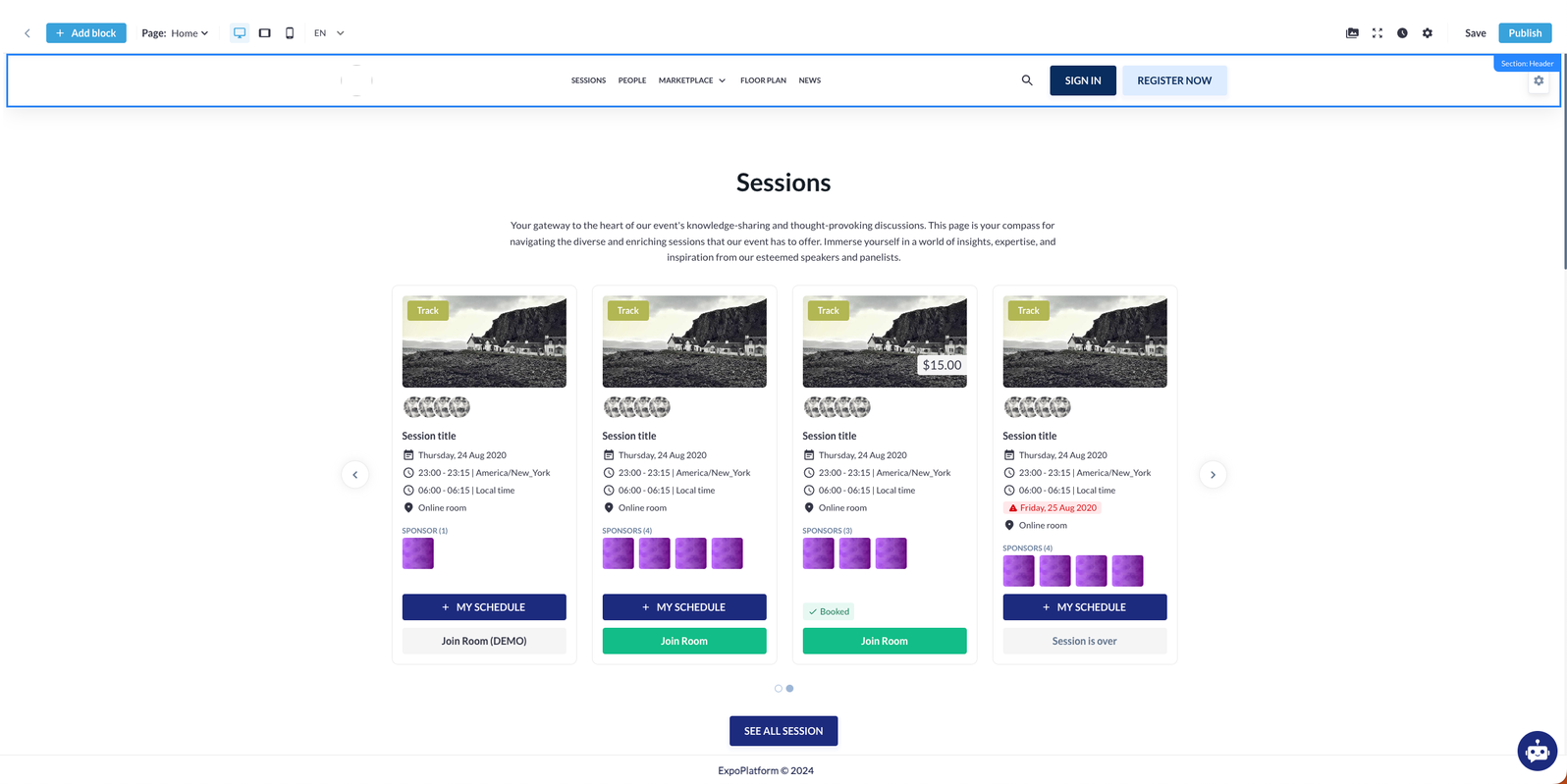
Third block сonsists of four session cards (four cards in one slider) with action buttons, primary text and secondary text (on the left side of the screen), session details and one button See All Session. There are also available list of settings for the this block.
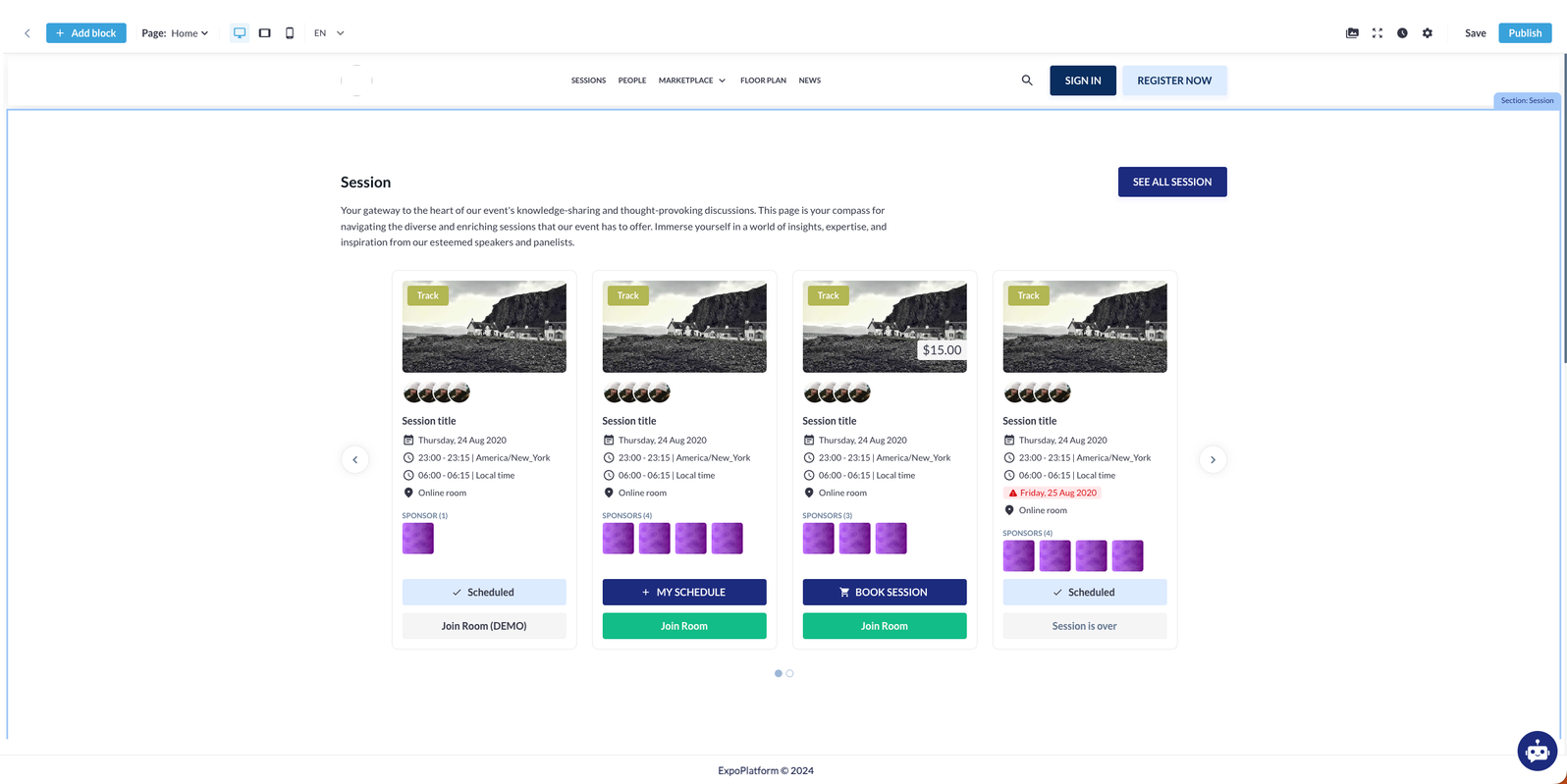
Fourth block сonsists of four session cards with action buttons, primary text, session details and one button See All Session. There are also available list of settings for the this block.
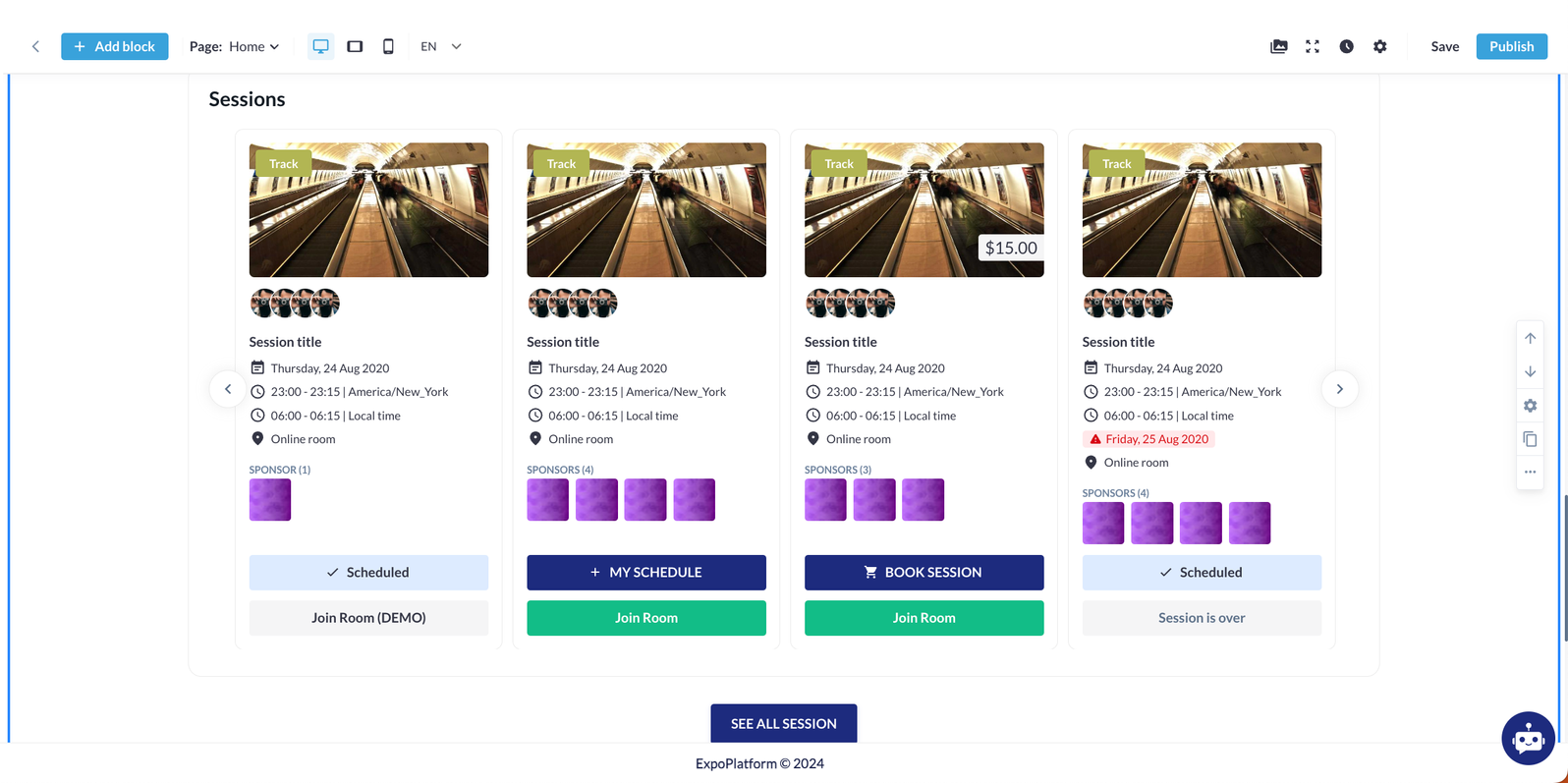
Identical settings are available in each block:
-
Interval between block elements. It can be manually adjusted by stretching the interval or by entering a distance, ranging from 1 to 200.
-
Typography settings - blocks that contain text. Available for customization:text color and its style. In the "Show Font Setting" tab, the following settings are available for customization:
-
Font name, weight, size
-
Alignment
-
Case
-
Decoration
-
Button settings.
-
Button link settings.
-
Sessions settings in the block.
-
Dev settings in the block.
-
Anchor is an ID that can be selected in links (clicked on a link, it directs and scrolls directly to the corresponding block).
-
Data-styleid - input a custom word there, and a block with CSS appears to input styles.
-
For each block, the following options are available:
-
Move the block up by one position.
-
Move the block down by one position.
-
Duplicate the block.
-
In the "More actions" button, you can add the block to the Favorite section, deactivate block, or delete the block.
-
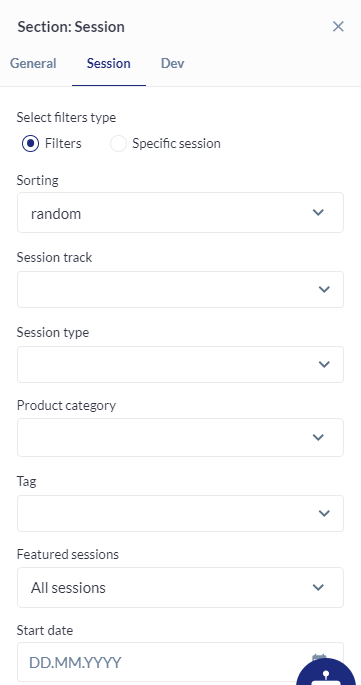
For each block, you can select which sessions will be previewed using the following options:
-
Filter type: filters or specific sessions
-
Sorting: random, alphabetic, inverted
-
Session track: based on the tracks setup in the platform
-
Session type: based on the types setup in the platform
-
Product categories: based on the categories created under categories in the platform
-
Tags: based on the tags setup in the platform
-
Feature sessions: All sessions or featured only
-
Start date: you can indicate from which dates sessions preview will be displayed
Troubleshooting:
The block may not be displayed on the site for one of two reasons:
1. Searching for these filters did not find anything.
2. The user cannot see elements due to the permission matrix.
If the sessions have not been set up on the platform, placeholders are shown in their place.