
Feature Purpose:
The News blocks section is a Dynamic Content feature that allows organisers to set up and display event news. You can choose from five different block layouts, each customizable with text, images, and buttons, ensuring the news is presented in an engaging and effective way.
Working with this Feature:
In the Website Builder, by clicking on the "Add Block" button in the Dynamic Content section, under the News subsection, five different blocks are available.
These blocks can either be dragged into the builder or added by clicking on the pop-up function "Add this block".
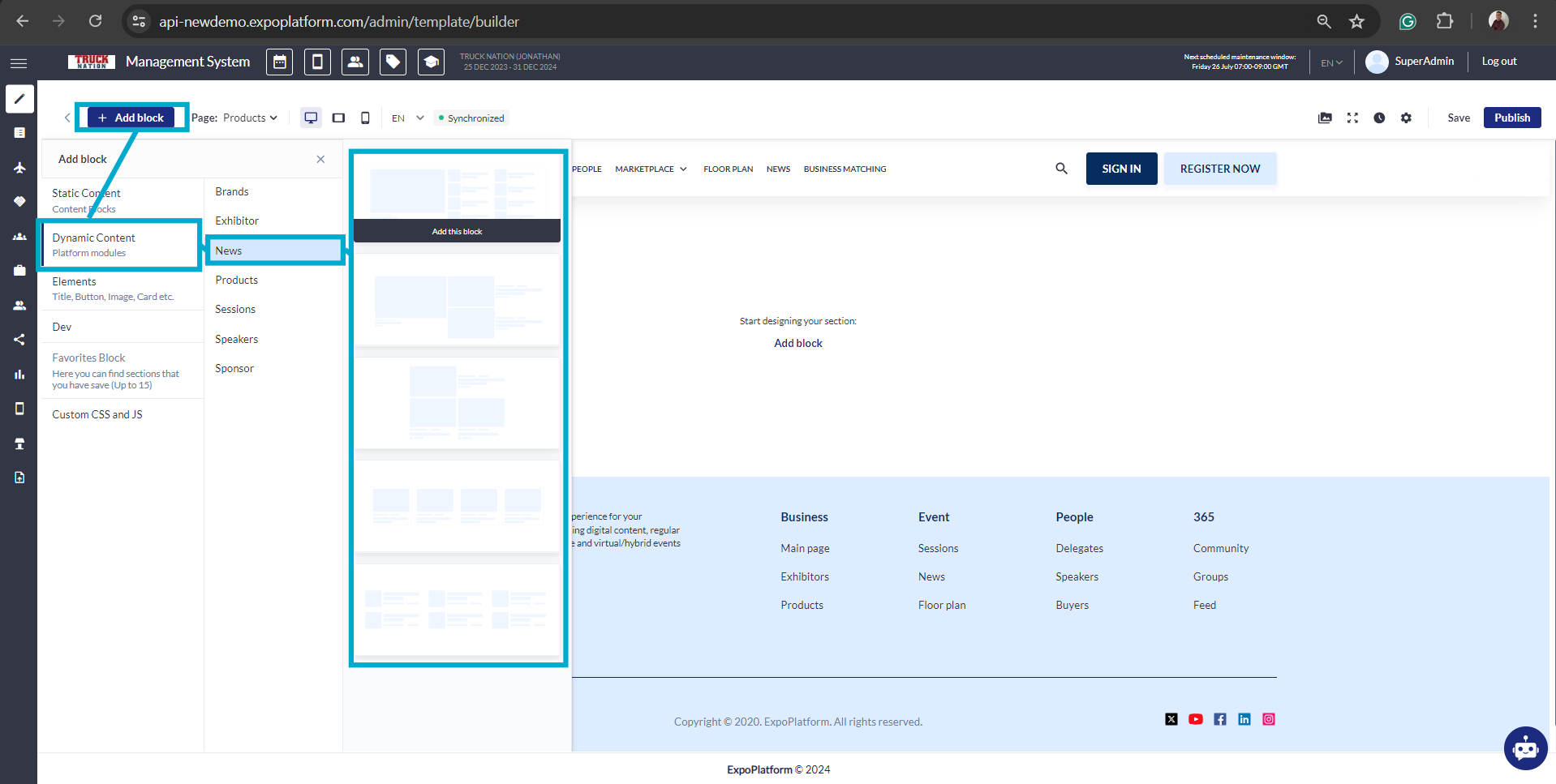
First block сonsists of one big and eight smaller News cards, primary text, News details and one button -Show all. There is also an available list of settings for this block.
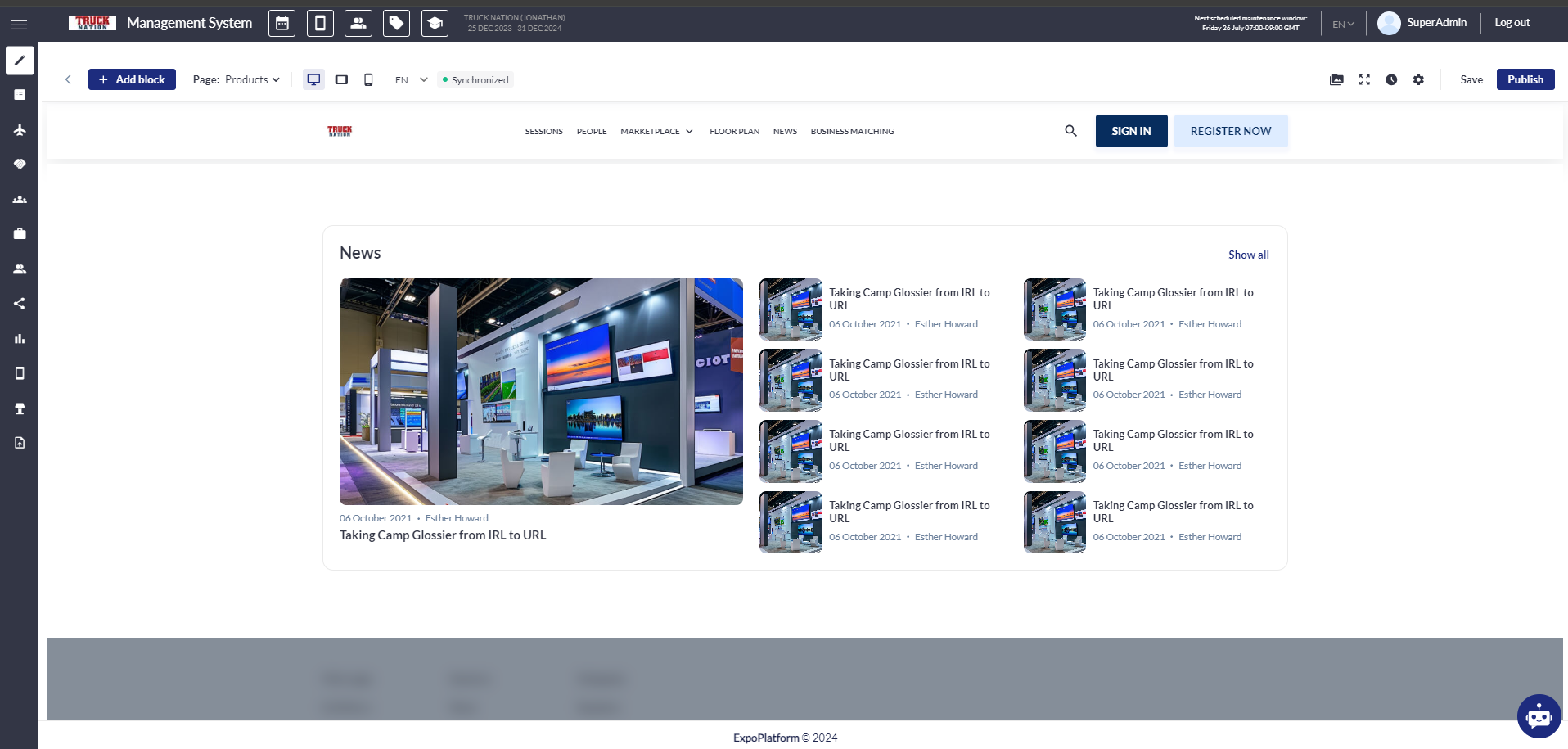
Second block сonsists of three News cards where one is bigger and two are smaller, News description and details. There is also an available list of settings for this block.
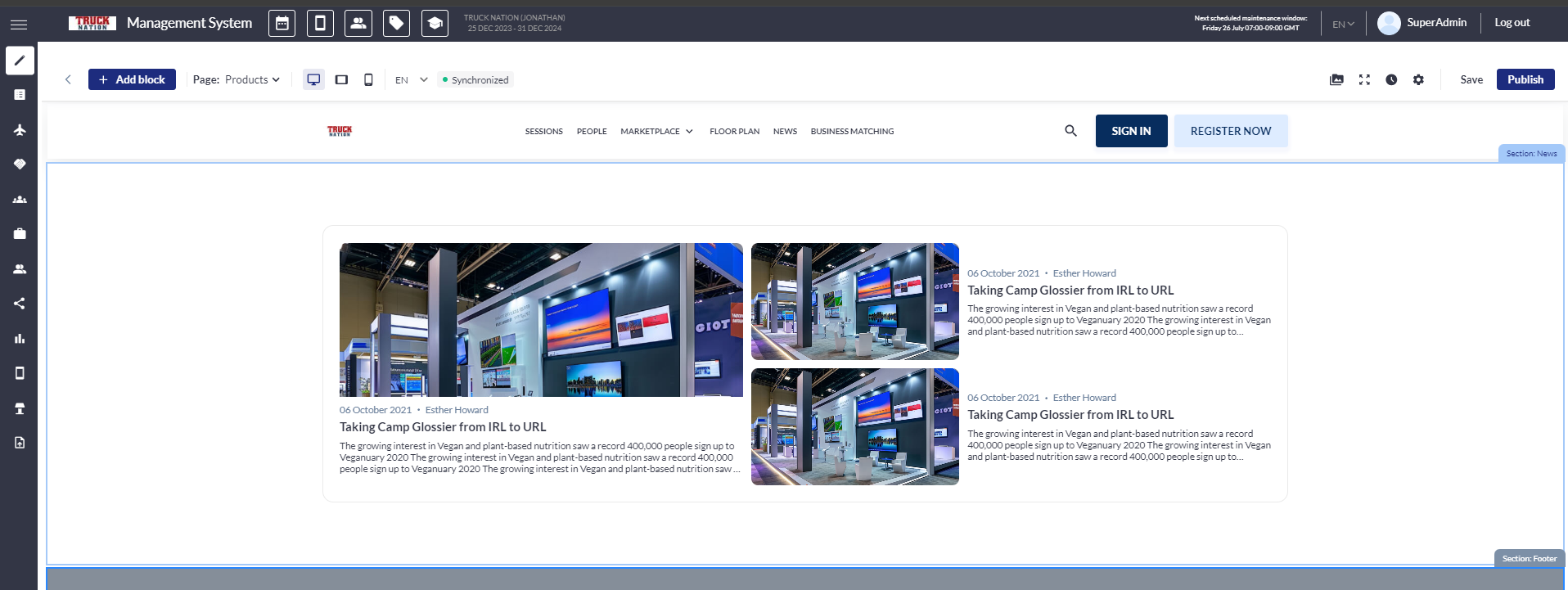
Third block сonsists of three News cards where one is smaller and two are bigger, News text description, News details and one button - See All News. There is also an available list of settings for this block.
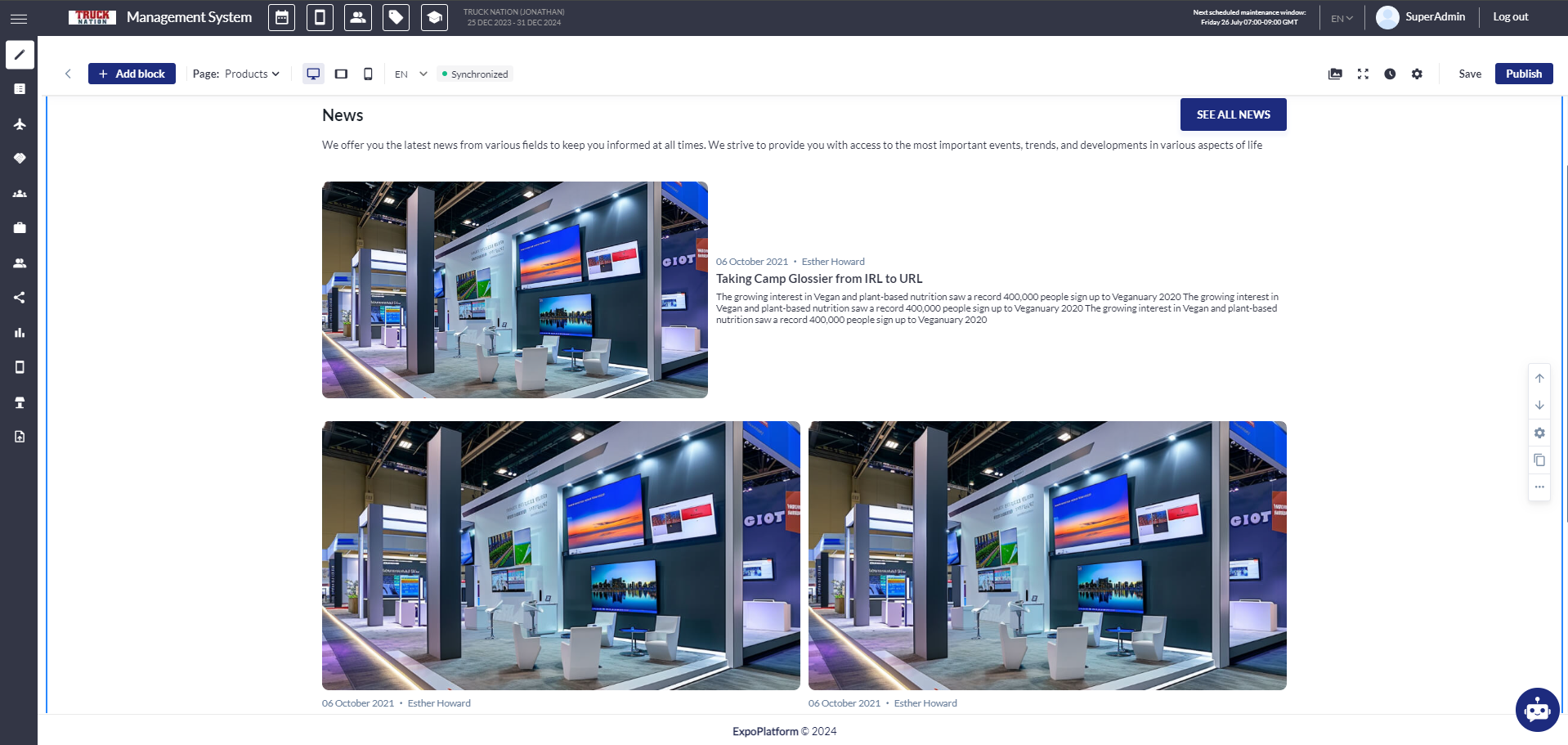
Fourth block сonsists of four New cards with action buttons, primary text, secondary text, News details and one button See All News. There is also an available list of settings for the this block.
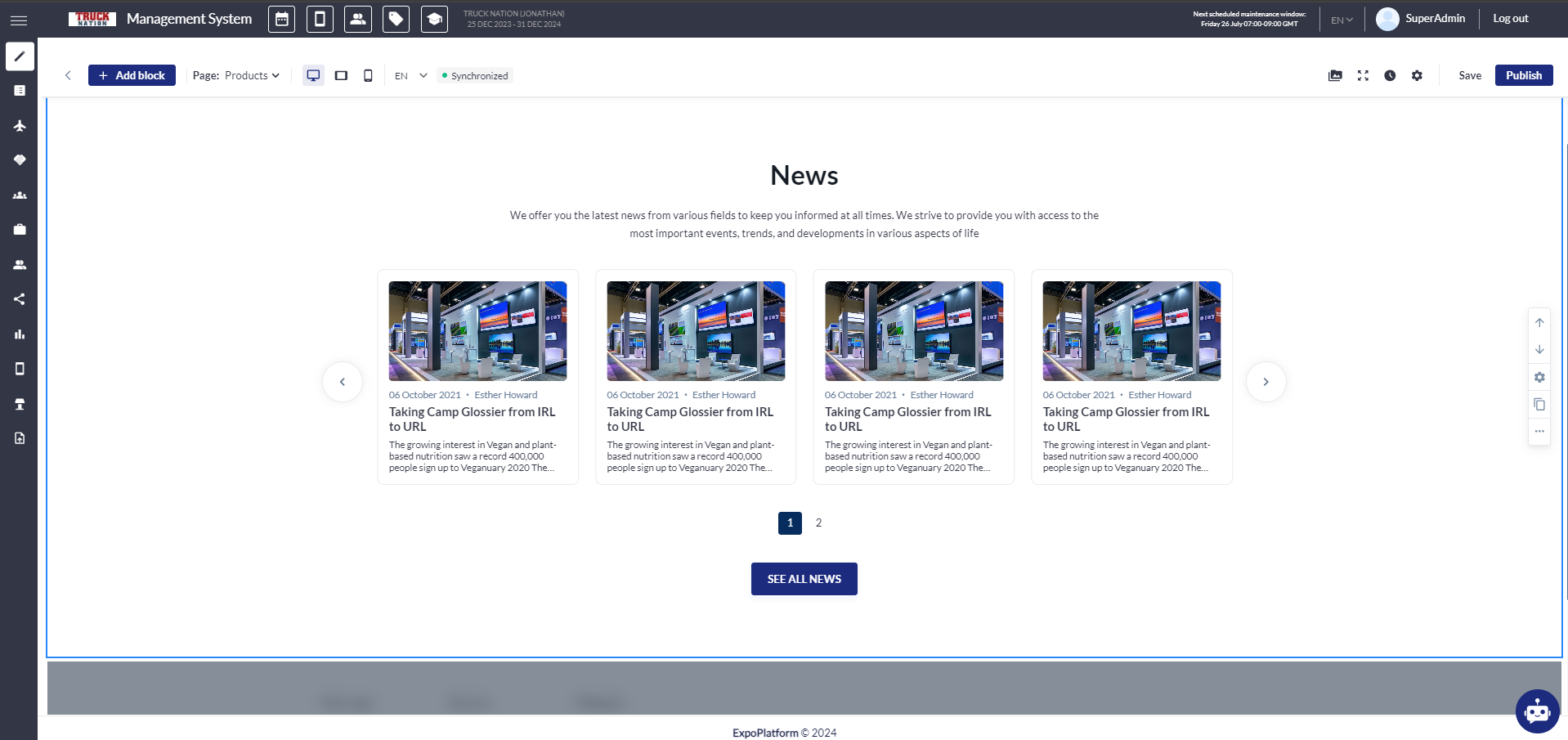
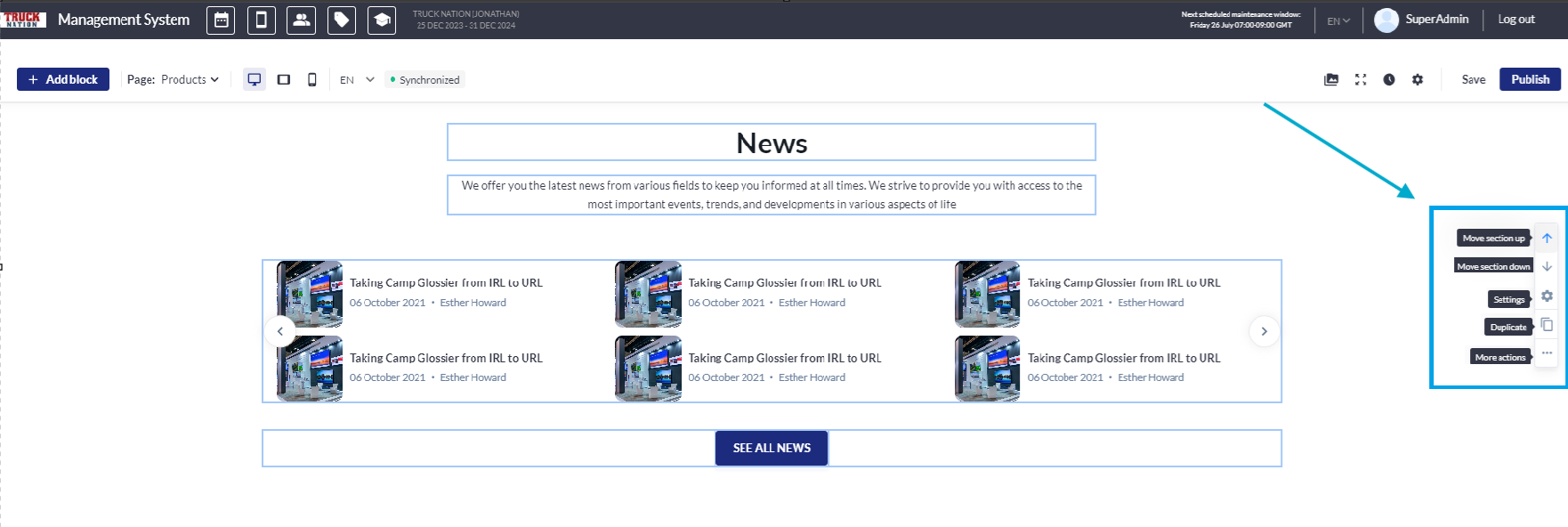
Fifth block сonsists of six News cards, primary text, secondary text and one button - See All News. There is also an available list of settings for the this block.
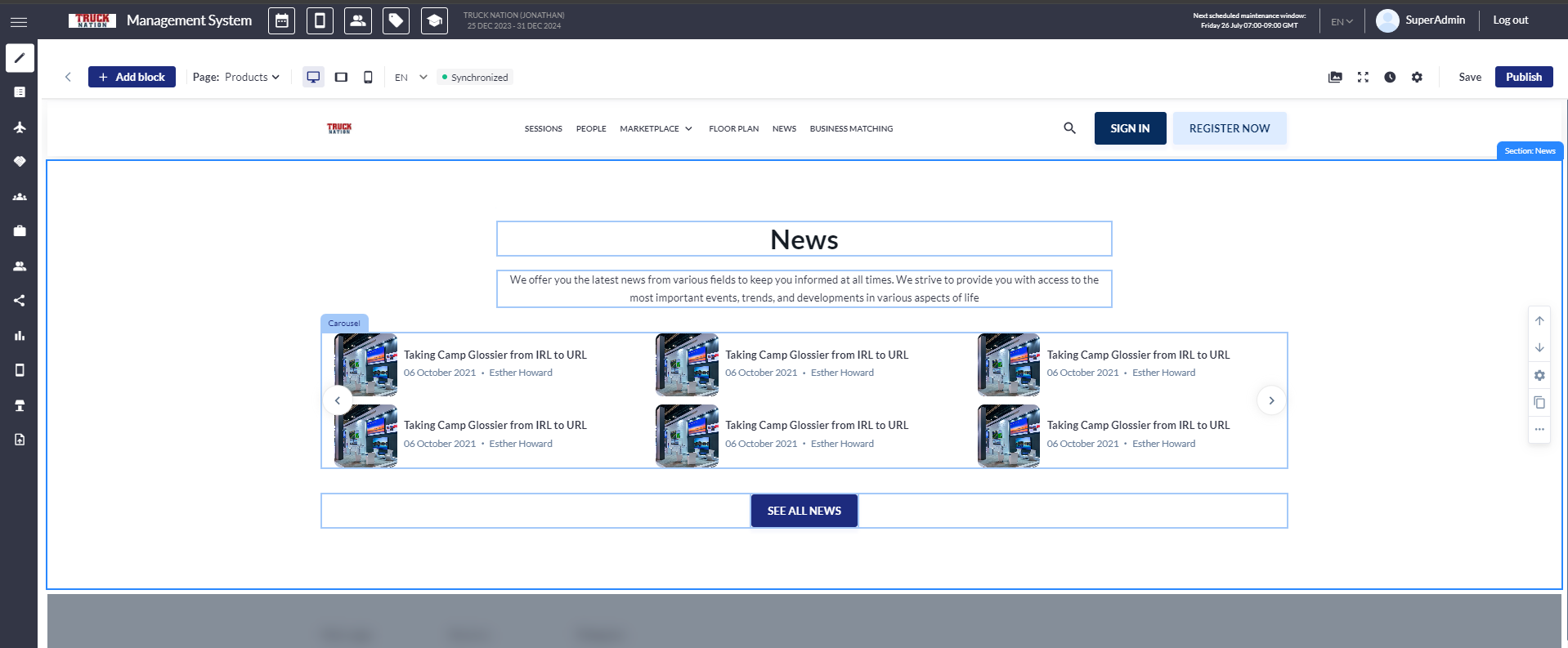
Identical settings in each block:
-
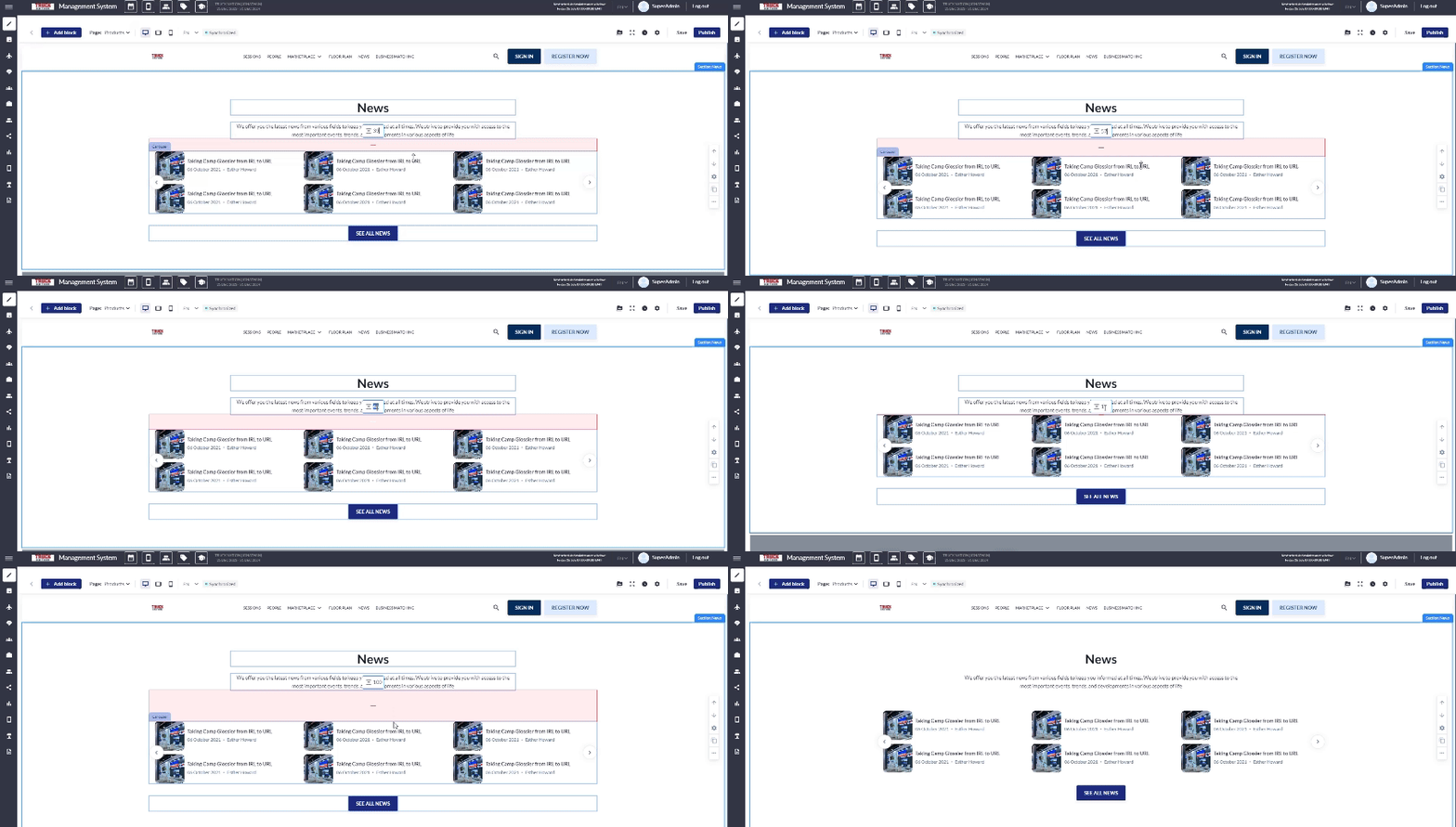
Interval between block elements. This can be manually adjusted by stretching the interval or by entering a distance, ranging from 1 to 200.
-
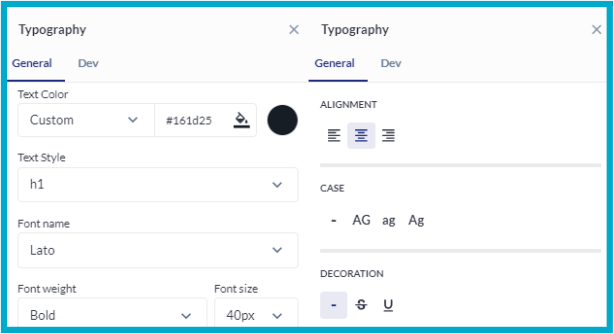
Typography settings for blocks that contain text. Customization options are text color and style; in the "Show Font Setting" tab, the following settings are available for customization:
-
Font name, weight, size
-
Alignment
-
Case
-
Decoration
3. Button settings and button link settings.
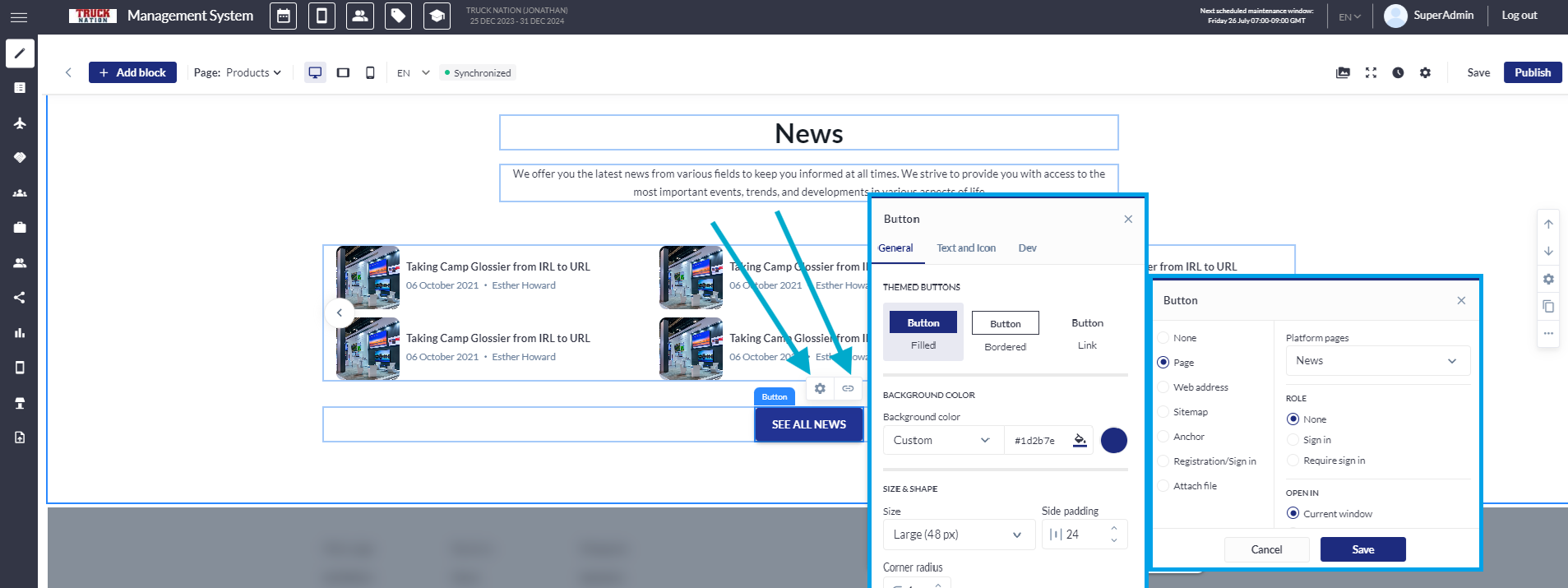
4. Sections settings in the block contain (General, News, and Devs)
-
General settings in the block allow the organizer to manage:
- Background color and image
- Enable/disable Title
- Enable/disable Subtitle
- Enable/disable Line
- Enable/disable Primary button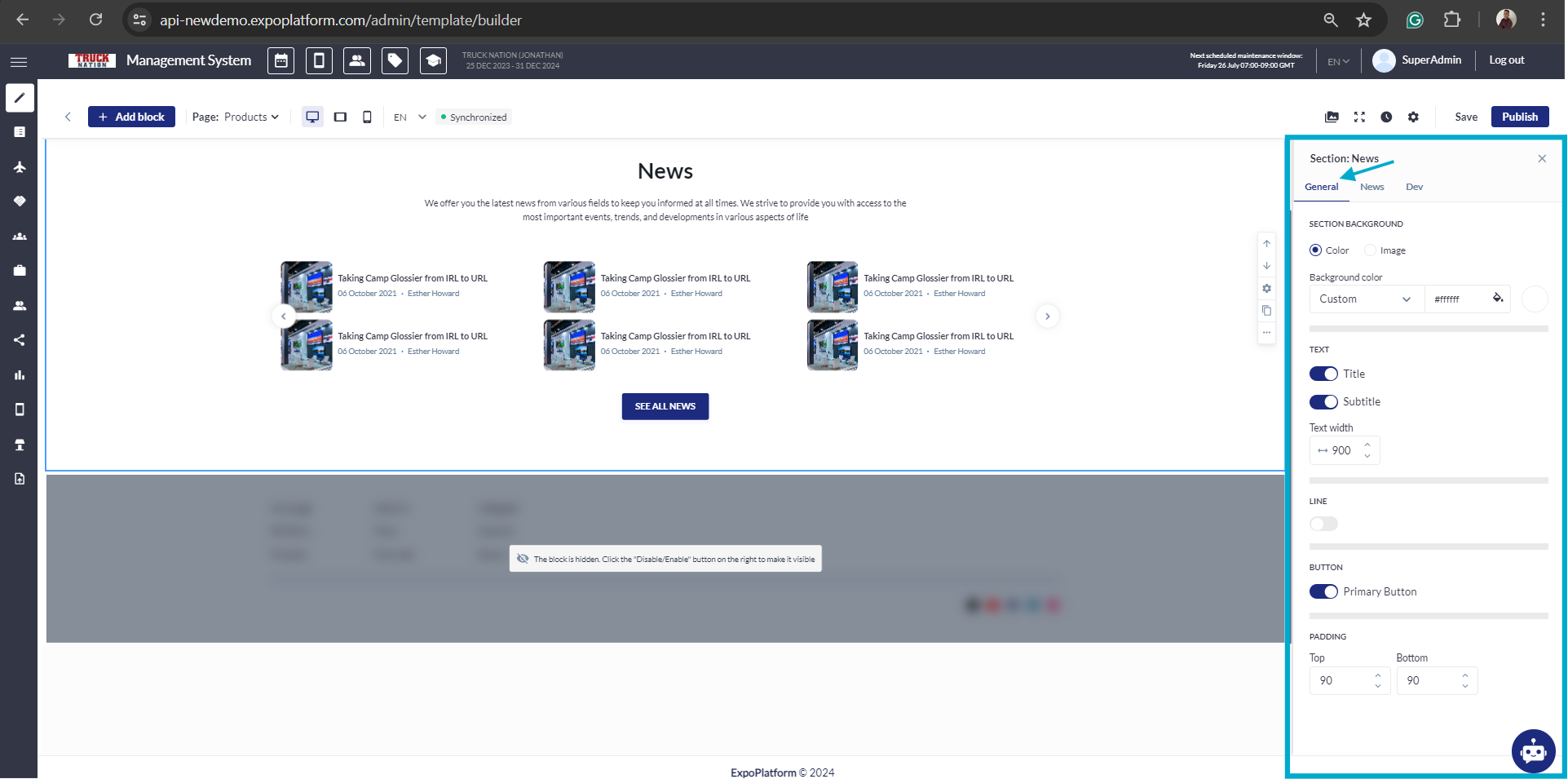
-
News allows the organizer to:
- Select the filter type (By filtering or selecting specific news)
- Add News Tags
- Choose which News to show: All, Exhibitors or Organizer options.
- Add Product Category
- Add Start Date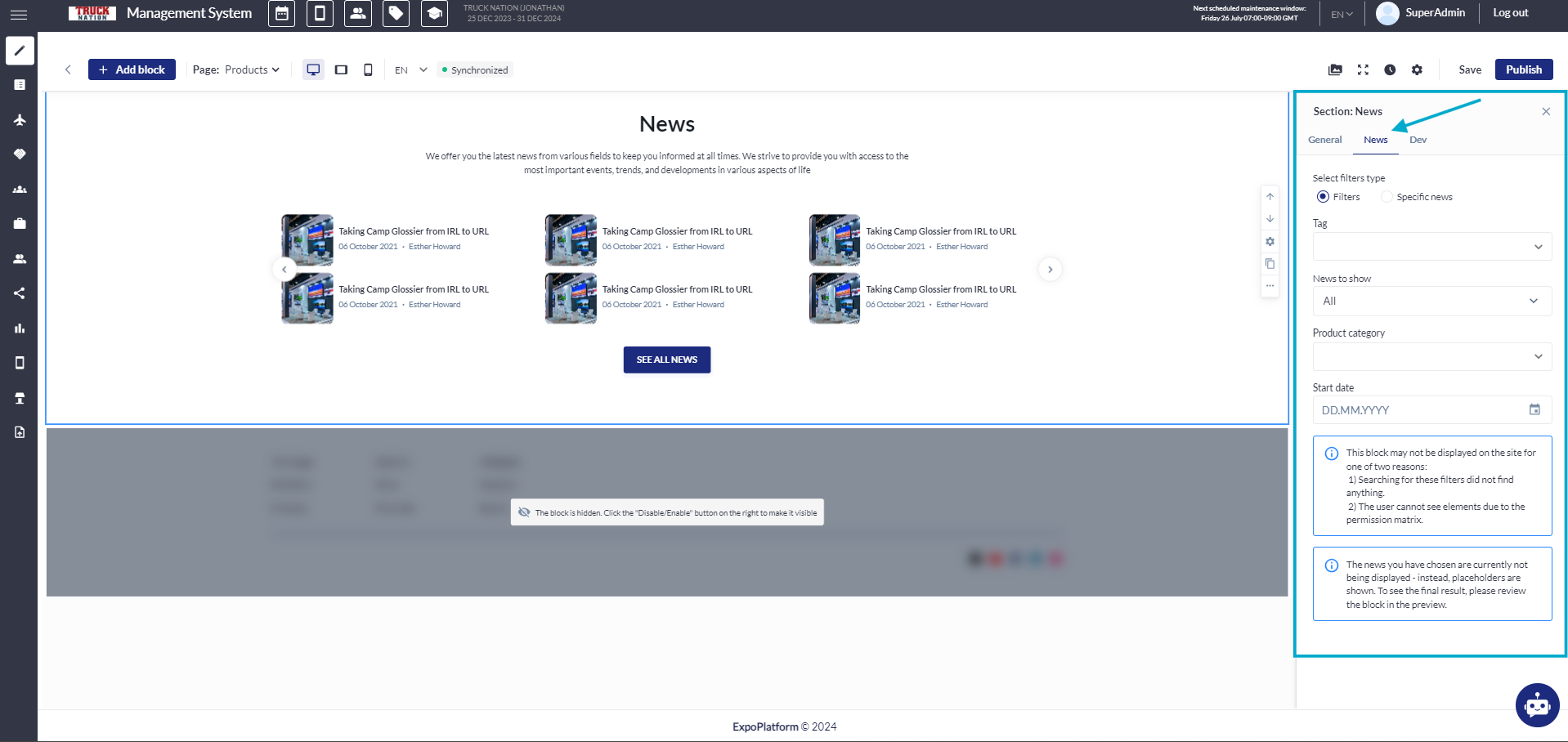
-
Dev
- Anchor is an ID that can be selected in links (when a link is clicked, the anchor scrolls the user directly to the corresponding block).
- Data-styleid allows you to input a custom word and a block with CSS appears to input styles.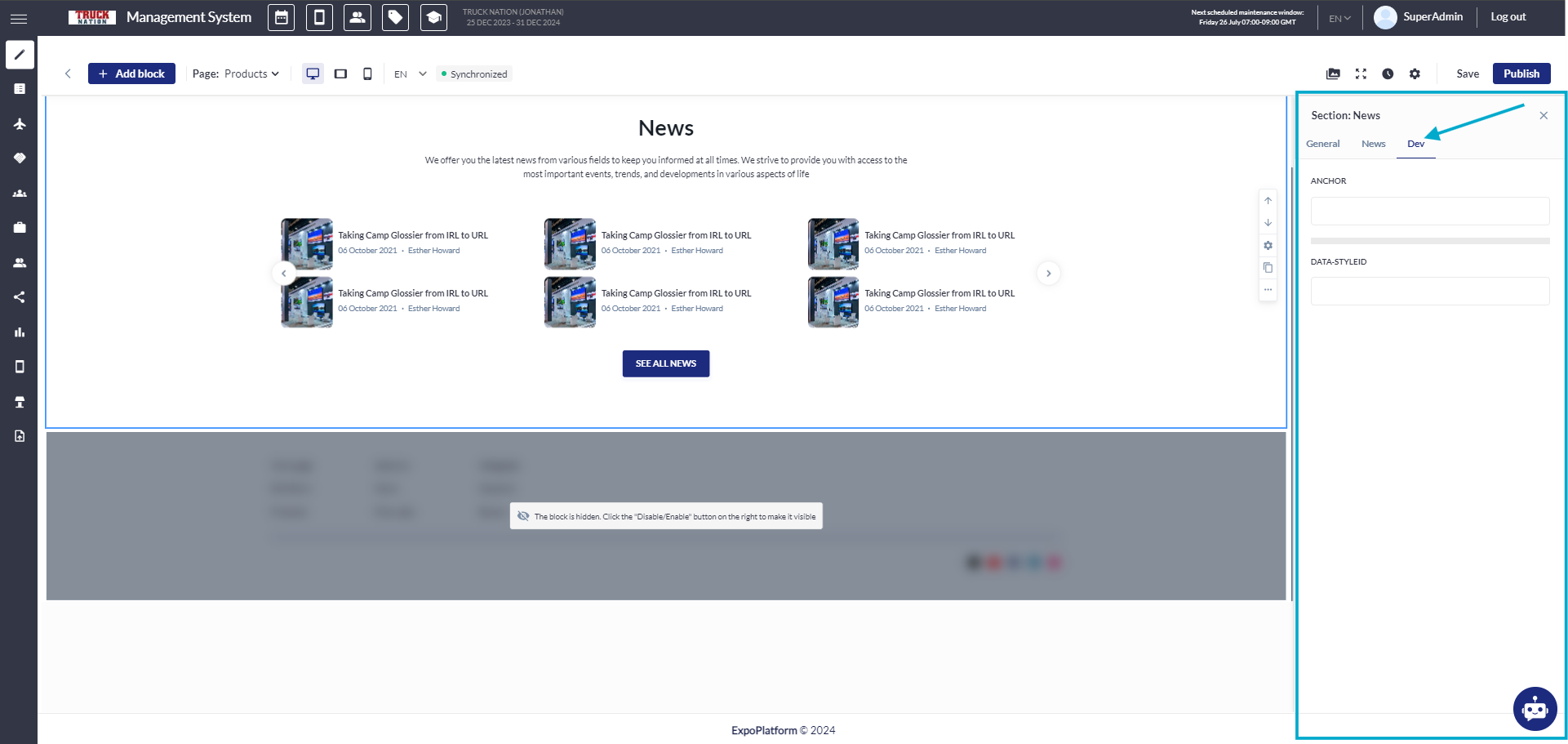
5. Other settings for each block, include:
-
Move the block up by one position.
-
Move the block down by one position.
-
Duplicate the block.
-
In the "More actions" button, you can add the block to the Favorite section, deactivate block, or delete the block.
Troubleshooting:
-
Issue: Unable to adjust the interval between block elements
- Ensure the interval value is within the allowed range (1 to 200)
- Verify that the manual adjustment method (stretching the interval) is being used correctly -
Button Settings
- Verify the button link settings to ensure they are correctly entered
- Make sure the button style settings (color, size, etc.) are correctly configured -
News not being displayed
- Validate that the News is allowed in the news section
- Validate that News has category and tags