
When the session card on the general Speed Networking page is clicked, the user will be taken to the session details page, that contain 3 tabs:
-
Pre-Registered List (Pre-registered list )
-
Schedule (https://expoplatform.atlassian.net/wiki/pages/resumedraft.action?draftId=809959457)
-
Tables
The session details page consists of:
-
“Back to speed networking” button that redirects the user to the general Speed Networking page.
-
Page heading with current session name
-
“Session settings“ button that opens the session settings page on the General settings step.
-
User can use the stepper to navigate between settings steps. Session settings can be changed only before the “Collect revised lists“ checkpoint is reached.
-
Dynamic timeline with counters
-
-
Main container (which is different for each tab)
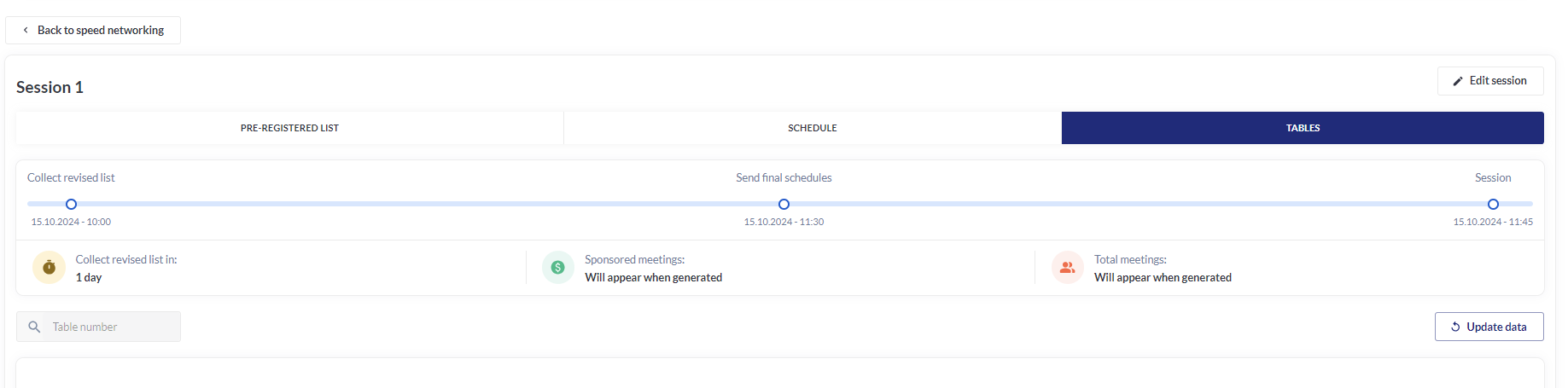
“Tables“ tab of the session details page:
Filters
-
When the user clicks on the “Filters” button, a list of default filters “Category“, “Role“ and “Status“ will appear.
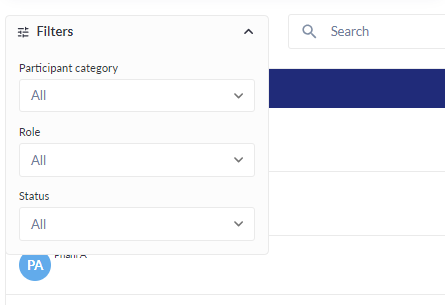
Search field
-
Search can be used to search by name, company, job title
-
Search works automatically after every change of the entered request
-
Searching and filtering apply only to Participants column
“Edit“ button
-
This button transfers user to the edit mode where he can edit existing meetings or create new ones. (Manual adjustment of meetings)
Tables table
-
User role tag is presented on every user card.
-
The indication of a Sponsored Meeting appears on user cards when the meeting is between users of Meeting Sponsor and Buyer roles.
-
Data in the table appears after the “Collect revised list“ checkpoint has been reached.
“Update data“ button
-
This button updates all data on the page without page reload.