
Feature Purpose:
The General Block Settings in ExpoPlatform's Website Builder provide administrators with essential tools to customize the appearance and behaviour of content blocks on event websites. These settings ensure consistency, flexibility, and control over the website's layout and design.
The General Block Settings allow administrators to:
-
Control Visibility: Temporarily hide or display blocks without deleting them.
-
Duplicate Content: Easily replicate blocks for reuse across different pages.
-
Customize Appearance: Adjust layout, background colours, font colours, padding, and margins to align with branding and design requirements.
Working with this Feature:
Accessing General Block Settings
-
Navigate to the Website Builder: Log in to the ExpoPlatform admin panel and go to the Website Builder section.
-
Select a Block: Choose the block you wish to configure.
-
Access Settings: Click on the Settings (cogwheel) icon located at the top-right corner of the block.
The screen recording below illustrates navigation in the admin panel:
Available Settings
-
Delete Block: Remove the block from the page. Note that this action is irreversible.
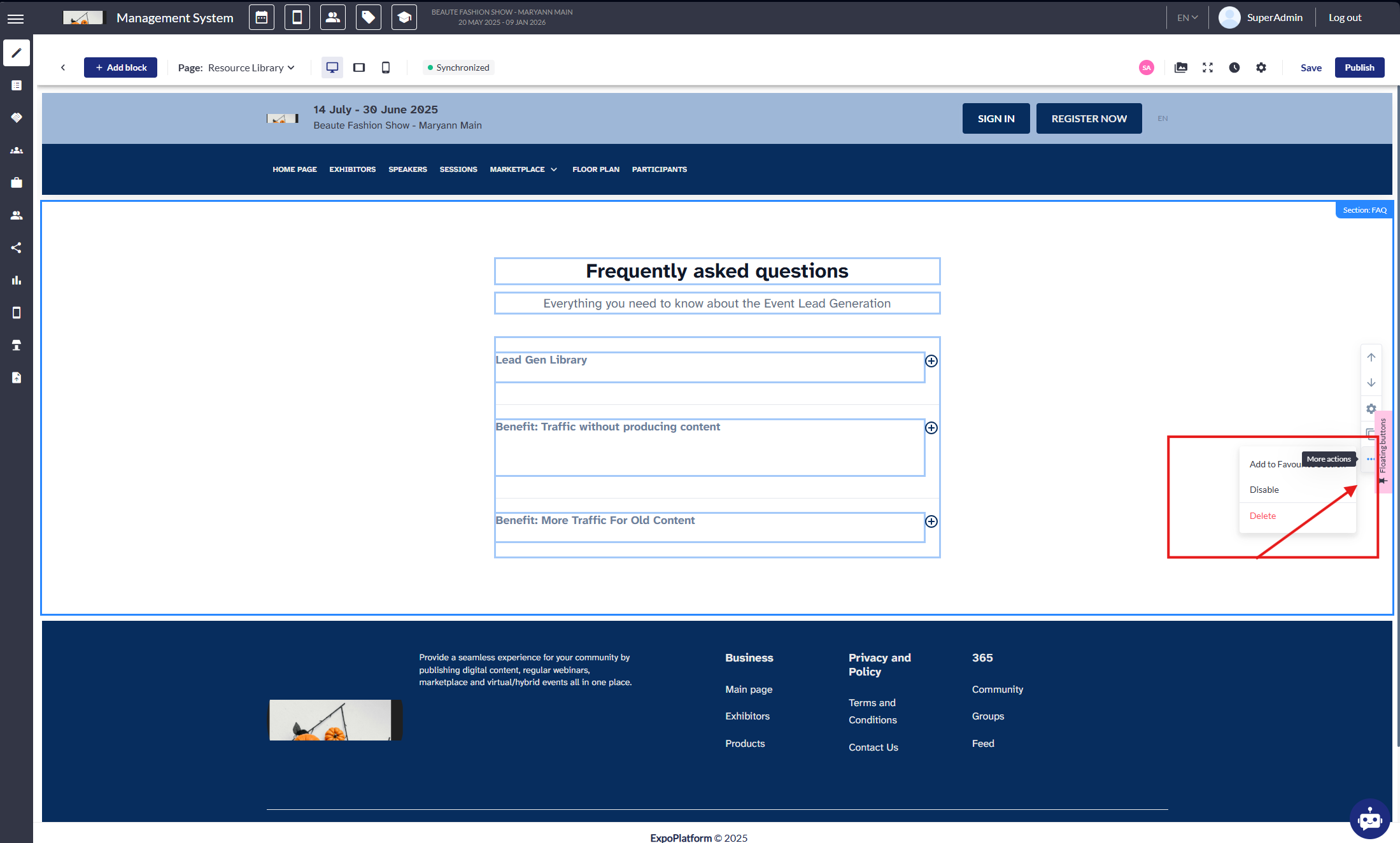
-
Copy Block: Duplicate the block, including all its settings and content, to reuse it elsewhere on the site.
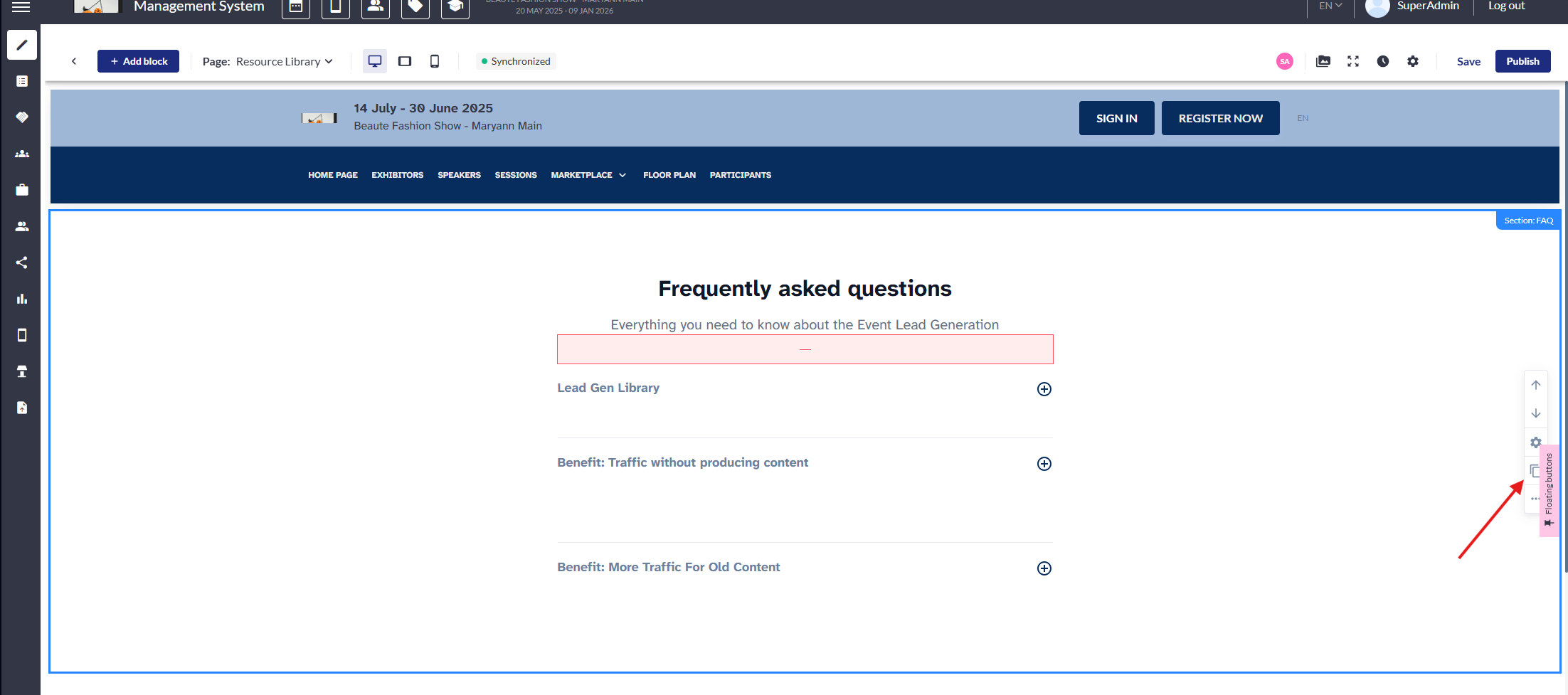
Content Editing
-
Visibility Toggle: Show/hide the block from the live page. Useful for drafts or timed content.
-
Visibility & Layout: Temporarily hide or show specific blocks on the live site. This is particularly useful when content needs to be prepared in advance or rolled out in stages.
-
Use Fixed Container: Use Fixed Container: Toggle between full-width and fixed-width layouts for the block. A fixed container applies margins on the left and right, aligning the block with the site's content area.
-
Text Width: Define the maximum width of text elements for optimal readability.
-
Padding (Top/Bottom): Add internal spacing above or below the content.
-
Margin (Top/Bottom): Modify the space outside the block above and below. Margins affect the spacing between blocks. Negative values can be used to reduce space. Adjust spacing between blocks. Negative margins can close space gaps between elements.
Screen recording shows block with padding/margin applied and fixed container toggled as well as the option to make a block visible or invisible
Styling & Background
-
Background Colour: Set the block's background colour using a colour picker or by entering a hex code.
-
Font Colour: Set text colour to enhance contrast or match event branding.
-
Section Background Settings:
-
Background Image: Upload or select an image from the file gallery.
-
Background Video Config: Embed a video (MP4 or link) as the block’s background, creating an immersive visual effect.
-
Many blocks feature a rich text editor, allowing administrators to:
-
Format Text: Apply headings, bold, italics, lists, and other formatting options.
-
Insert Media: Add images, videos, and other files through the global file gallery.
-
Embed Links: Include hyperlinks to internal or external pages.
Content Management (Rich Text Editor)
-
Format content with headers, bold, italics, lists, etc.
-
Add media via Global File Gallery (images, GIFs, MP4, PDFs).
-
Insert internal/external hyperlinks.
Screen recording shows how hyperlinks can be added to words and buttons
Dev Config (Developer Settings)
These toggles are helpful when testing or previewing layout changes:
-
Title / Subtitle ON/OFF: Hide or reveal the block title and subtitle without deleting them.
-
Primary / Secondary Button ON/OFF: Enable or disable CTA buttons that may lead to registration, tickets, or navigation links.
These options help teams preview alternate layouts or deactivate parts of a block temporarily without content loss.
Troubleshooting:
-
If a block is not appearing on the live site, the first thing to check is whether the Visibility Toggle is turned off. This is often the reason content appears to be missing, especially when content has recently been cloned or created.
-
If your layout spacing looks inconsistent, review your padding and margin settings. Padding controls the space inside a block, while margin controls the space between blocks. In some cases, using a negative margin is helpful to reduce whitespace, but it can also cause overlapping if overused.
-
If you’ve made changes that aren’t showing up on the live site, the issue may be browser caching. Perform a hard refresh (Ctrl+F5 on Windows, Cmd+Shift+R on Mac) to clear the cache and see the latest version.
-
If your content appears misaligned or overflowing, check whether the Fixed Container setting is enabled. Disabling this can cause media or text to stretch the full width of the screen, which may not always be desirable. You should also check if the media files inserted are too large—resizing or compressing images can help maintain layout integrity.
-
If your buttons or titles are unexpectedly missing, it’s likely they’ve been turned off via the Dev Config panel. Simply toggle them back on.
-
Lastly, if media uploads are failing, ensure you're using supported file formats like JPG, PNG, or MP4 and that your files are within the platform's size limits. Unsupported formats or oversized files can cause upload errors or result in blank spaces in your design.