
Feature Purpose:
The Custom CSS & JS feature in the website builder allows users to personalize their websites beyond standard templates. By adding custom Cascading Style Sheets (CSS) and JavaScript (JS), users can enhance both the visual design and interactive functionality of their website.
Working with this Feature:
When duplicating a website or cloning the event, custom CSS and JS module content is not carried over.
-
Accessing Custom CSS & JS Settings
-
Navigate to the Website Builder’s Customization Settings.
-
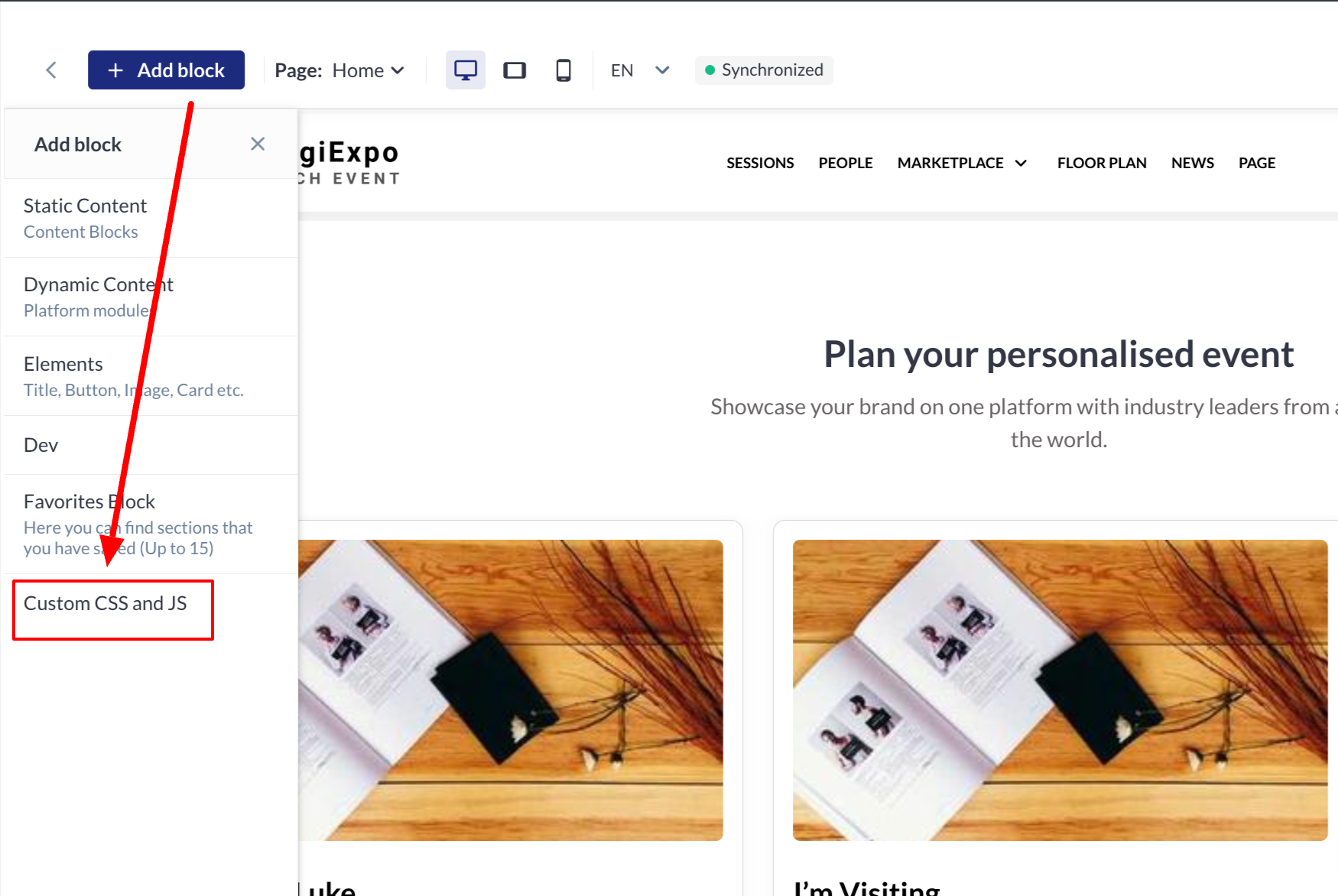
Click on the “Add Block” button.
-
Select the “Custom CSS and JS” option from the menu.
-
Adding Custom Code
-
Enter or paste your CSS code to modify the appearance of website elements, including fonts, colors, spacing, and layouts.
-
Use JavaScript to enhance functionality with animations, interactive elements, and dynamic content.
-
Flexibility & Control
-
Custom CSS & JS can be applied globally across the entire website or targeted to specific pages, sections, or elements, providing granular control over customization.
-
Users can tailor their websites according to branding guidelines or special functionality requirements beyond the default platform settings.
Troubleshooting:
-
Custom Styles Not Applying
-
Ensure your CSS syntax is correct and does not have conflicting rules.
-
Try clearing the browser cache to refresh the applied styles.
-
JavaScript Not Functioning Properly
-
Check for syntax errors in your JavaScript code.
-
Ensure that the functions are properly referencing the correct HTML elements.
-
Verify that any external JavaScript libraries used are correctly linked.
-
Changes Not Reflecting on Certain Pages
-
Confirm that the custom CSS & JS is applied to the correct page or section.
-
Some settings may require a page refresh or republishing to take effect.