
Feature Purpose:
Provides comprehensive details about both online and offline meetings scheduled for the event.
Working with this Feature:
To access General Analytics, navigate to the Analytics module and select "General."
Upon opening General Analytics, you will find several tabs within this section.
Click on the Meetings tab to open this page:
-
Please note: Even if Appointments is turned off in module management, this Meetings tab will still be visible
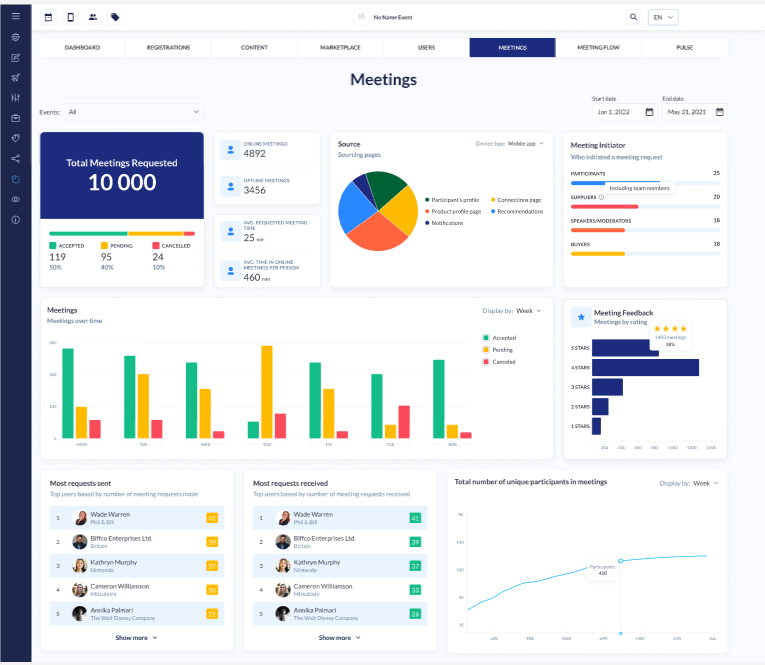
Overview of data on the Meetings Analytics page
|
Section |
Description |
Details/Filters |
|---|---|---|
|
Total Meeting Requests |
Displays the total meeting requests with an additional breakdown indicating the number and percentage of accepted, pending, and cancelled meetings. |
Auto-Confirm Meeting: When the auto-confirm meetings toggle is activated, pending meeting details are concealed. If the organizer selects ‘All events,’ the pending meeting details are hidden specifically for the event where the auto-confirm meetings toggle is enabled. |
|
Count of Online Meetings |
Shows the count of meetings held online. |
|
|
Count of Offline Meetings |
Includes concierge meetings and displays the count of offline meetings. |
|
|
Exhibitors with a Confirmed Meeting |
Represents the total number of exhibitors who have at least one confirmed meeting. Includes regular and concierge meetings initiated or received by the exhibitor. Counts confirmed meetings as of today from all sources except Round Tables and Speed Networking. Each unique meeting is counted only once, regardless of the number of team members attending from the same exhibitor. |
|
|
Average Number of Confirmed Meetings per Exhibitor |
Calculates the average number of confirmed meetings per exhibitor. Includes all regular and concierge meetings, both initiated and received. The metric considers the exhibitor and all its team members collectively. Excludes Round Tables and Speed Networking. |
|
|
Source |
Captures the source page from where the meeting is scheduled/initiated. |
|
|
Meeting Initiator |
Shows who initiated the meeting request. |
|
|
Meetings Over Time Diagram |
Displays meetings (accepted, pending, cancelled) per chosen period |
Auto-Confirm Meeting: When the auto-confirm meetings toggle is activated, pending meeting details are concealed. If the organizer selects ‘All events,’ the pending meeting details are hidden specifically for the event where the auto-confirm meetings toggle is enabled. |
|
Meeting Feedback |
Displays meetings categorized based on the provided ratings. |
|
|
Total Number of Unique Participants in Meetings |
Shows the progression over time for the total number of participants in meetings (each participant counts only once). |
|
|
Most Requests Sent |
Lists the top users based on the number of meeting requests made. |
|
|
Most Requests Received |
Lists the top users based on the number of meeting requests received. |
|
Special Cases to be Noted:
-
For suppliers, 'Including team members' indicates that all meetings scheduled by team members should be attributed to the exhibitor, to whom those team members belong. Consequently, the names of those team members are not listed on the leaderboard.
-
If a participant holds multiple roles and initiates a meeting, it will be categorized according to the highest role in the hierarchy. The hierarchy is as follows: Supplier (team member) > Buyer > Speaker/Moderator > Participant. For instance, if a participant serves as both a Buyer and a Team Member, any meeting they initiate will be attributed to their role as a Team Member in the Meeting Initiators chart. If a Participant sets up 3 meetings, for example, and then his role was changed to Buyer under which he set up 2 meetings, in the stats we will have 5 meetings recorded for Buyers. If the role of the Participant was changed to Team Member, the count of all his/her previous meetings will be transitioned to the exhibitor to whose team he belongs.
-
If a meeting is arranged by a user and also includes other participants, only that user is designated as the meeting initiator.
-
Both regular and concierge meetings are counted in the analytics. Concierge meetings are considered as offline meetings.