
ExpoFP: Data Integration
A data integration is established between ExpoPlatform and ExpoFP that enabled the exhibitor data flow from ExpoPlatform to ExpoFP.
Every time an exhibitor is created, edited or deleted on ExpoPlatform’s, exhibitor data fly out to ExpoFP.
Credentials for connection with ExpoFP can be taken from the Admin Panel → Advance Settings → ExpoFP Integration → Enable toggle Transmit Exhibitor data to ExpoFP
Following Exhibitor data is pushed to ExpoFP in case of creating, edition or deletion
-
Exhibitor Name
-
Stand ID (through which the integration works)
-
Order ID: for Only Parent Name to be visible on stand
-
Exhibitor Description
-
Exhibitor Image/Logo
-
Exhibitor Category

Benefit
-
Avoid manual editing of data on ExpoFP's end if any changes are made to the exhibitor account on EP.
Enhancement to the Check-In app
A few changes have been made to our existing Check-In app.
-
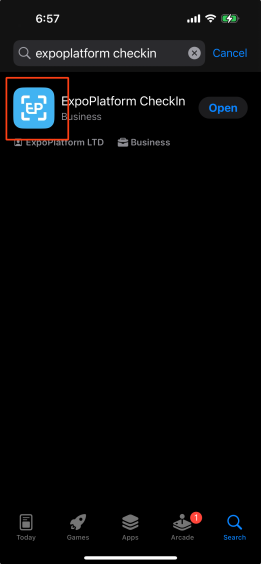
Logo change of the check-in app has been updated
-
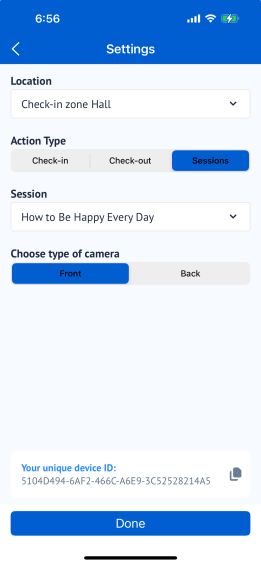
A new screen added where the organiser can select the check-in location(Check-In Zone), Action Type(Check-In or Check-Out), Select Camera type, click on Done to move to the next screen
-
If organiser chooses session in action type - a new selector will appear with list of sessions/exhibitor events/speed networking sessions
-
If the organiser chooses session in action type and don’t choose a session, the button “done” remains inactive
-
-
After selecting these settings it will open a new screen from where the organiser will be able to scan
-
Scan Logic Change: If the "check-in" action is chosen on the settings screen, the server sends and saves the "IN" action. If the "check-out" action is chosen on the settings screen, the server sends and saves the "OUT" action.
While scanning for a session or exhibitor event, the server checks if this session is added to user's schedule, if it’s not in the schedule, the scan gives the error message "This session needs to be added to the schedule first for this user to check-in".
-
Success/error screen after scan: Enjoy a redesigned success/error screen and check-in list, making it easier to navigate and understand the information displayed.
-
Check-In List: Only design change
Benefit
-
Enable seamless user access with the enhanced Check In App
-
Design improvements for a better visual experience
-
Simplified navigation for intuitive session check-ins
-
Smart scanning functionality
Download Lead Improvement
Enhancement made to the Lead Download option available in the user profile.
The Lead Download button has been relocated from the left menu panel to below the user's profile details, improving the visibility of the functionality.
Now Clicking on the "Download Lead" button triggers a loader that immediately indicates the lead file preparation process.
Once the file gets generated, the user can click on the generated file to download the lead in XLS format.
Benefit
-
Enhanced visibility of the functionality