
Adding Content Banner to Website Builder
Added a new content block banner to the new website builder to showcase different content and promotions to end users at set intervals.
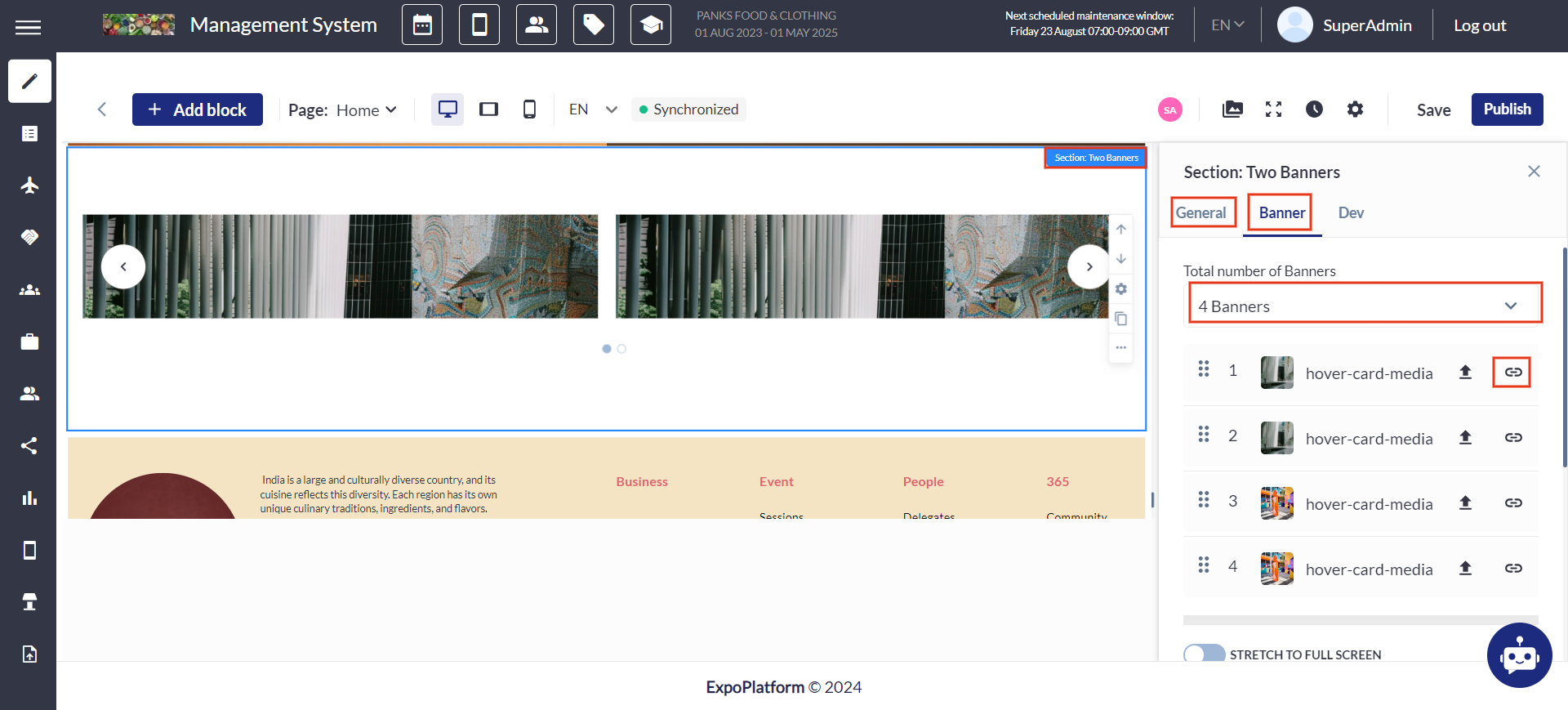
The block includes a user-friendly interface for uploading banner images and associating hyperlinks with each of them
Each banner will have an option to set a display duration before the next banner slides in. Banners can be added in 3 different layouts
Banner in 1 row: The banner default size for this layout is 1400 x 200pxl, the carousel appears when 2 or more banners are added to the block.
Banner in 2 rows: The banner default size is 696 x 140pxl. The carousel appears when 4 or more banners are added to the block
Banner in 3 Rows: The banner default size is 456 x 100pxl. The carousel appears when 6 or more banners are added to the block
Organisers can customize banner links by hovering over a banner or by using the general settings where images are uploaded.
Each banner block has four types of banners available: Default, Carousel (activated with two or more banners), Carousel with Dots, and Carousel with Numbers.
The users can opt to make it full screen and edit the image to prevent cropping if the uploaded banner exceeds the default size
Max banners that can be uploaded are 100
Benefit
-
Enables organiser to customise and showcase different content and promotion material to the end user
Enhanced Networking through Intelligent Exhibitor Recommendation
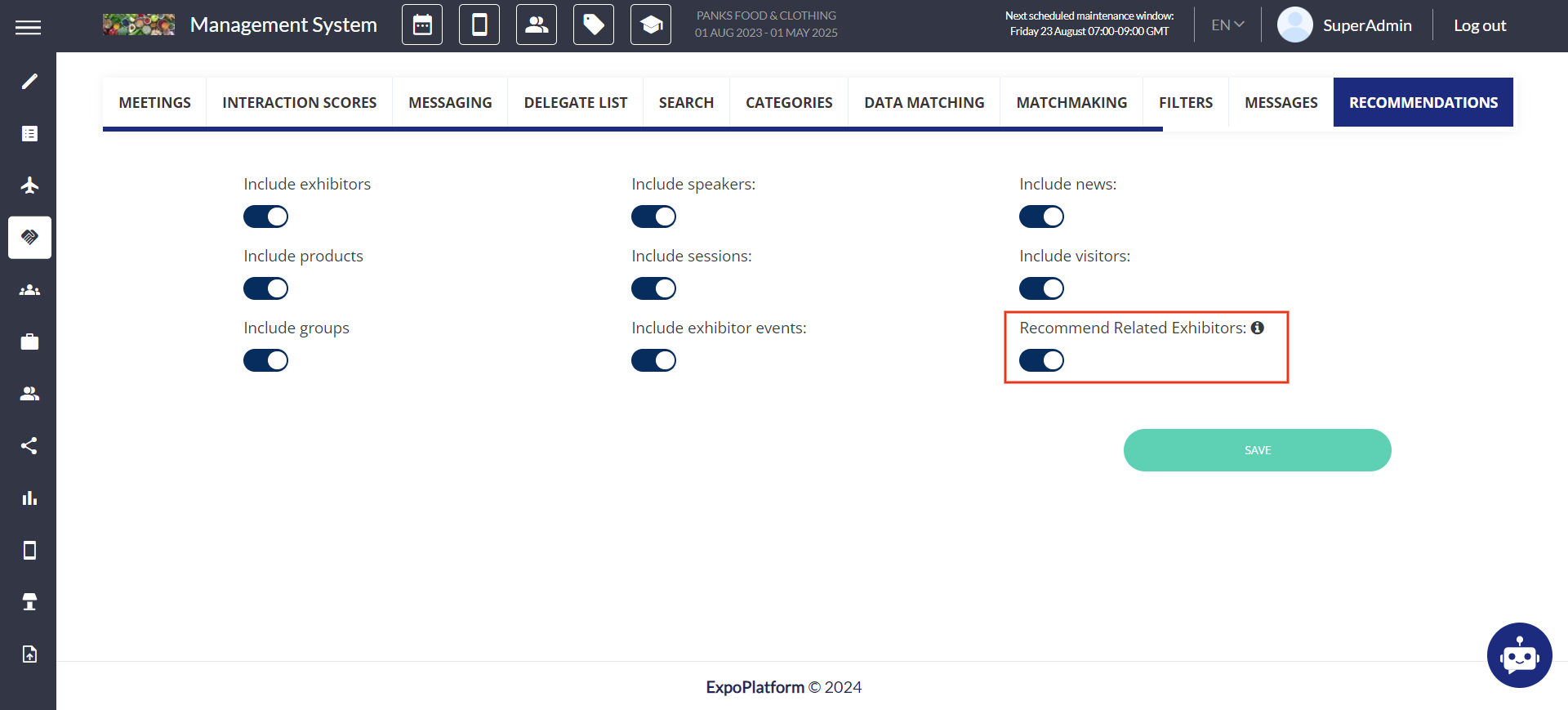
A new setting Recommend Related Exhibitors is added on the Recommendation tab under Networking & Matchmaking, if this toggle is enabled the My Schedule/Team Schedule page on the frontend shows the list of recommended exhibitors based on users' matchmaking preferences and interactions.
Points to be Noted
-
The recommended exhibitor pop-up block appears only after the successful creation of the meeting with the exhibitor.
-
The Recommended Exhibitor pop-up lists 20 exhibitors, and each card will have interactive buttons.
-
The exhibitors are displayed according to the user's permissions settings.
-
The “See all recommendations“ button redirects the user to the matches on the Exhibitor Page with “Recommended for you” turned ON.
-
This block appears above the date selector block on the Schedule Page. The block is convertible, by default – unfolded. On clicking the header the block gets folded.
-
Enable Online ResSys should be enabled under Matchmaking for this feature to work
-
It is a web only feature.
If the “Recommend Related Exhibitors“ setting is enabled and the “Enabled Online RecSys“ setting is disabled, the pop-up and block will not have any recommendations.
The “Recommended Exhibitors“ block and pop-up is not be displayed to Exhibitors and Team Members when the “Allow Exhibitor to Exhibitor Matchmaking” option is disabled.
Benefit
-
Ability of the system to present a dynamically generated list of similar exhibitors based users matchmaking preferences & actions.
Networking filters for Attendees and Exhibitor
New filter option Existing Chat is added for the Attendee and Exhibitor page under Display Filter on Admin Panel. The “Existing Chat” filter is included for pages: Delegates, Speakers, Buyers, Exhibitors, Pavilions, and Products.
Admin Panel Setting: Event Setup → Display Filters → Delegate/Exhibitor Page
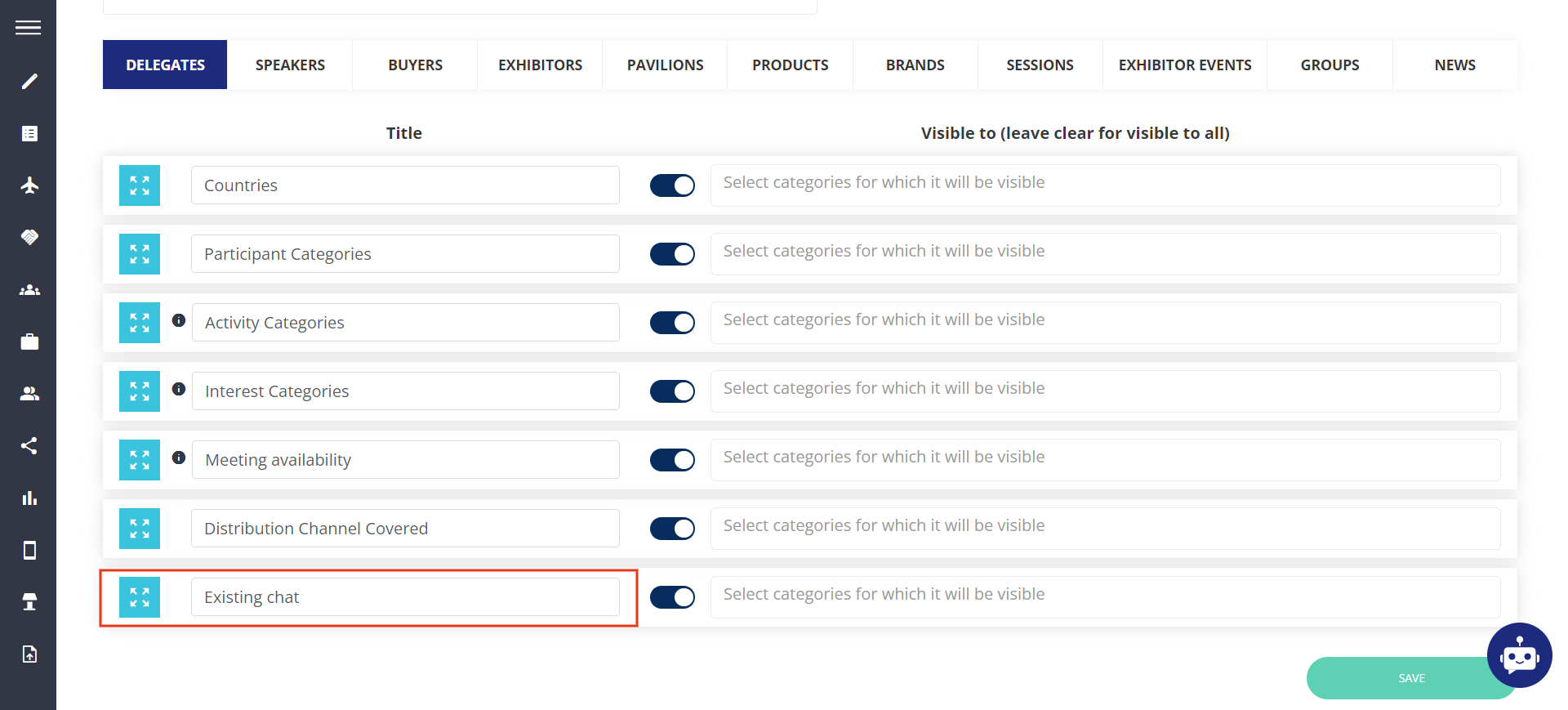
Default State: Off
On frontend these filters are visible based on the enablement on the Admin Panel. The “Existing Chat” filter option includes “People or exhibitors I've messaged” and “People or exhibitors who messaged me”
It works on OR logic between the “People or exhibitors I've messaged” and “People or exhibitors who messaged me”
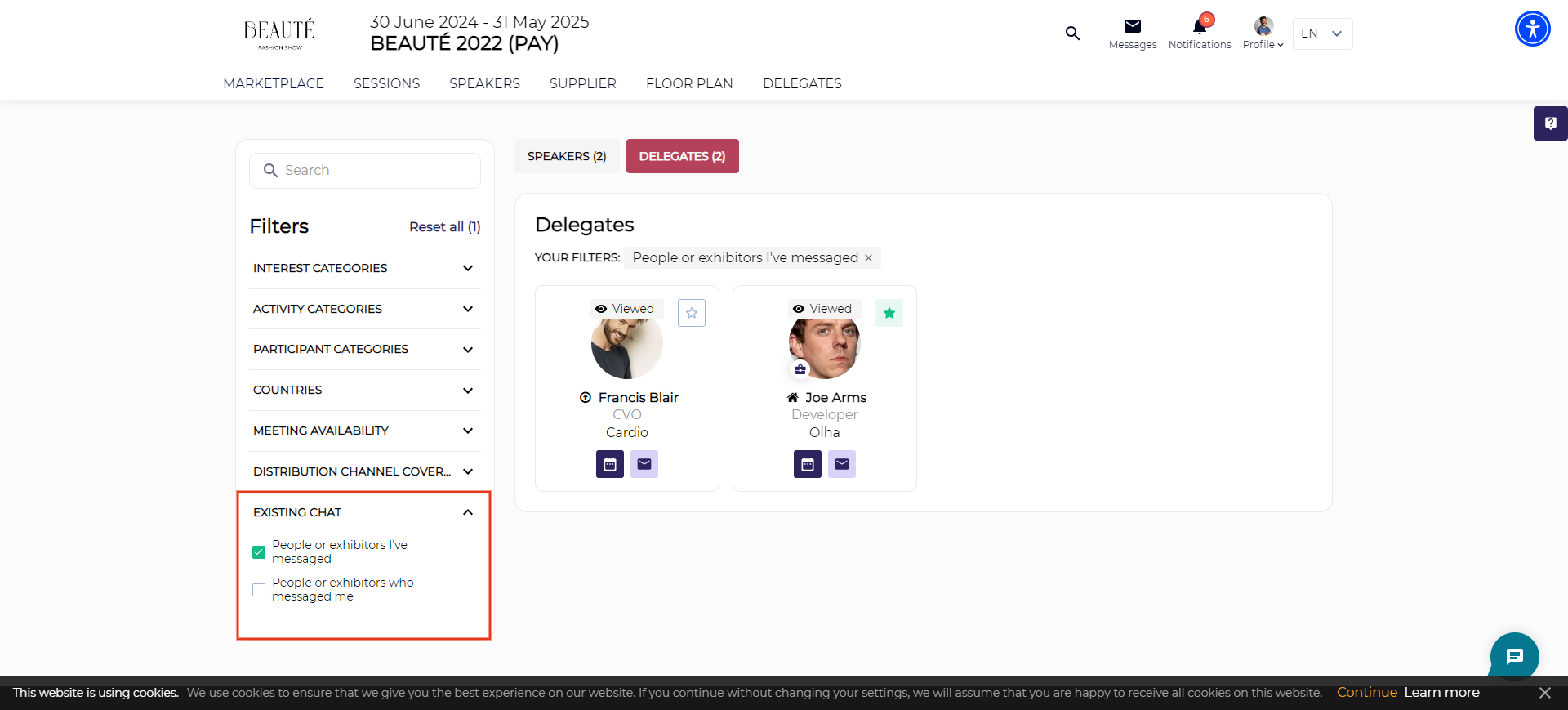
This filter is based on 4 scenarios
-
Both Filters Selected: All chat cards initiated or received by the user are visible.
-
Only "Initiated by Me" Selected: Only chat cards initiated by the user are visible
-
Only "Received" Selected: Only chat cards received by the user are visible.
-
No Filters Selected: All chat cards are visible regardless of initiation or reception.
Copy link to applied filters button is hidden when the chat filter is enabled
Web Only
Benefit
-
Additional filter option added on the frontend to filter out the user data based on chat initiation and reception
Multi-Language Admin Notification
Organisers can now send Admin/Push notifications in multiple languages based on the languages enabled for the event. Language selector and default language depend on event settings.
The user receives notification based on the language set in the user profile: newfront/profile/settings
The notification Title and message can be sent in the language selected by the organiser. On Admin Notification organiser can select the language in which they want to send the notification.
Default Language is taken from /admin/general/edit
Specific Language: Organisers can also configure specific languages for notifications to match user preferences. For instance, if an admin configures Spanish and French for notifications, these settings will be stored and used for users with matching language preferences
Dynamic Language Organiser can update language configurations, and the system will immediately use the latest settings. For upcoming notifications.