
Feature Purpose:
The Sign-in page allows users to log into the mobile app. It is fully configurable in the Mobile App Builder within the admin portal. Admins can customize its appearance, buttons, and behavior.
Working with this Feature:
1. Page Appearance & Configuration
The sign-in page layout and design are defined in the Mobile App Builder (Admin Panel).
-
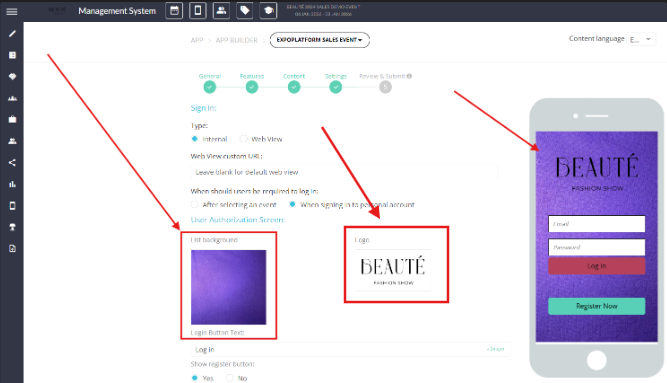
Background Image and Event Logo:
-
Configured within the App Builder.
-
Determines the background displayed on the sign-in screen.
-
-
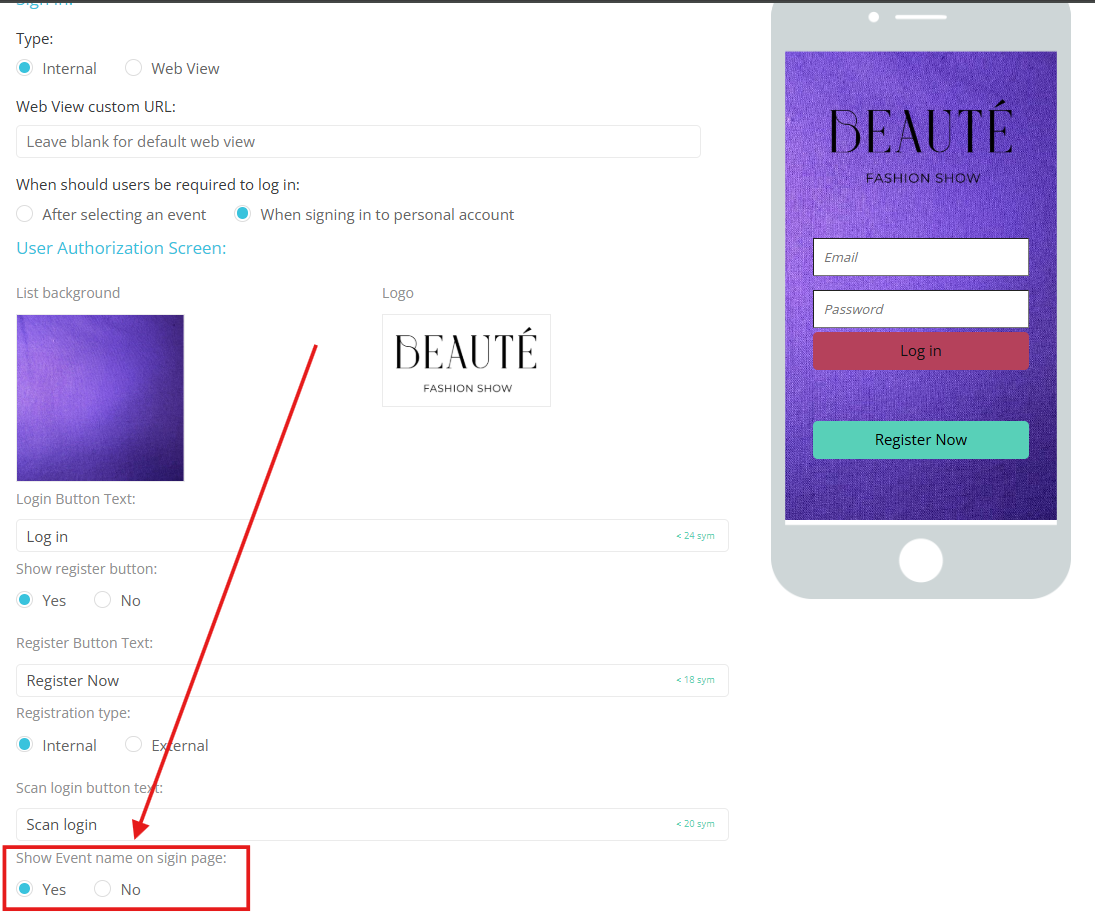
Event Name Display:
-
The event name shown on the sign-in page corresponds to the event’s settings.
-
-
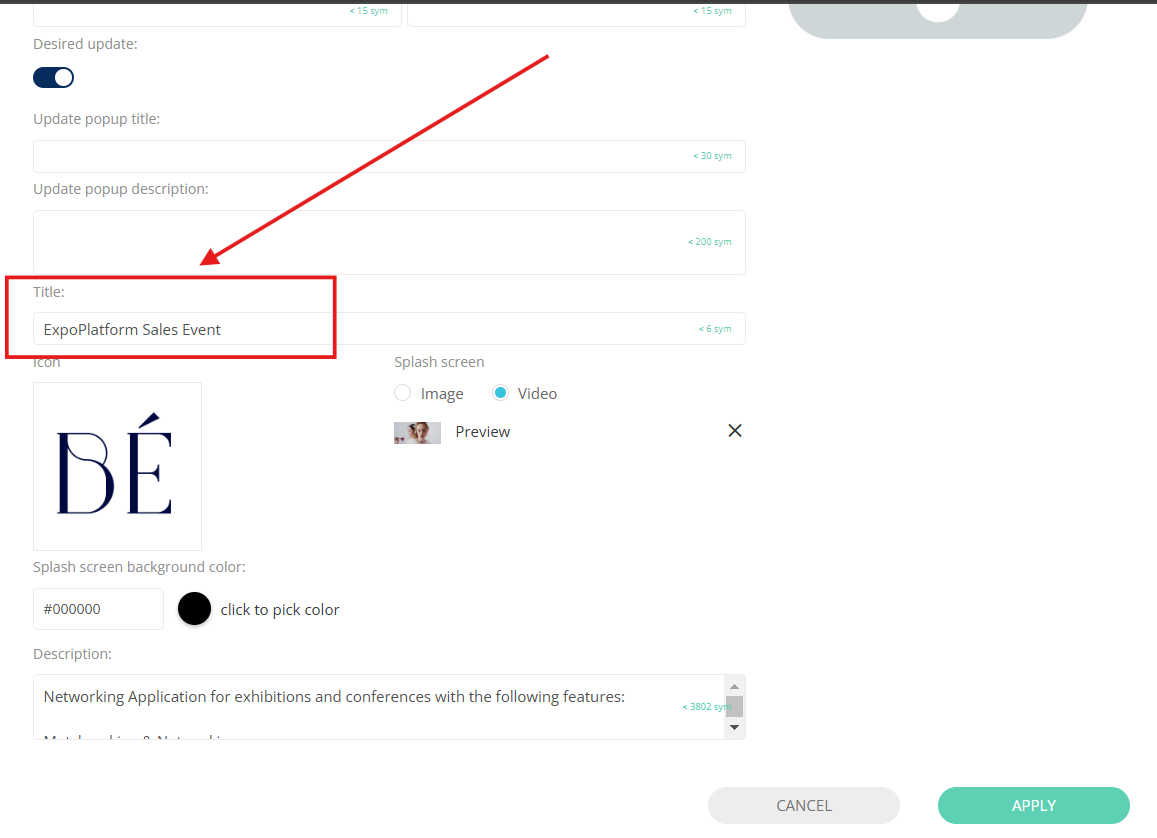
Title:
-
The title appears on the sign-in page.
-
2. Buttons & Customization
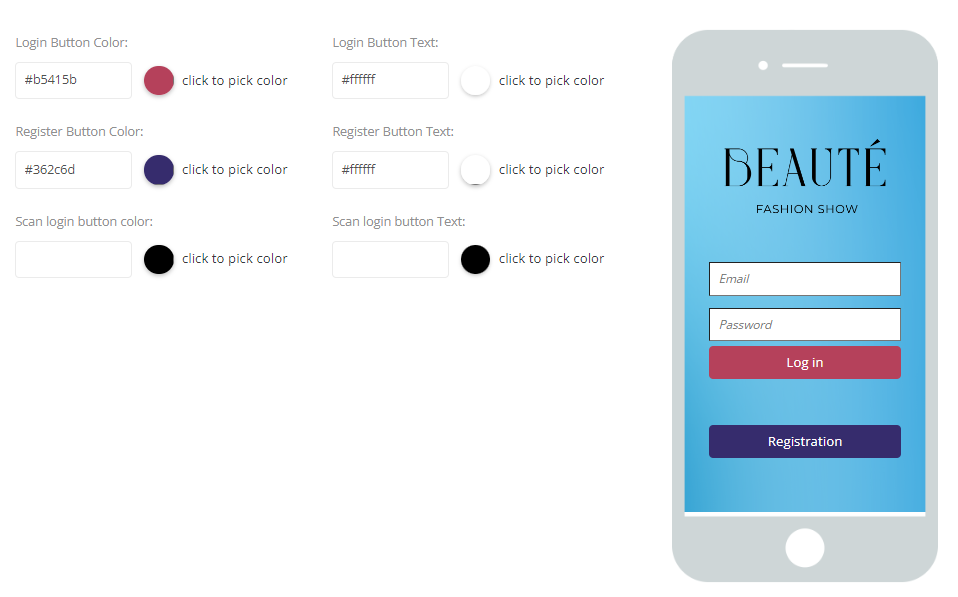
Buttons can be configured in the App Builder → Settings. The following options are available:
-
Button Text – Define the label for each button.
-
Button Color – Set the button colors.
-
Button Visibility – Choose whether to display or hide buttons.
-
Disclaimer Text – Customize the disclaimer shown at the bottom of the page.
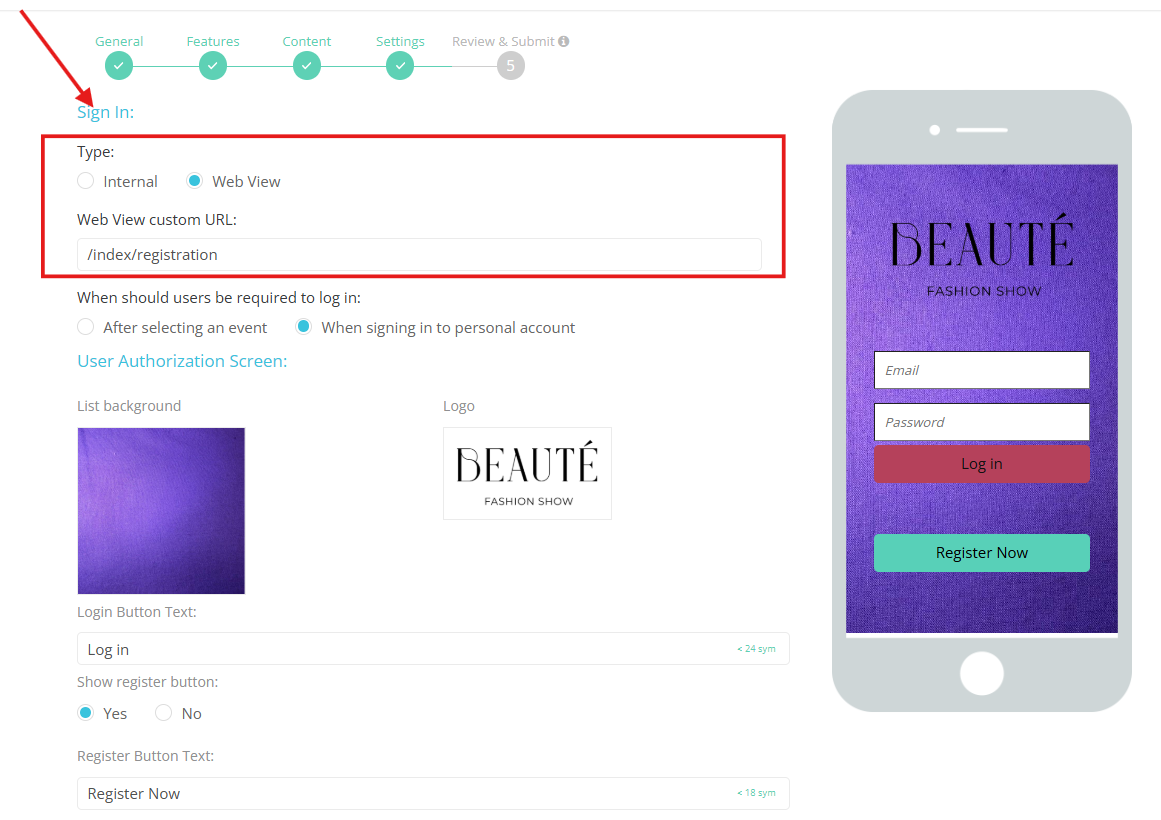
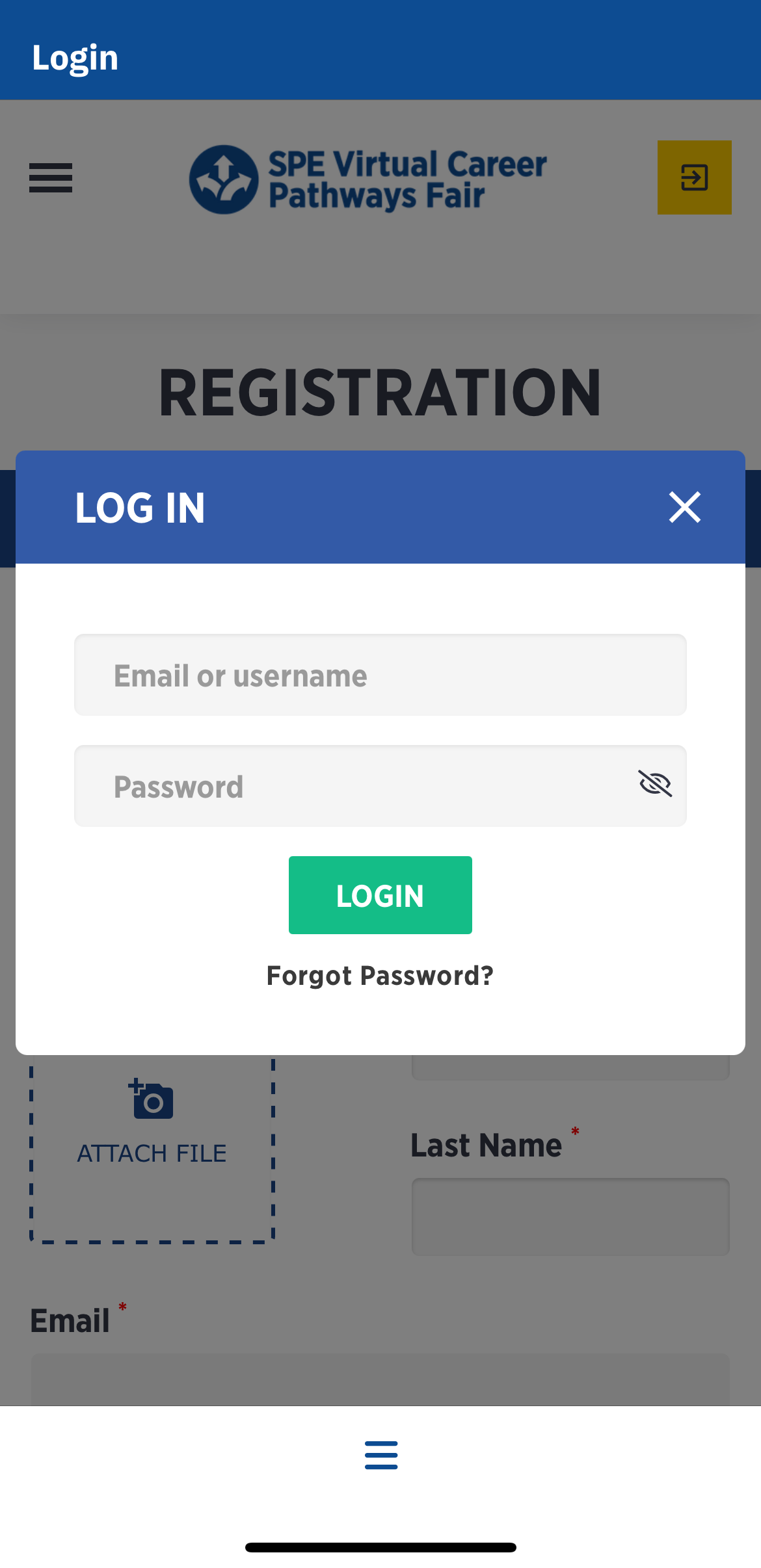
Important: If a custom login page (Web View) is configured in the App Builder, users can be redirected to the web page instead of using the standard mobile app login options.
3. Sign-in Methods
Below are the three different login methods available:
3.1 Internal Standard Login
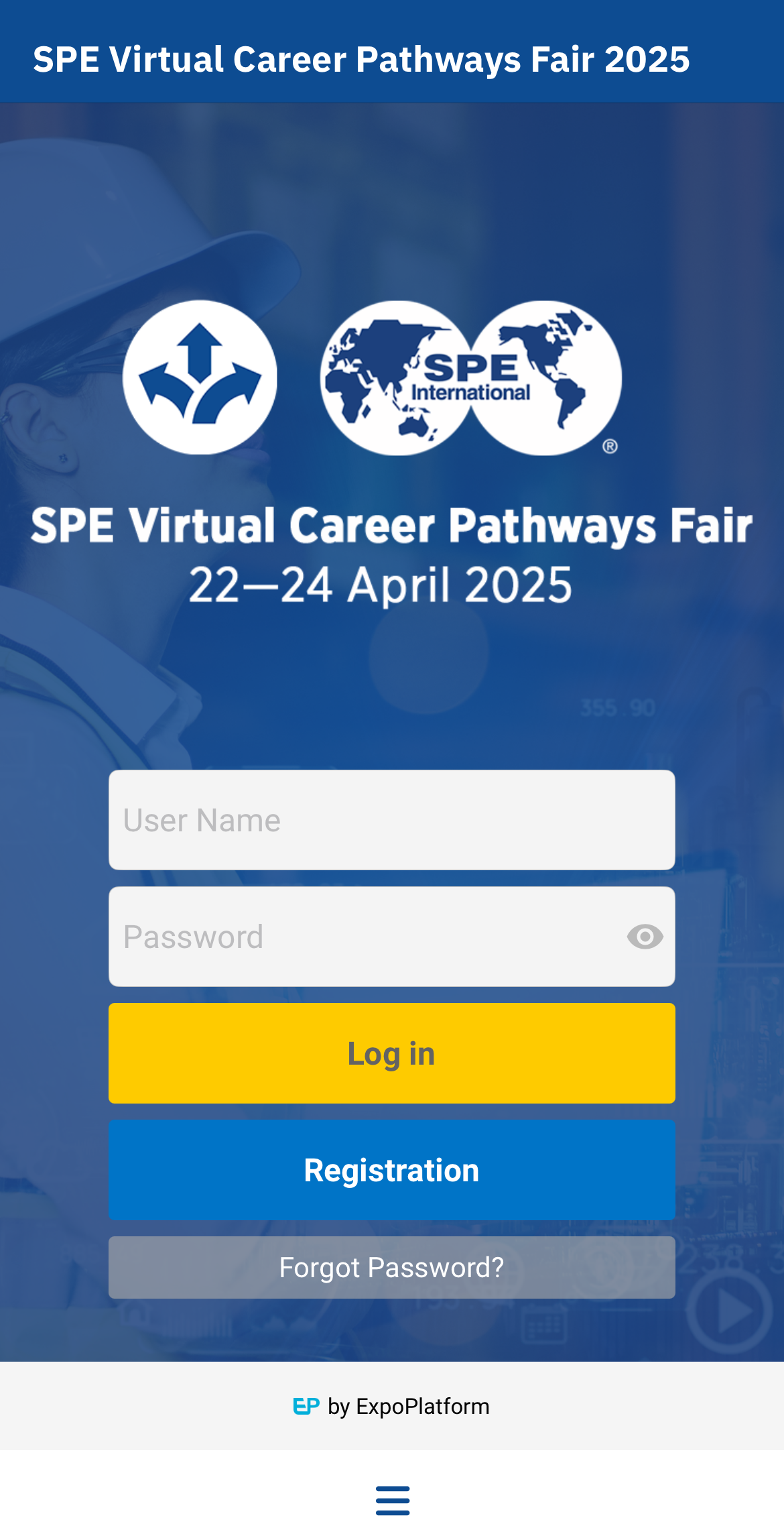
The standard login method allows users to enter their credentials directly in the app with Login and Password information
✅ Key Elements to Check:
-
Background image.
-
Event name visibility.
-
Login Button
-
Registration Button (Can be hidden if necessary)
If event registration is disabled, check its behavior:-
Navigate to Admin Panel → Event Setup → Module Management → Registration Module.
-
Determine if registration was previously turned off for visitors only or exhibitors only.
-
-
Button colors.
-
Forgot Password Button
3.2 Internal OTP (One-Time Password) Login
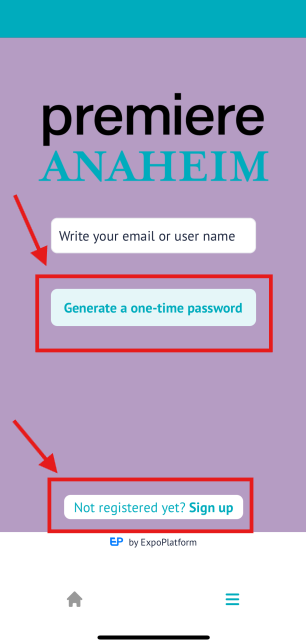
This method uses a One-Time Password (OTP) for authentication instead of a standard password.
✅ Key Elements to Check:
-
Background image.
-
Event name visibility.
-
Button Naming:
-
If badge scan login is enabled, button names may change.
-
-
Button Colors.
-
"Not Registered Yet" Button Redirect (If OTP is enabled, it is not possible to edit the text of the button “Not registered yet).
3.3 Badge Scan Login for App
-
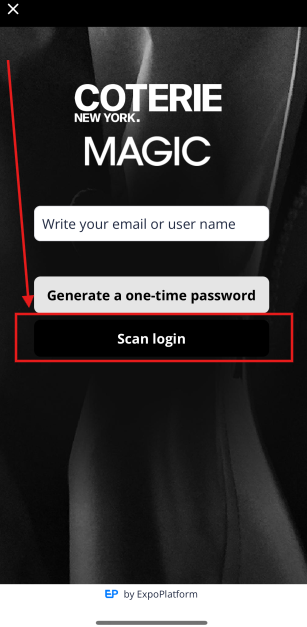
With this feature, users can log into the app by scanning their badge. Once enabled, this becomes the default view on the mobile app's sign-in page.
-
When the user clicks the "Scan Login" button, the mobile app will open the camera, allowing them to scan their badge to proceed with the login. During this process, camera permissions must be granted.
4. Login Process & User Experience
-
Selecting an Event:
-
Users select an event when opening the app (for multi-event apps).
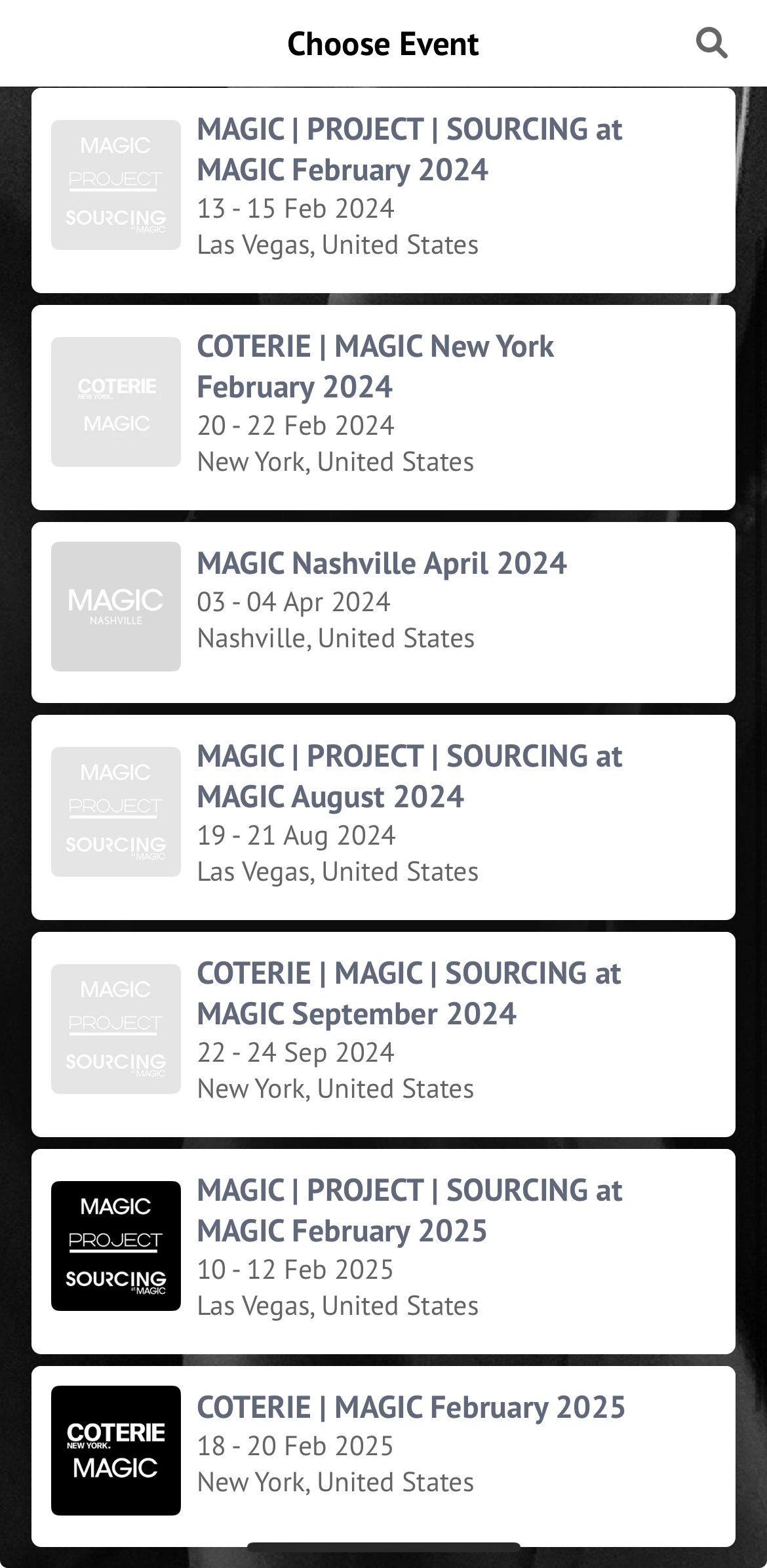
Example of multiple events login screen ↑ -
If it’s a single-event app, the event is loaded automatically.
-
-
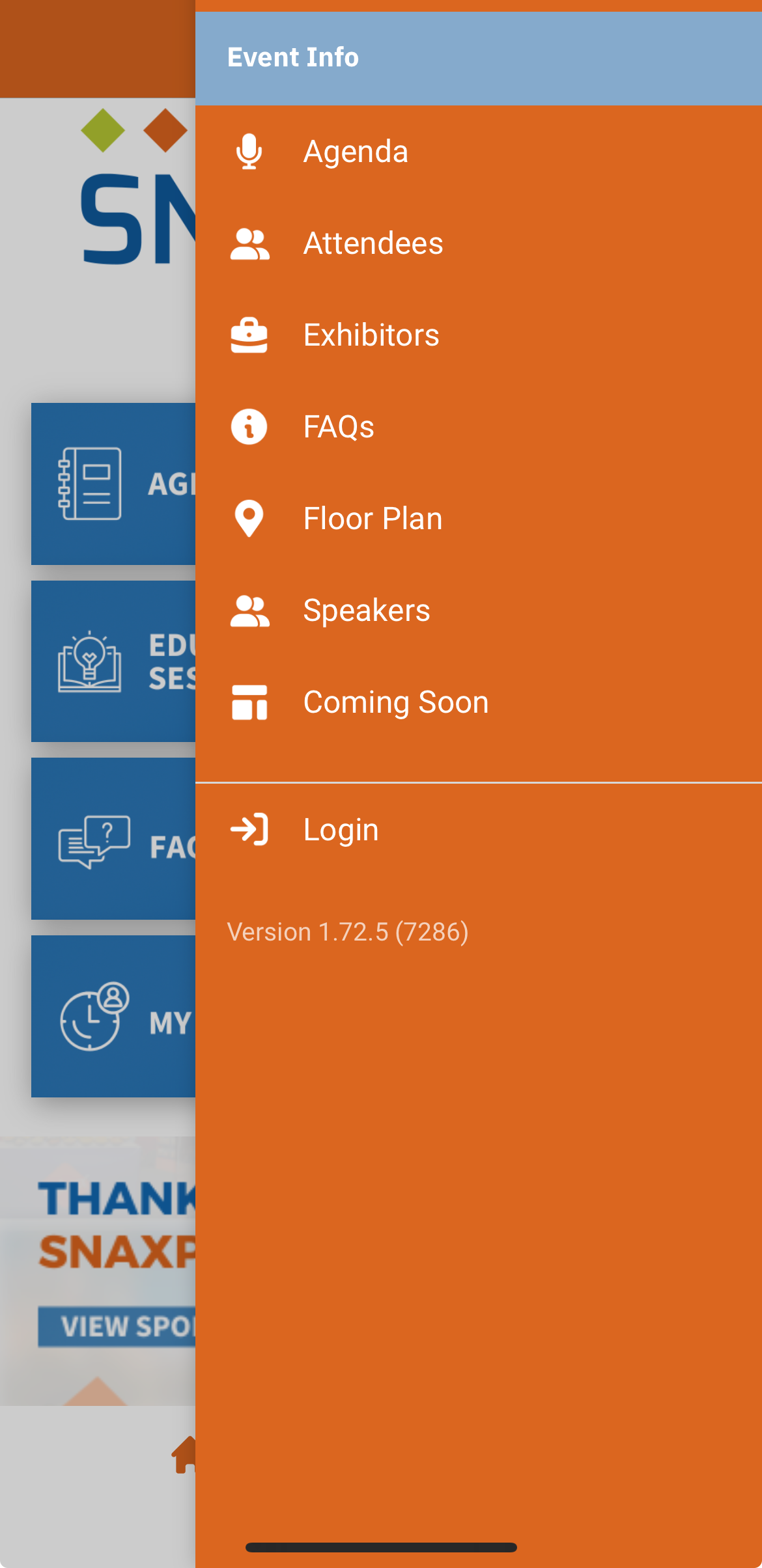
Personal Account Access:
-
Once logged in, users can explore events and pages.
-
Visibility Restrictions:
-
Some information may be restricted based on Permission Matrix Settings.
-
-
Troubleshooting
|
Issue |
Possible Cause |
Solution |
|---|---|---|
|
Sign-in page does not reflect changes |
App Builder settings not updated |
Double-check the App Builder configurations and publish changes |
|
Registration button missing |
Registration disabled in event settings |
Check Admin Panel → Event Setup → Module Management → Registration Module |
|
Web View login not working |
Web View not configured properly |
Verify if Web View settings are enabled in App Builder |
|
OTP button inactive |
Feature disabled |
Confirm OTP settings in the Admin Panel |