Feature Purpose:
These features provide enhanced security measures for user authentication.
-
The OTP (one-time password) Authentication feature requires users to enter a password sent to their email, which remains valid for a short period.
-
They can then use the Badge Scan Login feature which allows specific user categories to log in by scanning a badge, offering a quick and secure alternative to traditional login methods.
Working with this Feature:
Part 1: OTP Authentication Setup:
-
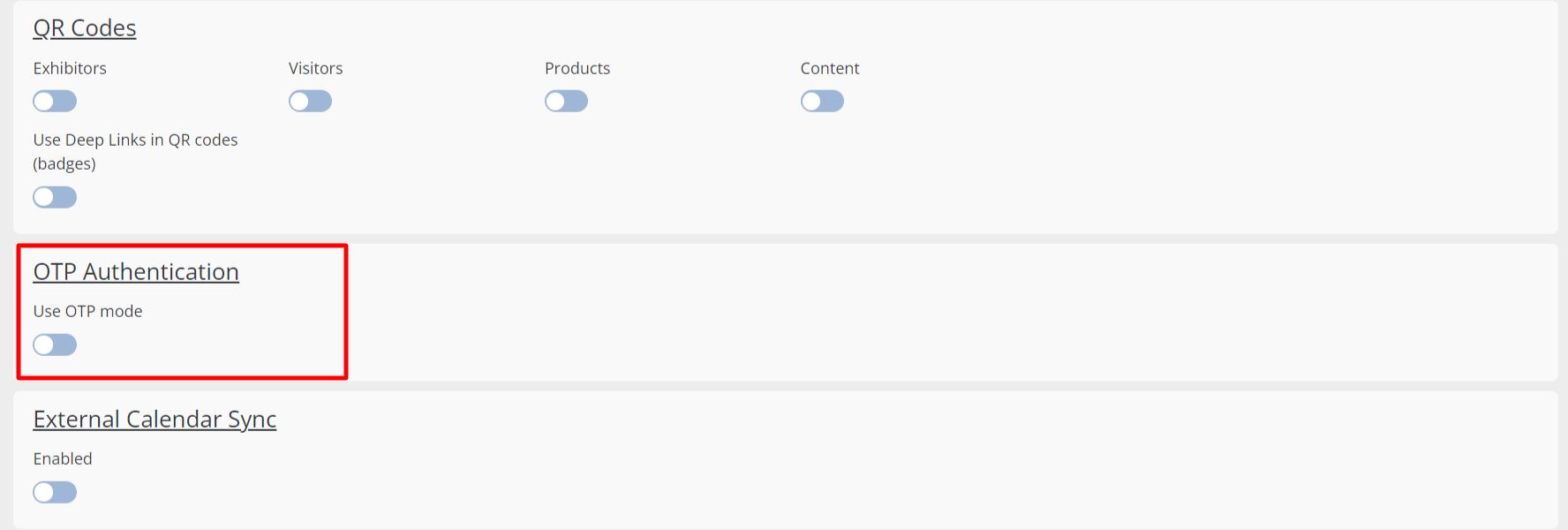
Activation: OTP Authentication needs to be enabled in the Admin panel under
General → Settings → OTP Authentication.
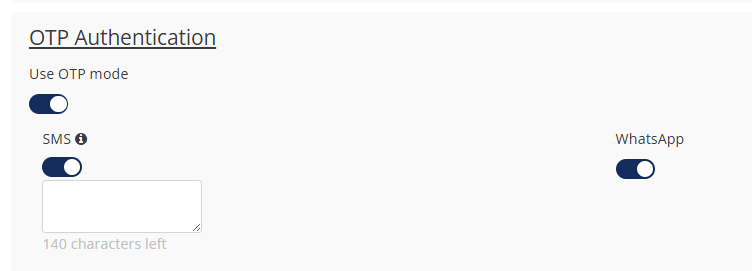
Please note - OTPs can also be sent via SMS and WhatsApp.
These options will become visible when the main OTP toggle shown above is turned on.
-
For SMS custom text along with these variables can be sent: NAME, LAST NAME, Visitor Email, Title, Login, Login URL, OTP Code
-
For WhatsApp there is a preset template which does not allow any custom text
-
OTPs sent by either of these methods are valid for 3 minutes
As outlined in your contract, the total cost of these messages will be billed to you after the event.
-
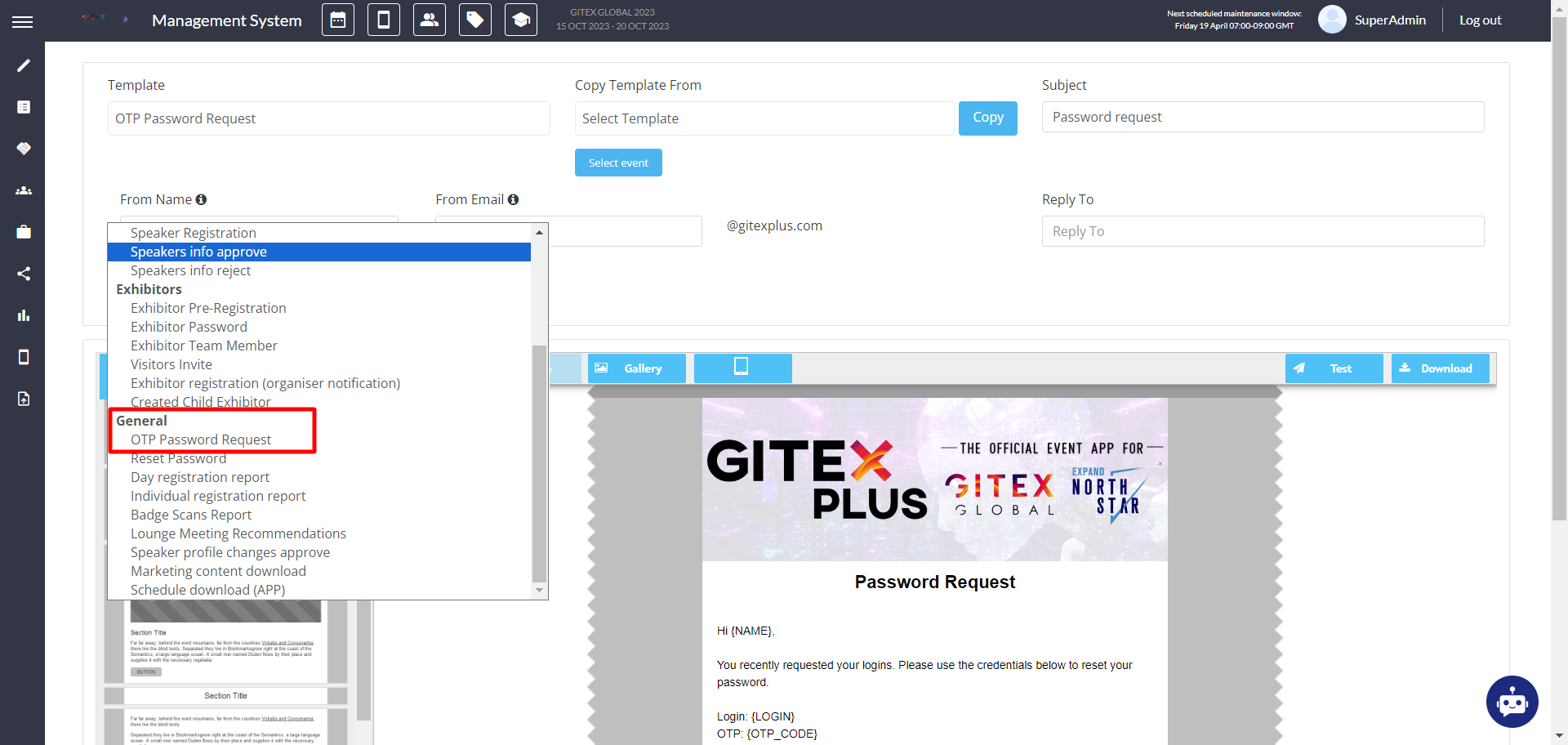
Email Configuration: The email received by the user for OTP authentication is configured under the
Admin panel → Registration settings → Registration e-mails → OTP request.
-
Password Validity: The password is active for 10 minutes after being sent to the user's email.
-
Resending Passwords:
-
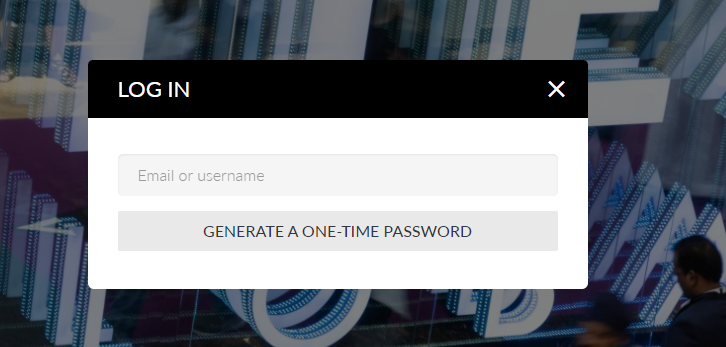
Users can request to resend the password by clicking the “Generate One Time Password” button.
-
This button sends a new email to the user with a new OTP. Only the most recently sent code can be used to log in.
-
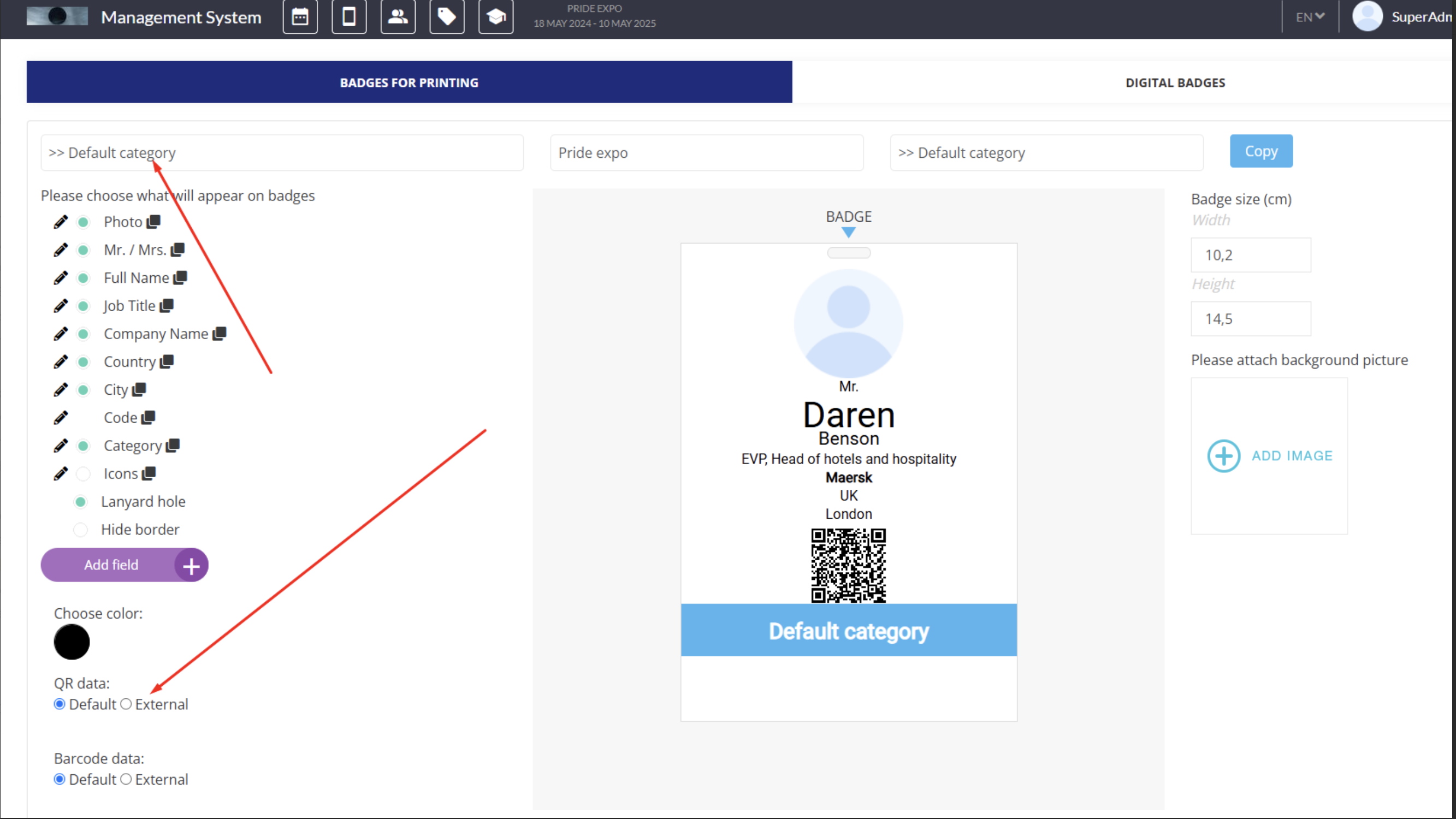
Part 2: Badge Scan Login Setup (please see this related article for additional details):
-
Activation: Badge Scan Login is enabled in the Admin panel under
General → Settings → Badge Scan Login for App.

Badge Scan login functionality can only be used when also using OTP for the profile login.
-
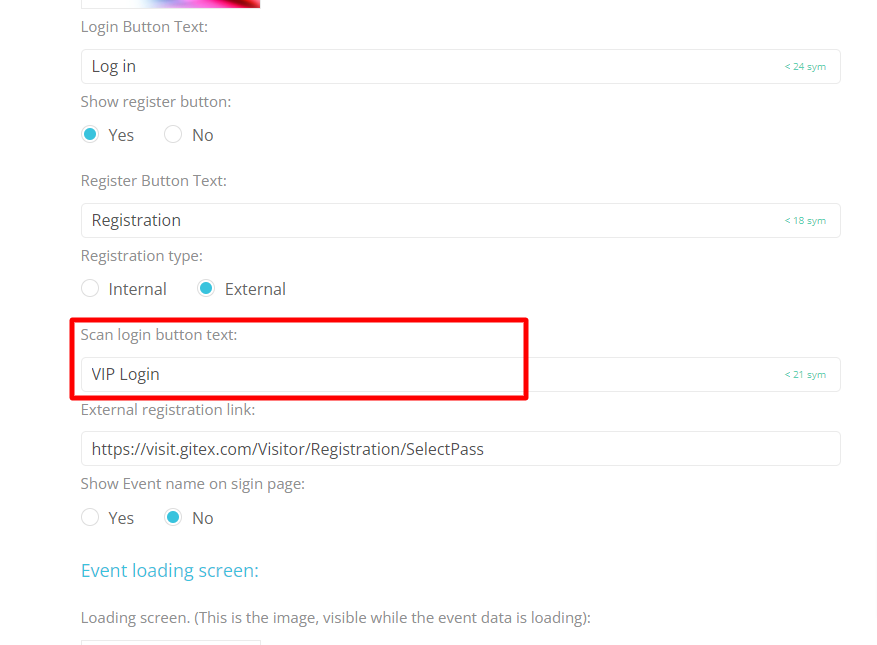
Button Text Management: The text on the button for badge scan login is managed within the App builder.
-
User Categories: The categories of users who are allowed to use this login method are managed in the Admin panel under
General → Settings → Badge Scan Login for App → Categories.
Ensure all configurations are double-checked for accuracy to prevent any security loopholes. The settings for OTP and badge scan login are crucial for maintaining the integrity of user authentication processes.
Troubleshooting:
-
Some users might be receiving OTPs in their Spam/Junk email folder.
-
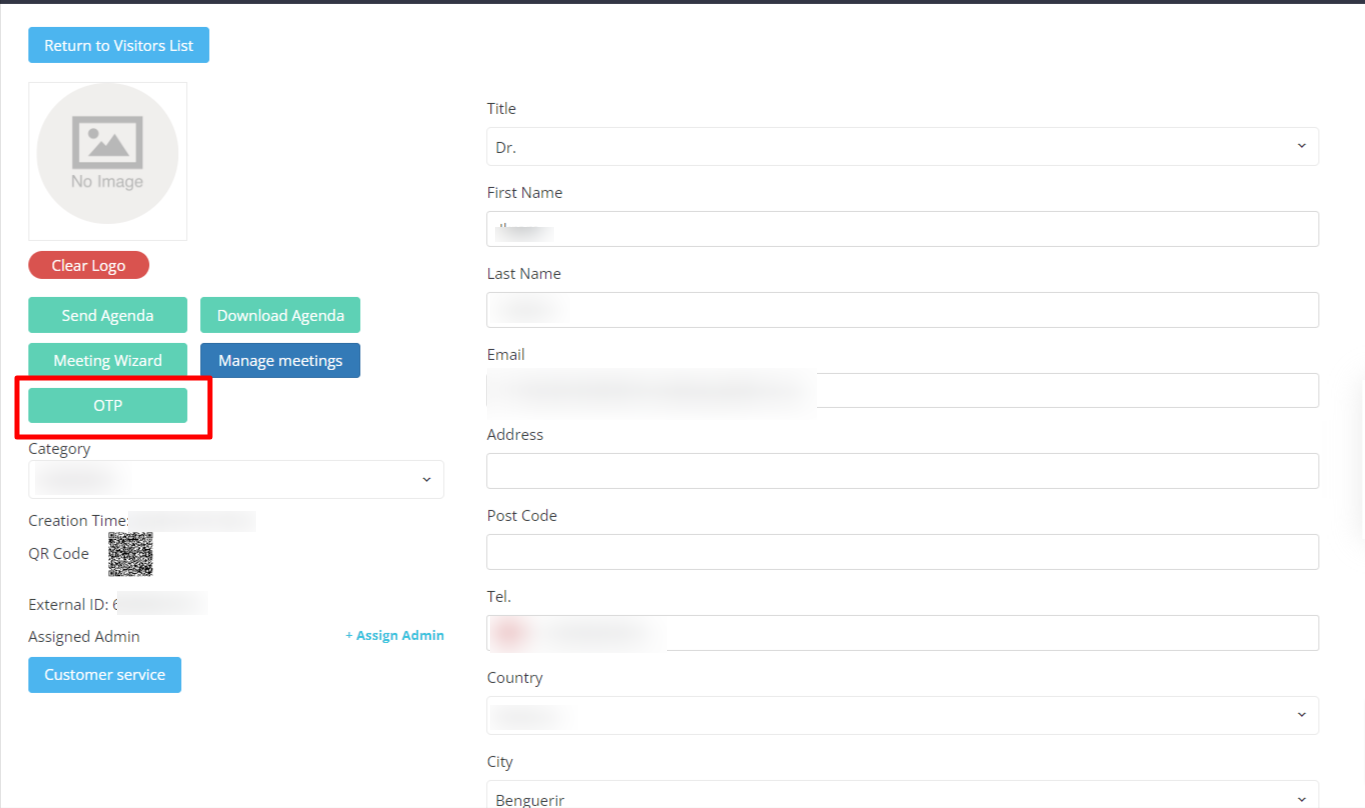
OTP can be generated from the backend as well, from Management>>Participant>>Click on participant profile>>OTP
-
If the user is not found during badge scan login, ensure that the badge settings are properly configured. For example, if the category uses an External QR, verify that it is correctly managed for the account. ( empty external QR = not correct)