
Meetings (Analytics New UI)
In the Admin Panel under Analytics → General, a new tab added that records all the analytics around the meeting.
This tab can be enabled and disabled from Module Management → Backend → Analytics → Meetings
The meeting Analytics page includes details
-
Filter for Date Range and Events
-
Total meeting requests with additional breakdown indicating the number and percentage of accepted, pending, and cancelled meetings.
-
Count of Online Meetings and Offline Meetings(includes table meetings)
-
Avg request meeting time
-
Avg time spent in Online Meetings per user
-
Source: Capture the source page from where the meeting is scheduled/initiated.
-
Meeting Initiator and details of Meetings which has been rated
-
The Leaderboard, show the details of the user based on 'Most Meeting Requests Sent' and 'Most Meeting Requests Received'
-
The system displays the total count of unique participants in the meeting
-
In the case of auto-confirm meetings, pending meeting details are not visible or displayed for that event
-
If a participant holds multiple roles and schedules a meeting, it categorizes all meetings under their highest role
Benefits
-
The Admin Panel provides comprehensive data and analytics for the scheduled meetings at the event.
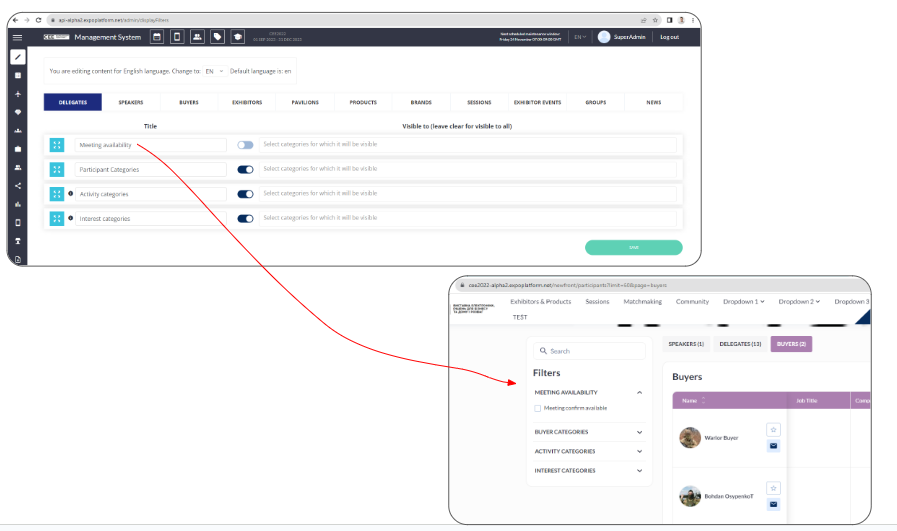
The ability of User to view and filter exhibitors based on whether they have exhausted their allocation of confirmed meetings
This setting enables users to filter out information about other users who have not met the permitted limit of confirmed meetings specified in the User Category Settings.
A new filter, Meeting Availability, has been added under Admin Panel → Event Setup →Display Filter Settings for all users. When enabled, it will only list users who have not reached the allowed limit of confirmed meetings.
Both online and offline meeting confirmation limits are factored in. Here are the use cases
|
Onsite, Daily confirmations limit |
Onsite, Total confirmations limit |
Online, Daily confirmations limit |
Online, Total confirmations limit |
Result |
|---|---|---|---|---|
|
Reached |
Reached |
Reached |
Reached |
Not shown in the list |
|
Not reached |
Not reached |
Not reached |
Not reached |
Show in the list |
|
Reached |
Reached |
Not reached |
Not reached |
Show in the list |
|
Not reached |
Not reached |
Reached |
Reached |
Show in the list |
|
Reached |
Not reached |
Reached |
Reached |
Not shown in the list |
|
Reached |
Reached |
Reached |
Not reached |
Not shown in the list |
|
Not reached |
Reached |
Not reached |
Reached |
Not shown in the list |
|
Not reached |
Reached |
Reached |
Reached |
Not shown in the list |
|
Reached |
Reached |
Not reached |
Reached |
Not shown in the list |
Default State: Off
Team members inherit meeting limits set for their exhibitors
Benefits
-
Simplified filtering to identify users who have not reached their confirmed meeting limit.
Instant/Direct Invite Links
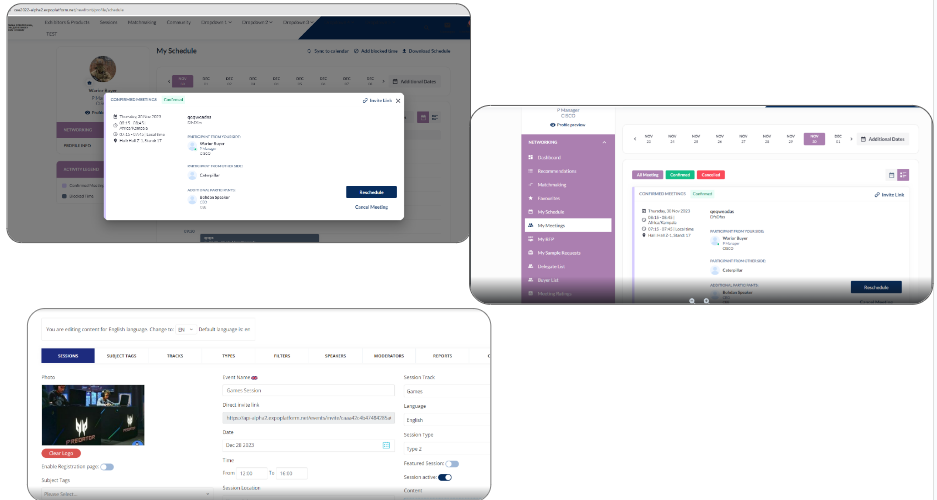
New settings have been implemented wherein any logged-in user who follows a direct invite link for an item that blocks time will now encounter a check. This check will prevent the addition of the item to the schedule if its time overlaps, even partially, with another item already scheduled that blocks time.
If a user attempts to schedule an item that overlaps with an existing time-blocked item, the system will display an error message.
For users who are not logged in and follow an invite link, they will be redirected to the login page first. After logging in, they will be directed to the schedule page to check if there already exists an item that blocks time.
This rule is applicable to all meetings/sessions/exhibitor events
Benefits
-
Mitigates the risk of two items overlapping in the user's schedules.
Prefilled meeting info (WEB)
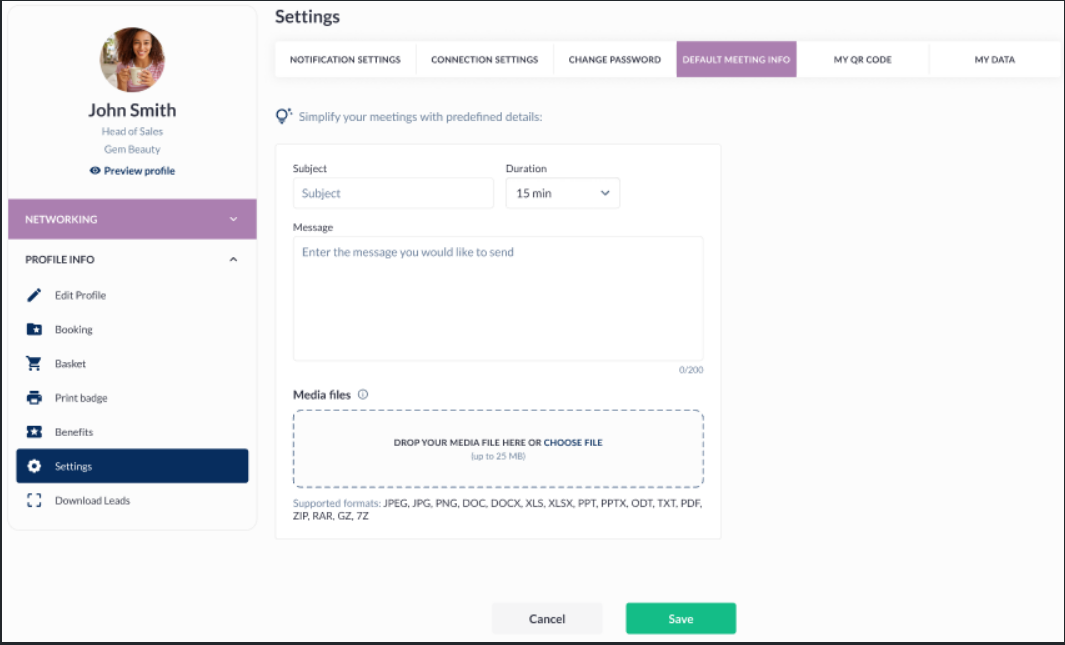
To address the challenge of repeatedly filling in meeting details, we've introduced new settings that allow users to save default information for the meeting edit page. This information can then be utilized when booking future meetings, streamlining the process.
This feature is exclusively available on the New Flow for Regular meetings. While scheduling the initial meeting, users can simply click on the "default meeting info" button to save the details for the fields on the meeting request page.
Subsequently, for all future meetings, these fields will automatically appear prefilled for the user. The field in the default meeting info tab includes Subject, Message, Duration, and Media files, and can be modified by the user at any time.
Additionally, users can configure the Default meeting info details from their Profile Info >> Settings >> New Tab Default meeting info. (**this tab is only visible when the new flow for regular meetings is enabled.)
Benefit
-
Eliminates the need to repeatedly entering the same details while booking a meeting.
Changing Website Language Based on Browser's Language
For multi-language events, the website or registration page by default opens in the default language set for the event.
To enhance users' experience, we've implemented a functionality that automatically detects the browser language of the user and displays the website in that very language, provided the event content is available in that language.
The user always has the option to manually switch to a different language using the frontend language selector.
Benefit
-
Users no longer need to manually select their preferred language for viewing website content, saving users time and effort.