
Print Badge Variable added on Visitor Registration Confirmation Page
In the Admin Panel, under the Visitor Registration Visitor → Confirmation page we have added a new variable Print Badge Link, that would allow the users to print their badges directly from the confirmation page.
Print Badge" link opens a new tab in the browser allowing the user to print their badges directly from the confirmation page.
Benefits
-
Easy of accessing the user badge directly from the registration confirmation page
Ability to set auto email reminders when a meeting minimal requirement has not been reached
In the Admin Panel, the organizers can set the minimum number of confirmed meetings users must schedule. If this threshold isn't met, the system sends reminder emails to the user, prompting them to fulfil the required number of confirmed meetings.
Admin Panel Settings: Enable the toggle for "Meetings Minimal Requirements" under the Participants (/admin/registration/categories)and Exhibitor categories(/admin/registration/ecategories). This setting empowers the organizer to define the minimum number of required confirmed meetings.
Default State: OFF
This field doesn’t accept 0 as the value
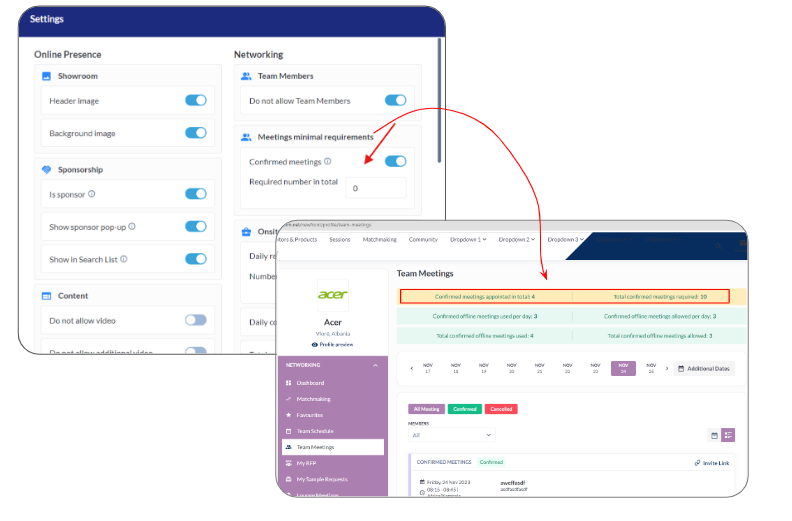
Once the setting is enabled, organizers can set up reminder emails to be sent to users who haven't met the minimum required number of confirmed meetings.
Settings: Under /admin/appointments/reminders, the organizer can configure automatic reminder emails for users who haven't reached the minimum number of required confirmed meetings.
Benefits
-
Enhanced control for organizers to determine the number of confirmed meetings for their users.
Enhancing User Card Information with Company Name & Job Title (WEB and APP)
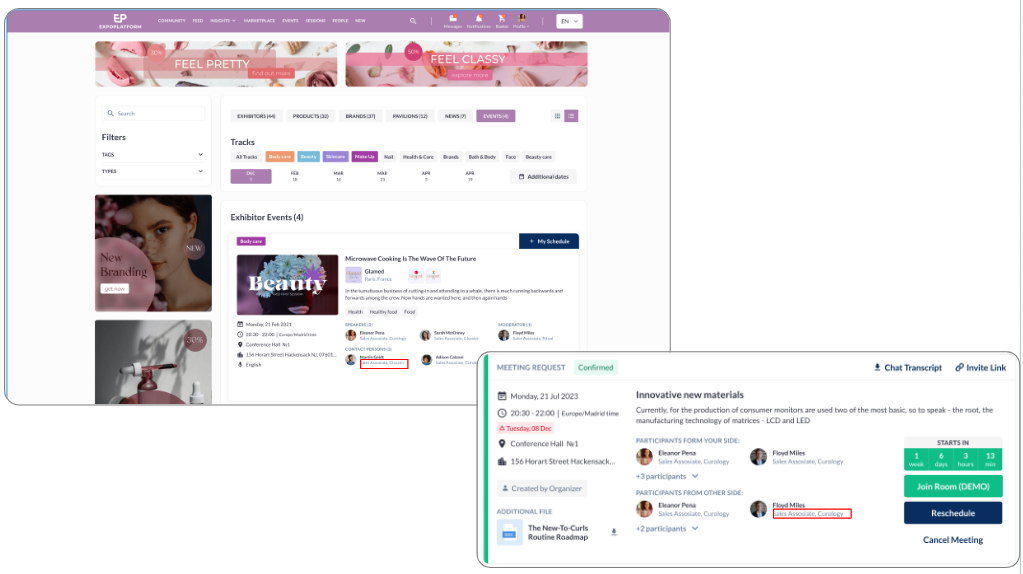
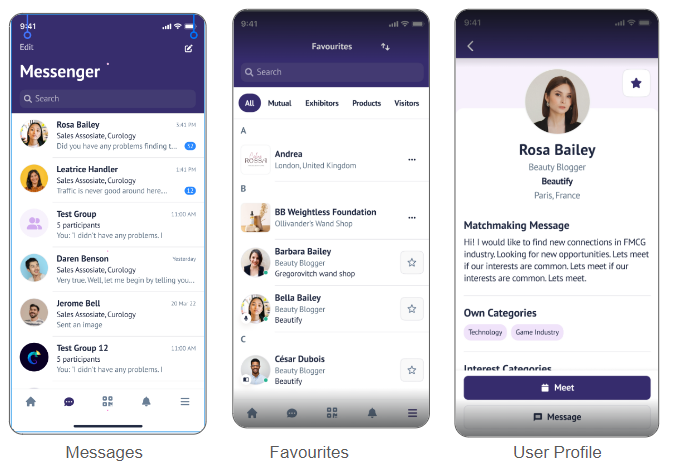
The user card throughout the website and app will now feature both the Company Name and Job Title of the user. These details will be visible on all user cards across the platform, irrespective of the user's role or level.
Both the Company Name and Job Title are responsive. If a user does not provide these details, blank spaces for these fields will be displayed.
Benefits
-
Users can promptly recognize professional affiliations and positions of other users improving networking opportunities and clarity in professional interactions.
Interactive location on meeting cards in the Mobile App
In the Android and iOS applications, the meeting location is made clickable, leading the user to the respective spot on the floorplan page when clicked.
This functionality is applied to all meeting statuses, including Confirmed, Canceled, Pending, and Incoming meetings.
This feature works for both internal floorplans and external ones (such as MapsPeople and ExpoFP).
Benefits
-
Conveniently locate the meeting venue directly from the meeting card in the Schedule, facilitating easy access to the meeting location.
Regroup the structure of Config page of Sessions in Admin panel
In the Admin Panel, we have enhanced the Config Session page with the objective to improve user experience by presenting a clear and intuitive interface that clearly distinguishes settings for Sessions from those for Exhibitor events.
All existing buttons will be working the same way as they work now
Benefits
-
The goal is to enhance user experience by providing a clear and intuitive interface that distinctly indicates settings
No Local Time Option on Event Mobile App
In the admin panel, under Advance Settings, this configuration enables the organizer to conceal the local timings of the user, displaying the time solely based on the chosen time zone for the event to prevent any user confusion. This is applied to My Schedule, My Meetings, My Events and Session Page
Default State: Off
This setting was previously available for web but now it being transitioned to mobile application as well
Benefits
-
The organizer can opt to display only one time according to the event's set time zone, thereby preventing confusion for end users by avoiding the display of their local times.