Supported and recommended browsers and devices:
Before you get set up with Amazon Chime, first make sure that you meet the following requirements for your operating system.
Windows
Supported versions:
-
Windows 7, 32-bit and 64-bit
-
Windows 8.1, 32-bit and 64-bit
-
Windows 10, 32-bit and 64-bit
macOS
Supported versions:
-
OS X 10.11 and later
Android
Supported versions:
-
Android OS 4.0 and later
Software requirements:
-
OpenGL ES is required for the screen share viewer.
-
Google Services and Google Account are required for the best messaging experience.
Note: If you are on macOS, for example, you would need to ensure that Camera and Microphone are enabled for the browser application in System Preferences > Security & Privacy > Privacy. Also, the max runtime of a session is 1h50min including the 10 min pre-join.
Browser requirements
-
Browsers supported for the chat:
-
Google Chrome (latest three versions)
-
-
Link to download/update: https://www.google.com/chrome/
-
Mozilla Firefox (latest three versions)
-
-
Link to download/update: https://www.mozilla.org/en-US/firefox/new/
-
Safari 10 or later for macOS
-
-
Link to download/update: https://support.apple.com/en-us/HT204416
-
Microsoft Edge (chromium-based version)
-
-
Link to download/update: https://support.microsoft.com/en-in/help/4501095/download-the-new-microsoft-edge-based-on-chromium
-
Browsers supported for meetings and video:
-
Google Chrome (latest three versions)
-
Mozilla Firefox (latest three versions)
-
-
Browsers supported for screen sharing:
-
Google Chrome for Windows, macOS, and Linux desktops (latest three versions, version 72 or later)
-
Mozilla Firefox for Windows, macOS, and Linux desktops (latest three versions, version 66 or later)
-
-
Amazon Chime SDK for JavaScript – Supported browsers
-
Safari (version 12, audio and video only, no content sharing), for macOS
-
Safari (version 13 and later, content sharing with screen capture requires turning on the Develop, Experimental Features, Screen Capture feature in the browser), for macOS
-
Opera (version 66 and later), for macOS and Windows
-
-
For extra stability:
-
Desktop Mode, use safari or chrome (chrome-based browser only)
-
iOS, use safari browser only
-
-
Special note for MAC users: MACs can sometimes block camera and/or microphone access.
o Please choose the appropriate link from the list in the right column of this article and follow the instructions to enable camera and microphone permissions: https://support.pitchvantage.com/support/solutions/articles/6000218471-enable-camera-and-microphone-on-my-mac-for-chrome-
o This article may also be helpful: https://support.pitchvantage.com/support/solutions/articles/6000218471-enable-camera-and-microphone-on-my-mac-for-chrome-
Destinations and Ports - General
The following destinations and ports are required when running Amazon Chime in your environment. Please also visit this link to ensure no recent updates have been made to this list: https://docs.aws.amazon.com/chime/latest/ag/network-config.html
Enlarges the table by opening it in a full screen dialogOpen
|
Destination |
Ports |
|---|---|
|
chime.aws |
TCP/443 |
|
*.chime.aws |
TCP/443 |
|
*.amazonaws.com |
TCP/443 |
|
99.77.128.0/18 |
TCP/443 |
Destinations and Ports - Meetings and Business Calling
Amazon Chime uses the following destination and port for meetings and Amazon Chime Business Calling. Please also visit this link to ensure no recent updates have been made to this list: https://docs.aws.amazon.com/chime/latest/ag/network-config.html
Enlarges the table by opening it in a full screen dialogOpen
|
Destination |
Ports |
|---|---|
|
99.77.128.0/18 |
UDP/3478 |
Bandwidth requirements
Amazon Chime has the following bandwidth requirements for the media that it provides. Please also visit this link to ensure no recent updates have been made to this list: https://docs.aws.amazon.com/chime/latest/ag/network-config.html
-
Audio
-
1:1 call: 54 kbps up and down
-
Large call: no more than 32 kbps extra down for 50 callers
-
-
Video
-
1:1 call: 650 kbps up and down
-
HD mode: 1400 kbps up and down
-
3–4 people: 450 kbps up and (N-1)*400 kbps down
-
5–16 people: 184 kbps up and (N-1)*134 kbps down
-
Up and down bandwidth adapts lower based on network conditions
-
-
Screen
-
1.2 mbps up (when presenting) and down (when viewing) for high quality. This adapts as low as 320 kbps based on network conditions.
-
Remote control: 800 kbps fixed
-
Amazon Chime Voice Connectors have the following bandwidth requirements:
-
Audio
-
Call: ~90 kbps up and down. This includes media payload and packet overhead.
-
-
T.38 fax
-
With V.34: ~40 kbps. This includes media payload and packet overhead.
-
Without V.34: ~20 kbps. This includes media payload and packet overhead.
-
Troubleshooting information (The chime connectivity checker):
Troubleshooting Testing (to see if all tests are passed)
The first thing to check if you are not able to connect to meeting rooms is to follow this link:
https://app.chime.aws/check# and check if there are no block IP addresses/domains.
If your device passes all the tests – You are ready to use Amazon Chime!
If the IP addresses are blocked a time out error will be generated
There are three ways you can get rid of these errors:
-
Turn off – if you are using any private VPN/proxy
-
Get these IP addresses unblocked from your Internet Service Provider
-
Try using some proxy/VPN – if that works for you
Troubleshooting Guide (If all the tests are passed)
The user should allow the browser when it asks to access the microphone and camera. (Camera, Mic should be set to allow)
Before clicking on the join button – Sound & Video can be tested by clicking on the respective “Test Video” and ‘Test Sound Button”
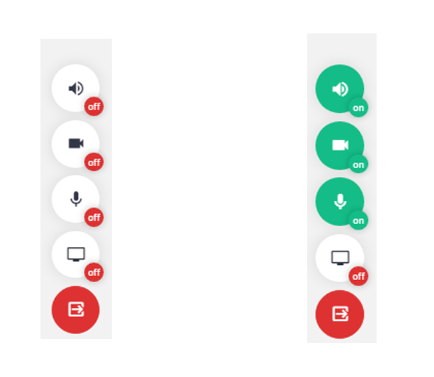
After joining the meeting: mic, sound and video should be "ON" (Blue), Grey means it is "OFF"