Settings
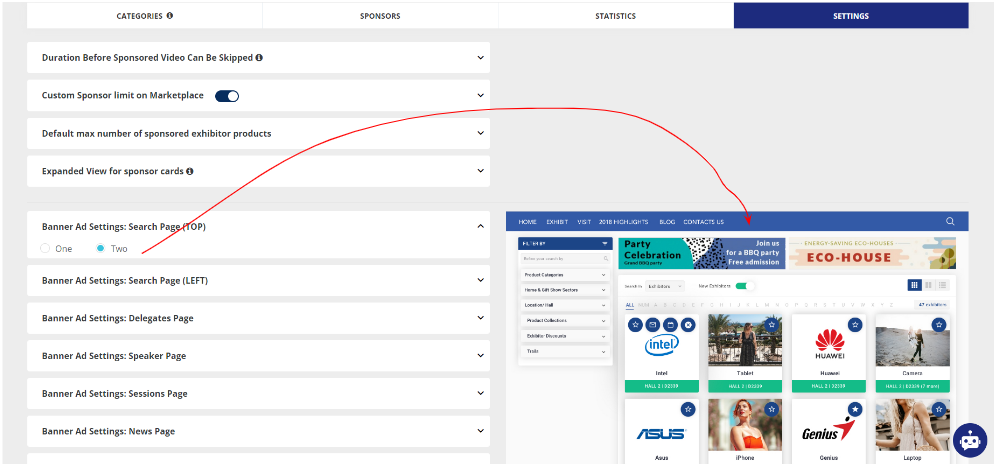
On the Managemenr > Sponsors > Settings page, multiple settings related to sponsorship can be configured, including placement of banners for different pages.
-
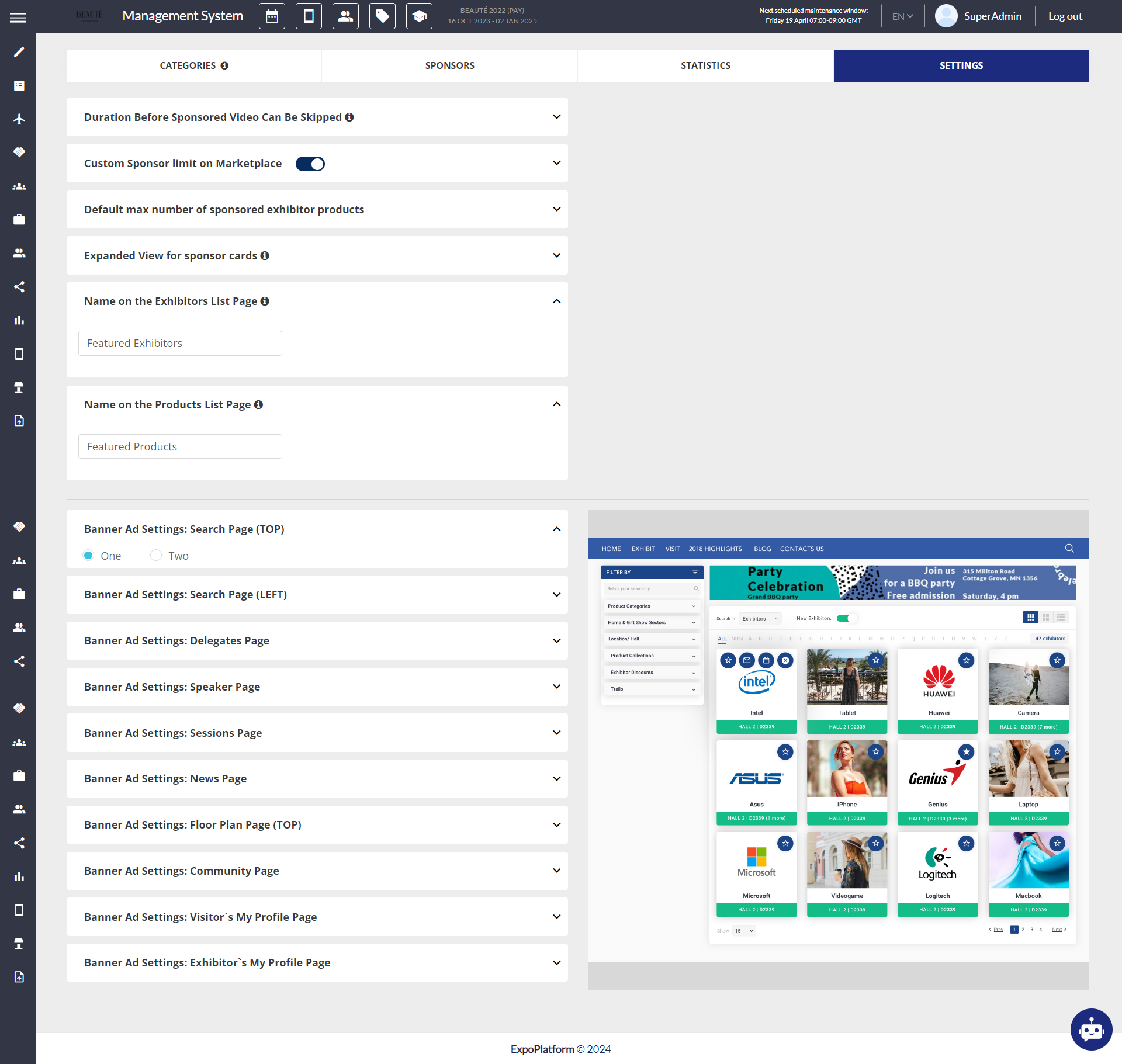
Duration Before Sponsored Video Can Be Skipped: This option sets the duration the the Continue button to be disabled/blocked for the user, forcing them to watch the sponsored video. By default it is set to 0 sec, meaning that the Continue button will not be blocked at all.
-
Custom Sponsor limit on Marketplace: This setting allows the organiser to set the maximum limit for the sponsored exhibitor that can be added to the exhibitor list
-
Default max number of sponsored exhibitor products: This setting allows the organiser to set the maximum limit of sponsored products that can be listed on the product list page
-
Expanded View for sponsor cards:If this toggle is disabled, all sponsored exhibitors will be displayed in a single row with a scrolling effect. If enabled, sponsored exhibitors will be listed in multiple rows, with 6 sponsors in each row, alongside other exhibitors. However, they will be visually differentiated by border colour.
-
Name on the Exhibitors List Page: This feature enables organizers to customize the name displayed for sponsored exhibitors on both the app and web platforms, on the exhibitor list page.
-
Name on the Products List Page: This feature enables organizers to customize the name displayed for sponsored products on both the app and web platforms, on the products list page
The sponsor block name can contain a maximum of 60 characters.
-
Banner Ad Settings: This setting enables organizers to determine the number of banners that can be configured for each system page. For instance, on the Search Page (Top), organizers can choose to include either one full-width banner or two banners. Similar options are available for other pages as well.