
About our Statistics
The statistics for organisers are located in Sponsorship > Statistics.
For each statistics page - Banner Statistics, Pop-Up Statistics, Search Statistics, Product Search Statistics - we can search for the sponsor in the dedicated search field, choose the date range within which the stats will be displayed and export the report.
For each sub-tab on the Statistics tab, we can pick the date range for which we want to see the stats and download a file with those stats. In the stats file we have general stats for all the sponsors - total impressions and clicks.
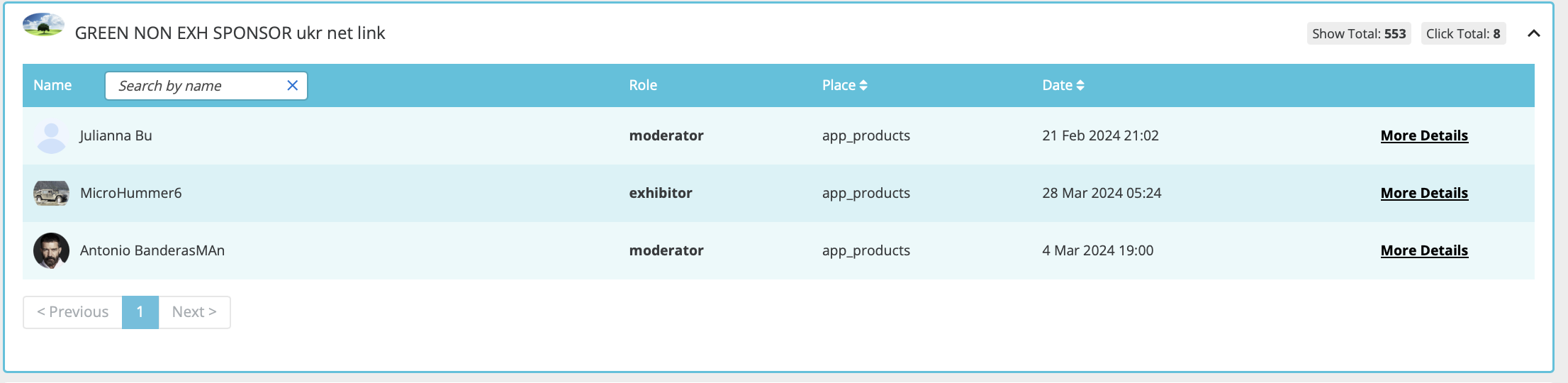
In the list of sponsors on the Statistics tab, there is an info block for each sponsor. Expanding that block by clicking the arrow on the right shows the detailed information on which participants interacted with the sponsor including participant’s name, role, date of interaction and button used. More details opens detailed info on each of the actions the user did with that sponsor. Each block has a search field for searching within a list of participants.
There is one common rule for all sponsor stats that are related to clicking on the interaction button - we track clicks and not actions. This means that, for example, if the user sees a sponsor’s popup, then clicks on the meeting button but decides not to proceed with the meeting request, we still count that as +1 click on the meeting button even though it didn’t result in any action.
The rules for recording Show stats if sponsors are in slider:
-
Views are recorded only for sponsors visible to users as they fly out from the slider.
-
If there are 20 sponsors visible on the frontend, only views for those visible will be recorded.
-
If 5 sponsors are on the screen in the slider and the page is scrolled, the slider will stop when not visible.
-
Seeing the same 5 sponsors again without refreshing the page counts as 1 show for all 5 sponsors.
-
Refreshing the page or leaving and coming back counts as another show for those 5 sponsors.
-
These same rules are applied to sponsors' products
Banner Statistics
-
Shows the number of clicks on each banner that the sponsor has on the frontend. Shows only those banners that are set up on the event.
-
In the downloaded report we have a few important metrics:
-
Line item lifetime impressions - the number of times users saw the banner.
-
Line item lifetime clicks - the number of times the users clicked on the banner.
-
CTR (Click-through rate) - Line item lifetime clicks/Line item lifetime impressions*100%
-
The same metrics are used for all reports related to the sponsors stats.
Expanding the info on each sponsor shows which participants clicked on that sponsor’s banner. By clicking on More Details we can see the time of each click and what banners were clicked (place).
How Banner Stats are calculated
When a user initially visits the exhibitor list page, the system will tally +1 for banner impressions and +1 for page views. If the user switches to the product list tab, inspects some products, and then reverts to the exhibitor list tab, it will add +1 for the product page and subsequently +1 for the exhibitor page upon the user’s return. However, the system will not count banners again, as you are still on the same page and the banners were previously loaded.
Pop Up Statistics
Shows how many times the sponsor pop-up was viewed by the users and what actions they did to it.
There is separate info on each sponsor that highlights what specific action was done on the sponsor’s popup. The actions are:
-
close (the user just saw and closed the pop-up without clicking on any interaction button)
-
meeting
-
message
-
favorite
Search Statistics
Shows the interactions done with the sponsors' cards on the exhibitors' list page. The actions are:
-
click
-
meeting
-
message
-
favorite
Product Search Statistics
Shows the interactions done with the sponsored products' cards on the products' list page. The actions are:
-
click
-
meeting
-
message
-
favorite
In the export file, the information is presented per each sponsored product.
Video Statistics
List of sponsors with the number of watched videos per sponsor (Show Total) and the number of clicks on its name/logo during the room entrance (Click Total).
In the dropdown menu, it shows participants who have performed an action (clicked on the name/logo) during entrance to the online room, with a "More Actions" button that shows, in a popup, the clicks of this participant.