Download leads report contains the information about the user’s or exhibitor’s leads. Who can consider leads and settings for hiding users’ private info can be set up in admin/appointments/shared.
Here is a video that shows how the download leads file is downloaded: https://www.youtube.com/watch?v=Y6QKBwWLq9Q
While cloning the event the interaction information is not moved to the cloned event but remains only in the original one therefore the users won’t have any leads in the Download leads file until there will be some interaction on the cloned event between uses.
Please note - as of May 2026 and update affecting lead deduplication for meeting appointment contributions has been implemented as follows:
Lead contribution logic has been updated to correctly handle meeting appointments that include exhibitor team members. Previously, the system created duplicate lead entries when team members were added to meetings. As of May 2026:
-
Each meeting appointment now generates a single lead entry, regardless of how many exhibitor team members are included
-
Exhibitors' lead reports accurately reflect actual meeting contributions without inflated duplicate entries
Common columns of the Download leads file for exhibitor and participant:
-
Name
-
Surname
-
Email
-
Company
-
Position - job title at the company
-
Phone
-
Country
-
State/Region
-
City
-
Address
-
PostCode
-
Event name - the name of the event scanned badge belongs to. If Allow users to scan badges from the colocated events setting is turned on on the Contact sharing page, the column may feature a few names of the events if there are users from different events making check-ins. All participant information from different events is populated according to the column settings of the current event.
-
Scanned Code - the code scanned during the interaction. Allow Users to Scan Any Codes: When this setting is enabled, users can scan third-party badges unrelated to the event or platform. In such cases, only the badge code and timestamp will be recorded in the lead download report; no other details will be captured.
-
Rating - shows how the user evaluated the meeting on a scale from 0 to 5 (where 0 means the user didn’t rate the meeting, and 1–5 represent star ratings in the rating pop-up).
-
Products - the names of the products whose QRs were scanned.
-
Time - the time when the interaction occurred that made the user a lead.
-
Reason - shows what is the reason why the user is considered a lead. The reasons are based on the settings set up in What Should Count As a Lead? part of the Contact sharing page. The reasons are:
-
*Category - indicates whether the individual is a potential client, supplier, etc. Have the options:
-
Potential Client
-
Potential partner
-
Supplier
-
Other
-
-
*Notes - additional information entered about the individual.
-
*Is New - indicates whether the individual is a new contact.
-
*Contacted - shows whether the individual has already been contacted. Have the options:
-
Yes
-
No
-
-
Meeting Rating Notes - populated with notes entered by users during or after meetings. This field can be enabled in the admin panel under Admin Panel → Networking & Matchmaking → Contact Sharing.
-
Total Watched Time - the total time spent watching sessions.
*Those fields can be filled our by exhibitors or team members only if they have Lead capture activated for them in the admin panel. Even though, the exhibitor or team member doesn’t have Lead capture - those columns still be display in the file in an empty state.
Columns that are only in the exhibitor's leads file:
-
Exhibitor Event Date - the time exhibitor event occurred.
-
Exhibitor Event Time (from) - the time when the lead joined the exhibitor event.
-
Exhibitor Event Time (to) - the time lead left the exhibitor event.
-
Lead owner: Exhibitors have full access to all leads made by their team members. This column shows who owns the lead - team member or exhibitor itself.
-
Scanned code - is relevant only for the actions related to scanning codes (scanning badge, content QR, product QR etc.) and shows the scanned code number.
-
Scanned Code - the code scanned during the interaction. Allow Users to Scan Any Codes: When this setting is enabled, users can scan third-party badges unrelated to the event or platform. In such cases, only the badge code and timestamp will be recorded in the lead download report; no other details will be captured.
Based on this, the column contains info about badge code, timestamp and all other info that was captured from the code.
Custom Lead Questions. Unique to each exhibitor: If the custom question is turned ON in burger menu/Lead Questions → Include in lead export file. These questions are specific and are displayed in the data when responses are recorded.
Scanning Any Code. When the “Scan Any Code” option is enabled, we can view scanned codes as well. The fields displayed will be as follows:
-
Reason: Indicates “Scanned Badge” as the type of scan.
-
Scanned Code: Displays the actual scanned code.
Other fields remain blank, as no participant details are linked to such scans.
-
We take into account the uniqueness of the actions. Meaning if there is a user who has 7 meetings with the exhibitor, we mentioned only the first action done. The exceptions are:
-
Favourited session. In order to show what session was favourited, we have a row for each action of favoriting session with mention of the name of the session.
-
Booked events. In order to show what event was booked, we have a row for each action of booking event with mention of the name of the event.
-
-
Note: information in the columns (in previous paragraph) can be changed if the user made the respective changes in the mobile app for this lead. Only the last updated info should be in Download leads file for these columns.
-
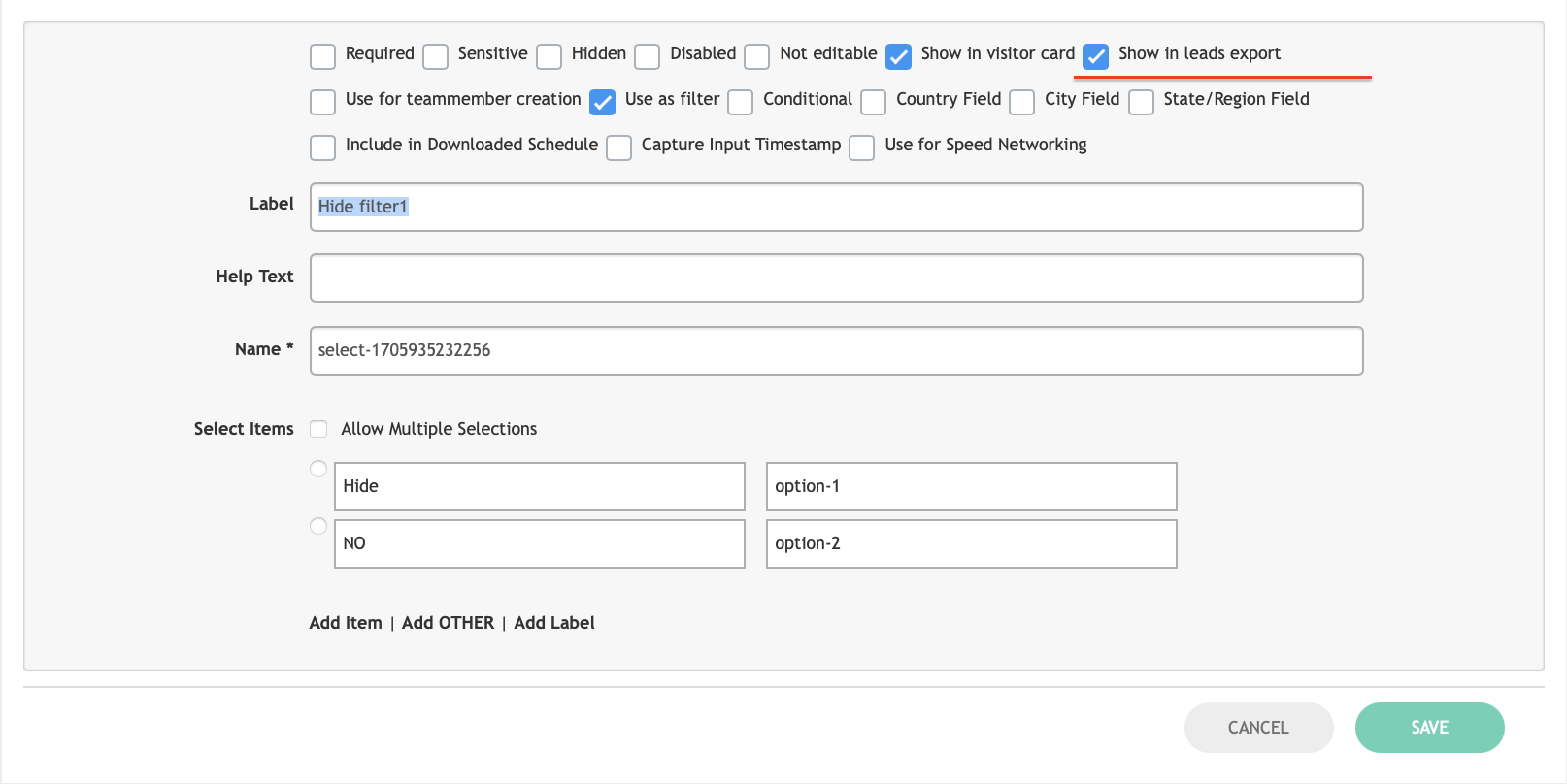
Leads report can contain also the information from the custom fields of the registration pipeline. It is possible only if Show in leads export checkmark is checked for this field.