
Setup happens on two separate screens
These control different things and aren't near each other in the admin panel — worth stating explicitly so nobody assumes one screen does both:
-
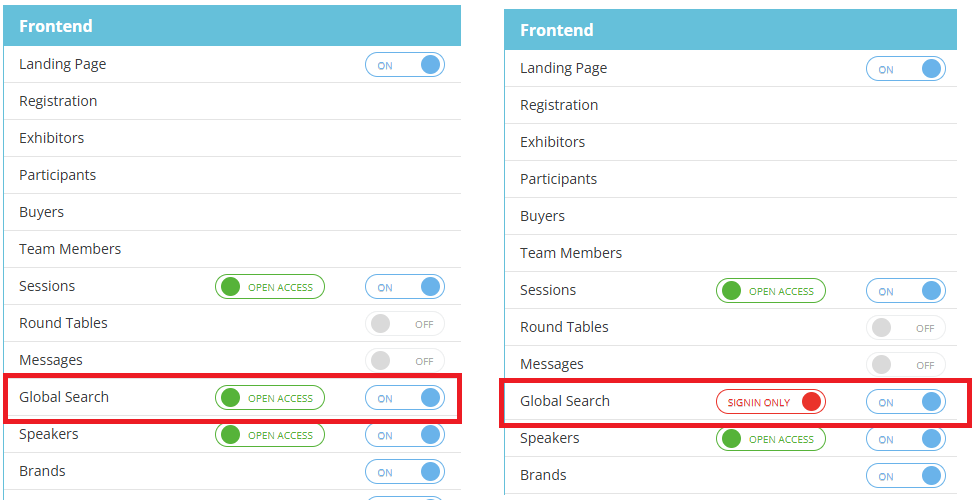
Event Setup → Module Management → Frontend — turns Global Search on/off for the event, and sets whether it's open to everyone or sign-in only.
-
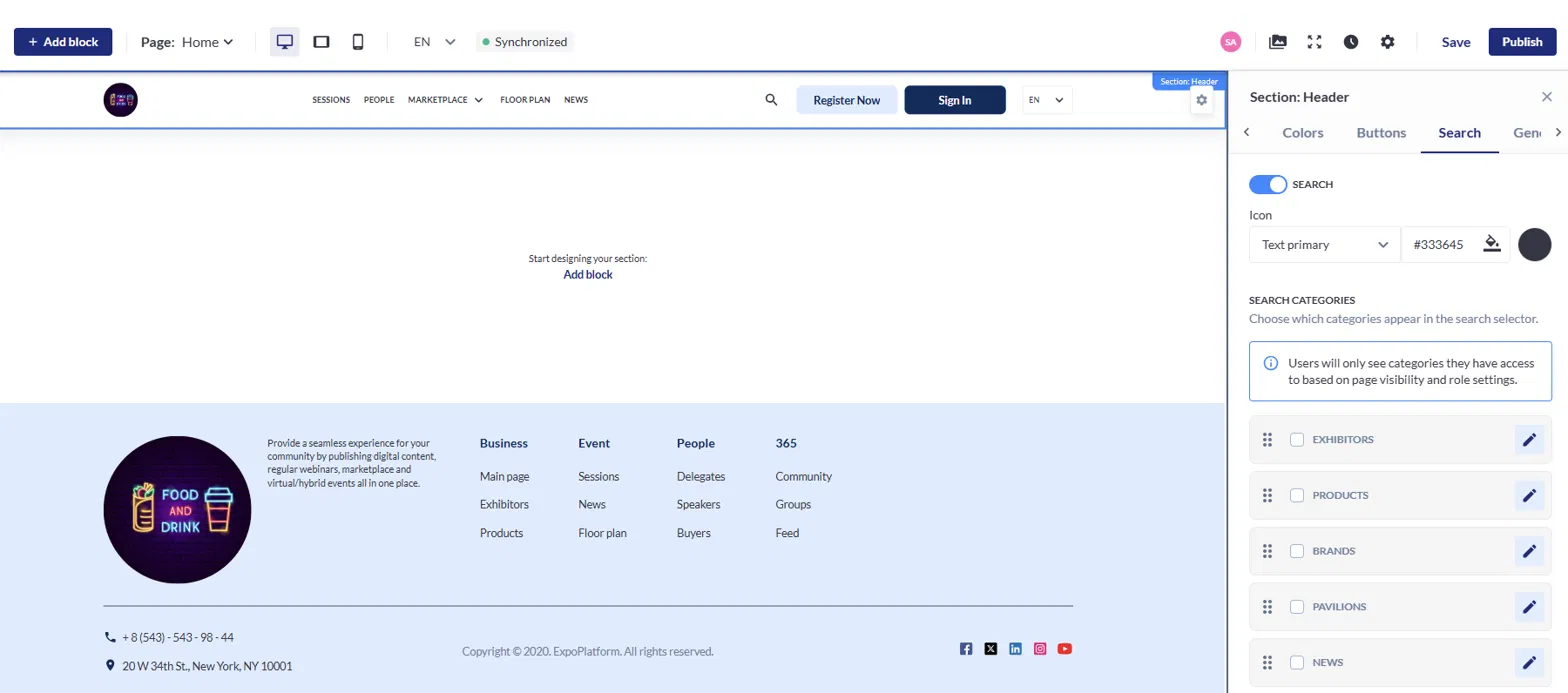
Website Builder → Header → Search tab — which categories are included, their order, and their labels.
End-users then choose from the allowed categories
-
The admin sets up, per event, which categories exist in the search selector at all, their order, and their labels — done once, in Website Builder (see below).
-
The end-user pick options from whatever list the admin set up, each time they search — the dropdown visitors see in the live header (e.g. "Exhibitors" vs "Products"). Visitors aren't configuring anything; they're choosing from the admin's menu. All permission and visibility rules are respected.
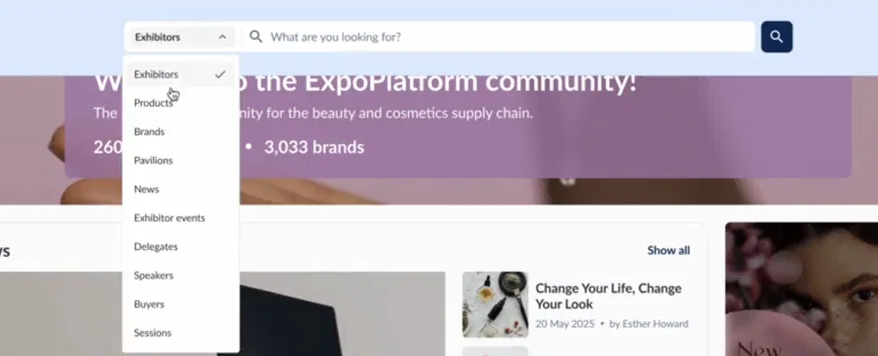
The same admin-configured list also drives Quick links on the Global Search results page and the "All categories" option itself.
How to set up and configure:
1. Enabling Global Search — Event Setup → Module Management → Frontend
-
The Frontend module list has a "Global Search" row alongside the other frontend modules (Sessions, Round Tables, Messages, Speakers, etc.), with a plain ON/OFF toggle. This is the
global_search_frflag. If off → the results page doesn't exist for the event (404). -
When toggled ON, a second control appears next to it — a badge that reads "Open Access" (green) or "Signin Only" (red), matching the same open-access/sign-in-only pattern used elsewhere on this same Frontend module list (e.g. Exhibitors, Participants, Sessions, Speakers all have the same badge). This is the
global_search_fr_singinflag. On Signin Only, anonymous visitors get a sign-in prompt instead of results. -
This is purely an on/off + access-gate screen — it does not have any category selection on it. That's a separate screen entirely (below).
2. Configuring the category selector — Website Builder → Header → Search tab
-
In the Website Builder's page editor, click the header section's settings, then the Search tab (alongside Colors / Buttons / General tabs). A master SEARCH toggle turns the header search field on/off, plus an icon color picker.
-
Below that is SEARCH CATEGORIES — "Choose which categories appear in the search selector" Users will only see categories they have access to based on page visibility and role settings.
-
Each category (Exhibitors, Products, Brands, Pavilions, News, and so on) is a row with:
-
A checkbox — on/off
-
A drag handle — reorder
-
A pencil/edit icon — opens label editing (multi-language, 50-character limit)
-
-
Default selection: whichever enabled category comes first in the configured order is pre-selected when the header search loads.
-
All-off fallback: if every category is toggled off, no selector is shown at all. Search reverts to the pre-Global-Search behavior — redirects to Marketplace, applies the query to the last-visited tab or Exhibitors by default. This is normal fallback behavior, not an error state.
-
Role-based visibility stacks on top of the admin's config (see notice above) — For example Buyers, even if checked here, stays hidden from anyone not logged in as an Exhibitor or Team Member. So a category can be admin-enabled and still not appear for a given visitor.
Consequence for "All categories" specifically
-
If, after this setup plus role-based filtering, only one real category is available to a given visitor, they don't get an "All categories" option at all — just that one category's normal search.
-
Sponsored rail visibility (Exhibitors/Products) on the Global Search results page follows the event's existing sponsor setup — see Set Priority in the Sponsor search list for the admin side of that, which is unrelated to this selector and already documented.