
Feature Purpose:
The RFP feature allows a participant to contact exhibitors with the specific purpose of requesting a commercial proposal.
The system is not meant to directly generate a sales proposition but instead to connect participants and exhibitors for this specific purpose.
In this case, the exhibitor immediately knows this interaction is about discussing an RFP, rather than a generic meeting request or generic conversation and understands there is a specific intent when using this feature.
Working with this Feature:
This feature is only available on a community website, when using the community home page. This feature is not available as a stand alone module that could be added to a page or profile
As a visitor:
-
Only visitors can create RFP-requests. To start the request, on the community page click the “Start Product Finder“ button. After the click, you have to follow the 3 steps:
-
Category Selection
-
Supplier Selection
-
Requirement Form
-
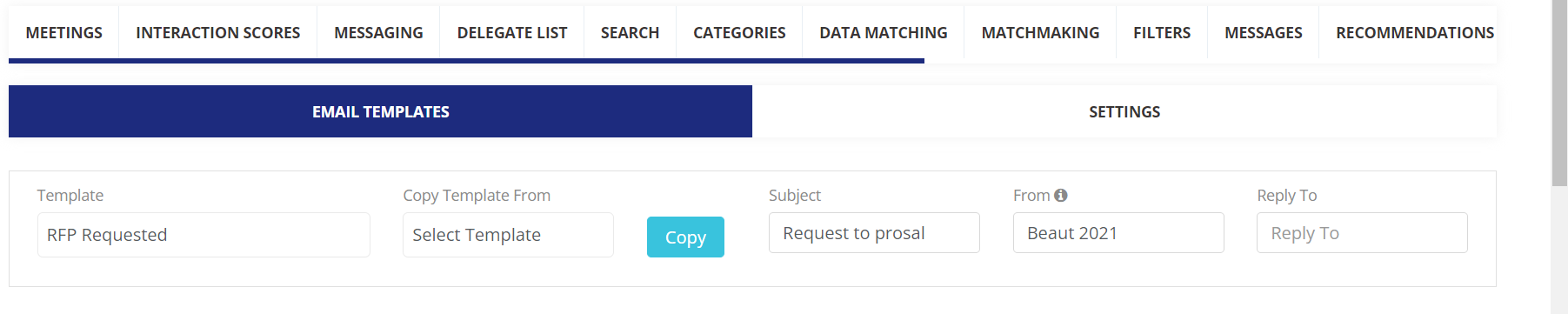
A message is then sent out to the relevant exhibitors using the email template set up by the organizer in the admin panel
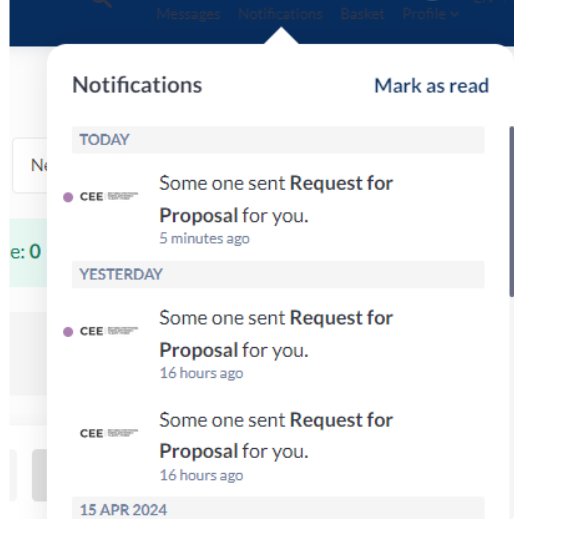
Exhibitors also receive notifications on their profiles
As an exhibitor:
-
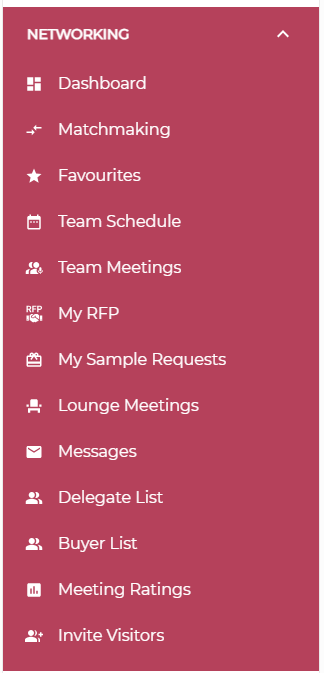
When the RFP email or notification is received, the exhibitor can find the list of RFP requests under Networking=> My RFP
The RFP page contains several tabs: All RFP / Incoming / Accepted / Declined
By default, the tab visible is the “All RFP”

You can also sort the list by “Newest first” or “Oldest first”
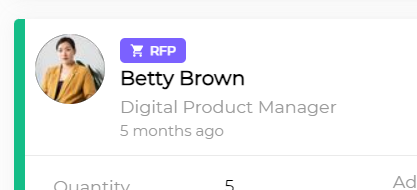
The RFP request shows the following details: the user name and picture is not displayed. These will become visible if the RFP is accepted.
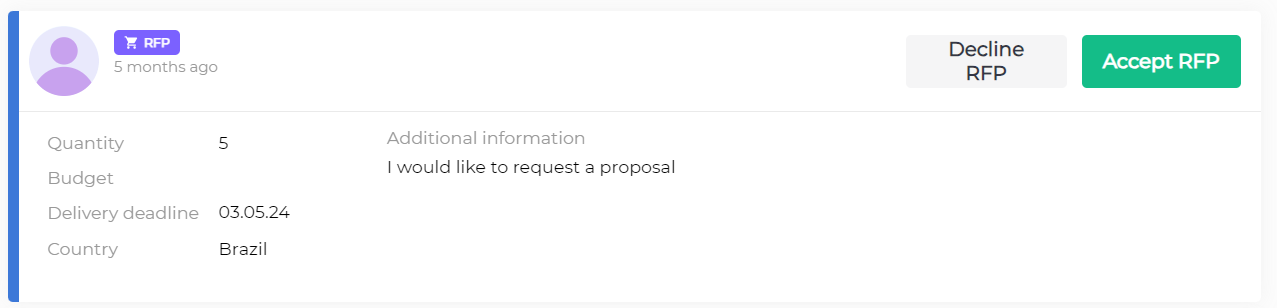
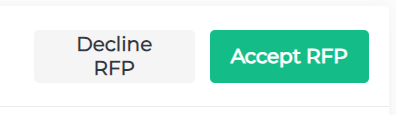
Exhibitor reviews the request can can either accept or decline the request
If declined:
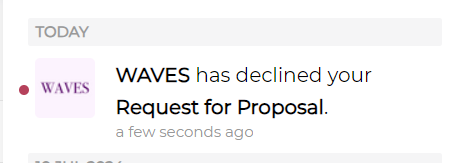
No email is sent out; the requestor receives a notification and his RFP dashboard is updated
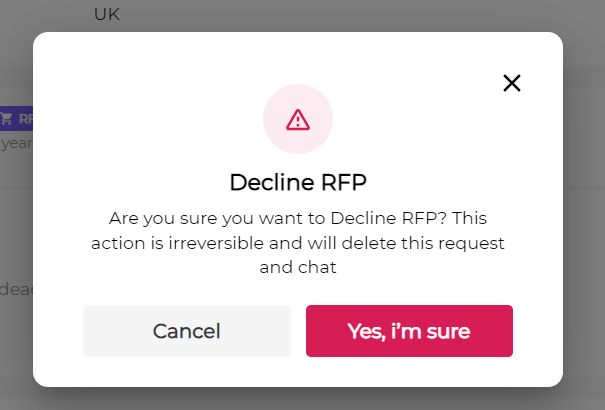
When declining, exhibitor has to re-confirm their choice
Status changes to “RFP Declined”
If accepted:
-
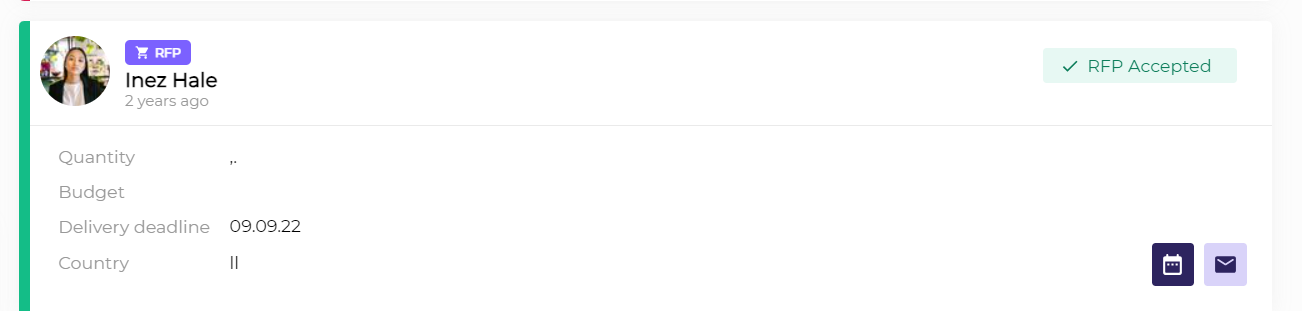
Status changes to “RFP Accepted”
-
User name and picture become visible
-
Meeting button becomes visible
-
Message button becomes visible
-
An auto email is sent out to the requestor
Once accepted, the requestor’s profile name can be viewed and the exhibitor can click on the requestor name to access their profile
Troubleshooting:
-
Once a decline or accept has been submitted, these cannot be changed or updated
-
The follow up on the RFP is done between the 2 users, and documents that may be required need to be created/shared by the users. The platform does not generate documents on behalf of users