
Admin panel:
-
Only one type of document is available for this type of Benefit: Document to download only.
-
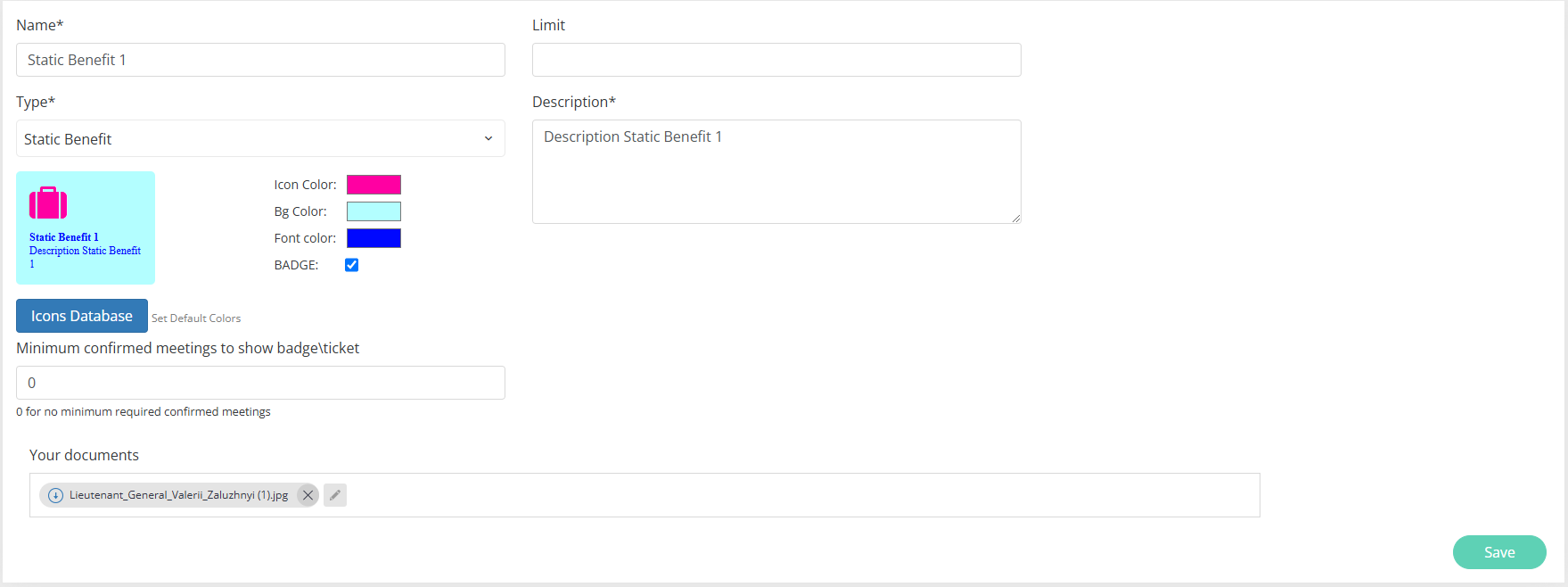
Document can be created and assigned to the benefit in the Benefit add/edit from:
-
To delete the document, press the X button.
-
To edit the document press the Pencil button. After clicking the pop-up with document details appear.
-
Benefit card colours and icon can be customized.
-
The “Badge” checkbox adds the “Minimum confirmed meetings to show badge\ticket” field. This field defines a require number of confirmed meetings Buyer should have to see the “Print Badge“ button on the frontend. Set “0” for no minimum required confirmed meetings.
Frontend:
-
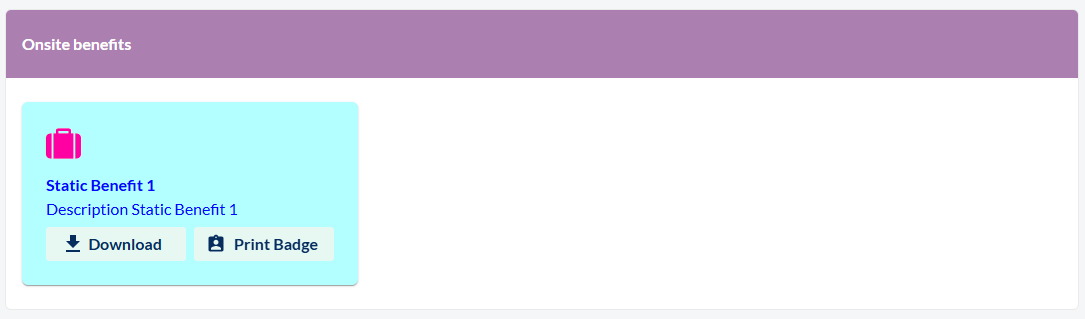
Here the buyer can download the file that was uploaded in the admin panel
-
The “Print badge” button appears when the respective checkbox “Badge“ in the admin panel is checked and the required number of confirmed meetings is reached.
-
The icon, text and colours are set in the admin panel.
-
The Print badge functionality works strictly with the VivoTicket integration.