
Feature purpose:
Allows users to sign into the check-in app for their particular event
Working with this feature:
After downloading the check-in app from the app store or play store, you will need to sign into the app using the same login details that you use to log into the ExpoPlatform admin portal.
Once you open the app, you will be asked to enter your API URL. This URL can be found in your browser, when you are connected to ExpoPlatform as an admin.
Please note - the last slash at the end of the URL should be removed when entering the API url as in the example below:
-
Correct: https://api-newdemo.expoplatform.com
-
Incorrect: https://api-newdemo.expoplatform.com/
You’ll then need to select your event from the list of events and log in using your Admin credential.
On the next screen you’ll need to:
-
Select the location where you are scanning from. Check in zones which have been entered in the floorplan module will show up in this list and this location information will be listed in your scan report.
-
Choose which camera to use (back is recommended)
-
Choose the object to scan
● Faces: available when integrating with a dedicated 3rd party. A PIN code is required.
● Badges (most common): You also have the option to manually enter the barcode.
● From list: You can search within the attendee list by name or email.
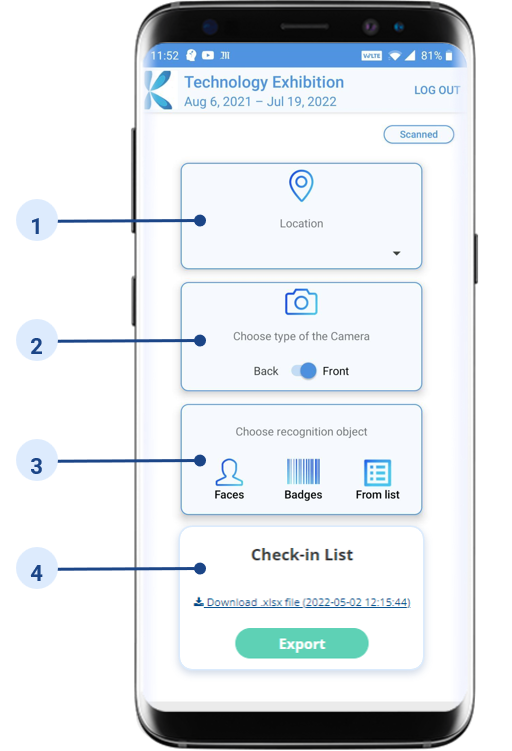
4. After scanning, you can download your scan report. This report is also available on the web under Data Import/Export > Check-in List. The report includes: ID, name, Date & time, Status and Zone (location).