
Feature Purpose:
Enables users to check in to specific event sessions within designated check-in zones.
Working with This Feature:
Login & Event Selection
-
The Admin user logs into the Check-in app.
-
Selects the required event.
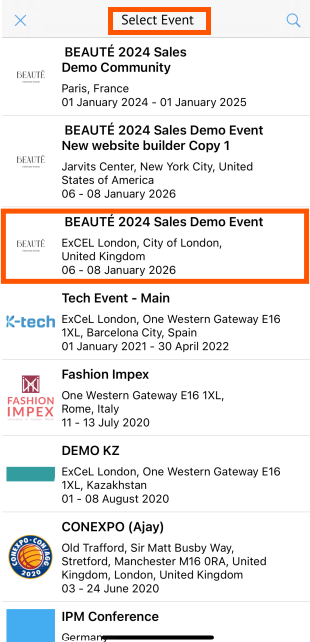
Check-in Location Selection
-
The Admin user must select a check-in location.
-
The session must take place in a session hall marked as a "Check-in" zone on the floor plan.
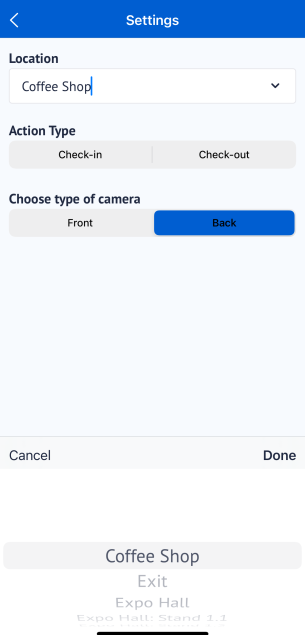
Session Check-in Button Availability
-
If the selected hall is a "Check-in" zone, the user will see the following action buttons:
-
Check-in
-
Check-out
-
Session (additional option)
-
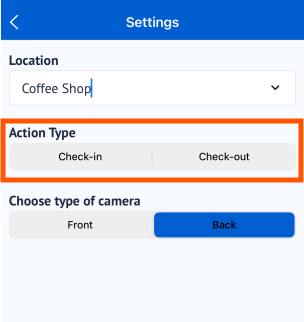
Session Selection
-
When the user selects the "Session" option, an additional Session Selector appears.
-
The user can choose the required session from a drop-down list.
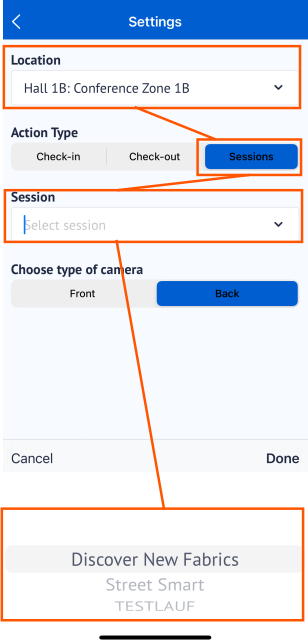
Check-in Process
-
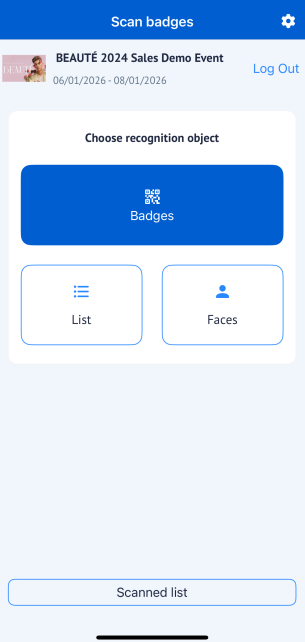
After selecting a session, the check-in flow follows the standard check-in process, including:
-
Choosing a recognition object (Bages, List, Faces).
-
Note:
-
For regular sessions: The session must be in the user’s schedule to allow check-in.
-
For "Speed Networking" sessions: Check-in is only available during the start and end times set in the admin panel.
Troubleshooting:
-
User cannot check in to a session:
-
Ensure the session is added to the user's schedule.
-
-
Session check-in option is not appearing:
-
Confirm that the selected location is a designated "Check-in" zone on the floor plan.
-
-
Issues with "Speed Networking" sessions:
-
Verify that the session’s check-in start and end times are correctly set in the admin panel.
-