
Feature Overview:
The Reschedule option allows you to move a meeting to a more convenient time or location, modify meeting details such as the message, and add/remove meeting participants (depending on your role).
Using the Reschedule feature rather than cancelling the existing meeting and creating a whole new meeting request saves time and effort and helps streamline meeting tracking.
Meeting Elements that Can be Changed:
-
Meeting Date/Time
-
Participants (Who is in the Meeting)
-
There are two groups of participants:
-
People on your side (your team, your company, or just you).
-
People on the other side (the people you’re meeting with).
-
-
Each type of person has different permissions (or restrictions) on what they can change.
-
If YOU are part of the meeting (and not the meeting requestor):
-
If you are just one person (not in a team) - You CANNOT change anything. You can only see the meeting details.
-
If you are a team member - You can add or remove other team members, BUT you cannot remove yourself.
-
If you are an exhibitor (someone representing a company) with a team - You can add or remove anyone from your team.
-
If you are an exhibitor WITHOUT a team - You CANNOT change anything.
-
-
If the OTHER PERSON is part of the meeting (and not the meeting requestor):
-
If they are just one person (not in a team) → They CANNOT change anything.
-
If they are a team member → They can add or remove other team members.
-
If they are an exhibitor with a team → They can add or remove any team members.
-
If they are an exhibitor WITHOUT a team → They CANNOT change anything.
-
-
Example:
-
Let’s say you are meeting Sarah.
-
If Sarah is alone (not part of a team), she can’t change anything.
-
If Sarah is part of a team, she might be able to invite her friend Mark to join.
-
If Sarah is in charge of a whole team, she can remove or add anyone.
-
If Sarah is part of a team but has no power, she can't change anything.
-
-
-
-
-
Meeting Subject
-
Meeting Message
-
Meeting Location (Where the Meeting Happens)
-
Available locations depend on the event’s settings. Some meetings MUST be online, while others can be in person.
-
Example:
-
If the event only allows online meetings, you cannot change it to an in-person meeting.
-
If the event allows in-person meetings, you might see options like:
-
Room A
-
Exhibitor Stand 25
-
Main Hall
-
-
-
-
-
Meeting content (For Android Users Only):
-
If the meeting was set up by an exhibitor (company) or a team member, and they added exhibitor products (things their company sells) and/or company information, these things will show up on the meeting page and the person managing the meeting can change or remove these.
-
Meeting Elements that Cannot be Changed:
-
Meeting Duration (How Long the Meeting Lasts)
-
The length of the meeting is set by the event organizer
-
If there is a break after meetings, that time is also included
-
Example: If the meeting is 30 minutes, but there is a 5-minute break after, the total time shown will be 35 minutes.
-
-
Accessing the Reschedule Option
To reschedule a meeting within the ExpoPlatform app:
-
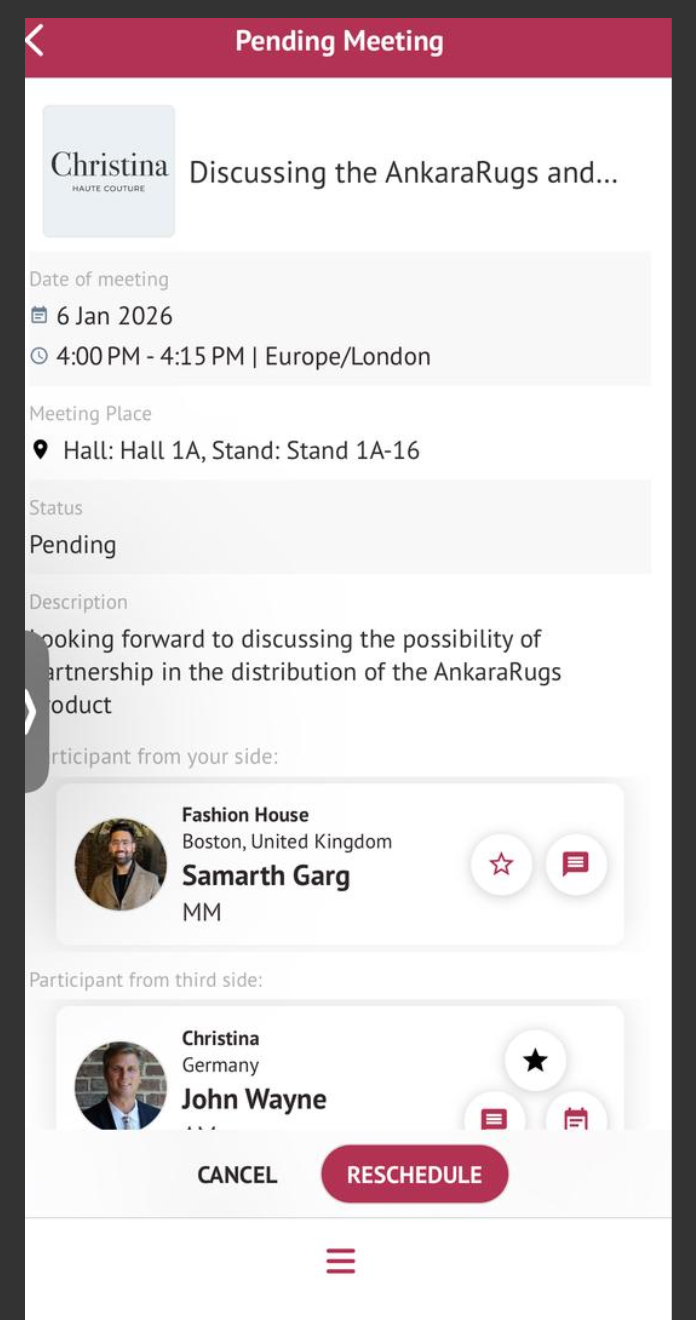
Navigate to the Meetings section in the mobile app.
-
Select the scheduled meeting you want to reschedule.
-
Tap the Reschedule button.
-
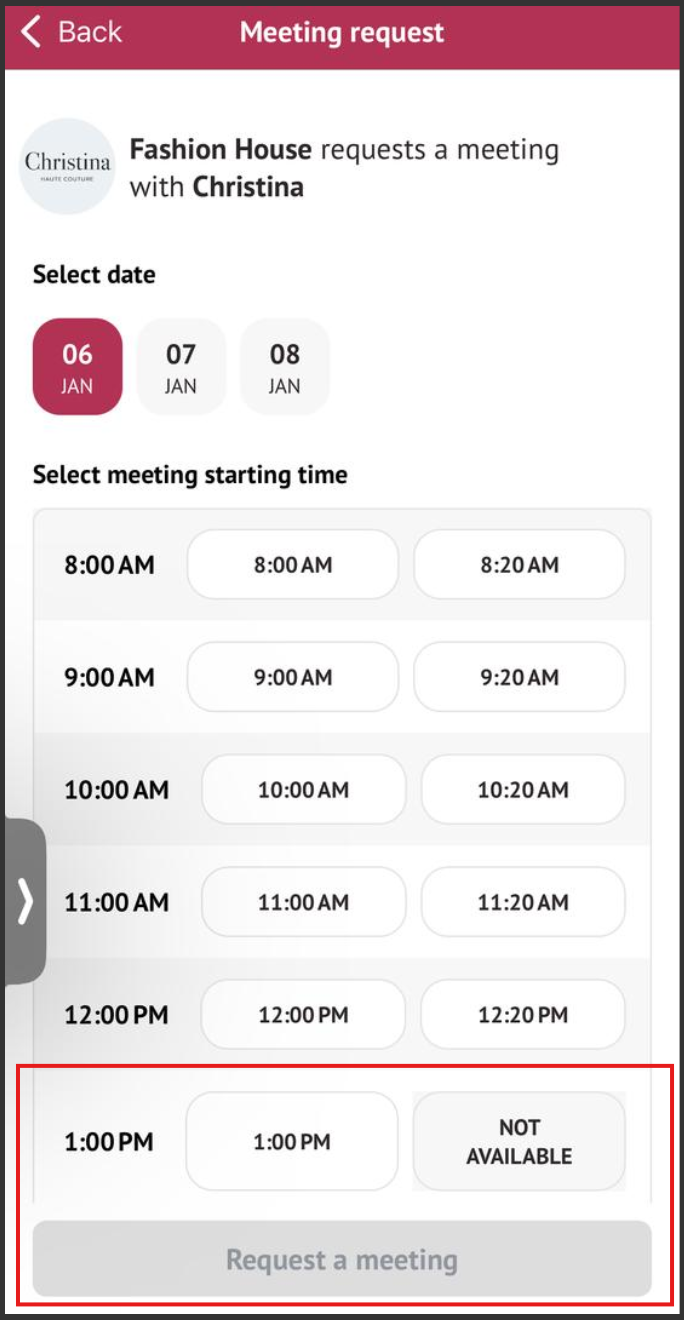
Choose a new date and time from the available slots.
-
Confirm the changes.
-
A notification is sent to all participants informing them of the updated meeting details.
Availability and Time Slots
-
The system only allows rescheduling to available time slots based on attendees’ schedules.
-
If a selected time slot is unavailable, the app prompts the user to select a different time.
-
Admins can set blocked times that prevent scheduling during specific periods.
Notifications and Confirmation
-
Once a meeting is rescheduled, both parties receive an in-app notification and email confirmation.
-
If a participant declines the new time, the meeting remains unchanged, and a new reschedule attempt can be made.
Please note:
For Regular Meetings (One-on-One or Small Group)
-
The person managing the meeting can reschedule based on event settings.
-
Example: If it’s an online-only event, you cannot reschedule a meeting to be in person.
-
For Table Meetings (Meetings at a Specific Table)
-
These meetings happen at assigned tables, and so rescheduling depends on table availability.
-
Example: If Table 5 is already booked at the new time, you will need to pick a different table
-
Troubleshooting:
I Can’t Change Meeting Participants
-
Individual user → No changes allowed.
-
Team member → Can add/remove others (but not themselves).
-
Exhibitor with a team → Can add/remove team members.
-
Exhibitor without a team → No changes allowed.
Fix: Ask the meeting organizer or someone with permissions to update participants.
I Changed the Time, but It Didn’t Save
-
The event organizer controls meeting duration.
-
Break times might be included in the total duration.
-
The new time may overlap with another event.
Fix:
-
Choose a different available time slot.
-
Check meeting time limits in event settings.
I Can’t Change the Location
-
Some events only allow online meetings.
-
Meeting locations depend on event settings and availability.
Fix:
-
Look at event rules for allowed locations.
-
Try a different time or location if the original is full.
Meeting Subject or Message Won’t Update
-
Some fields may be locked after confirmation.
-
Only the meeting creator can edit certain details.
Fix:
-
Contact the meeting organizer to update it.
-
For major changes, cancel and create a new meeting.
Files or Products Aren’t Showing Up
-
File size may exceed limits set by the event organizer.
-
Android users might experience a delay in loading exhibitor content.
Fix:
-
Upload a smaller file or check event rules.
-
Refresh the page or restart the app.
Meeting Reschedule Button Not Available
-
Ensure the meeting is not set within a blocked time by checking the admin settings.
-
Verify that the meeting type allows rescheduling.
-
New Time Slot Unavailable
-
Check if the new time overlaps with other scheduled meetings.
-
Ask the other participant to update their availability in the app.
-
-
Participant Not Receiving Notifications
-
Advise them to check spam folders or enable notifications in the app settings.
-
Ensure the email linked to their account is correct.
-